Events
Staff Admin
Events runs community activities such as dialogues, trainings, campaigns and distributions, from plan to closed books. A programme officer plans the event against a workplan activity, with a budget charged to the project's budget line. Once it's approved, participants register online or are entered by staff. Attendance is recorded, and those who came are paid their transport or lunch allowance in one approved batch. Supplier costs go through accounts payable, and the event closes with a report and its budget against actual.
Module: npo_field_events. The launcher tile is Events; the app's title bar reads Field Events.
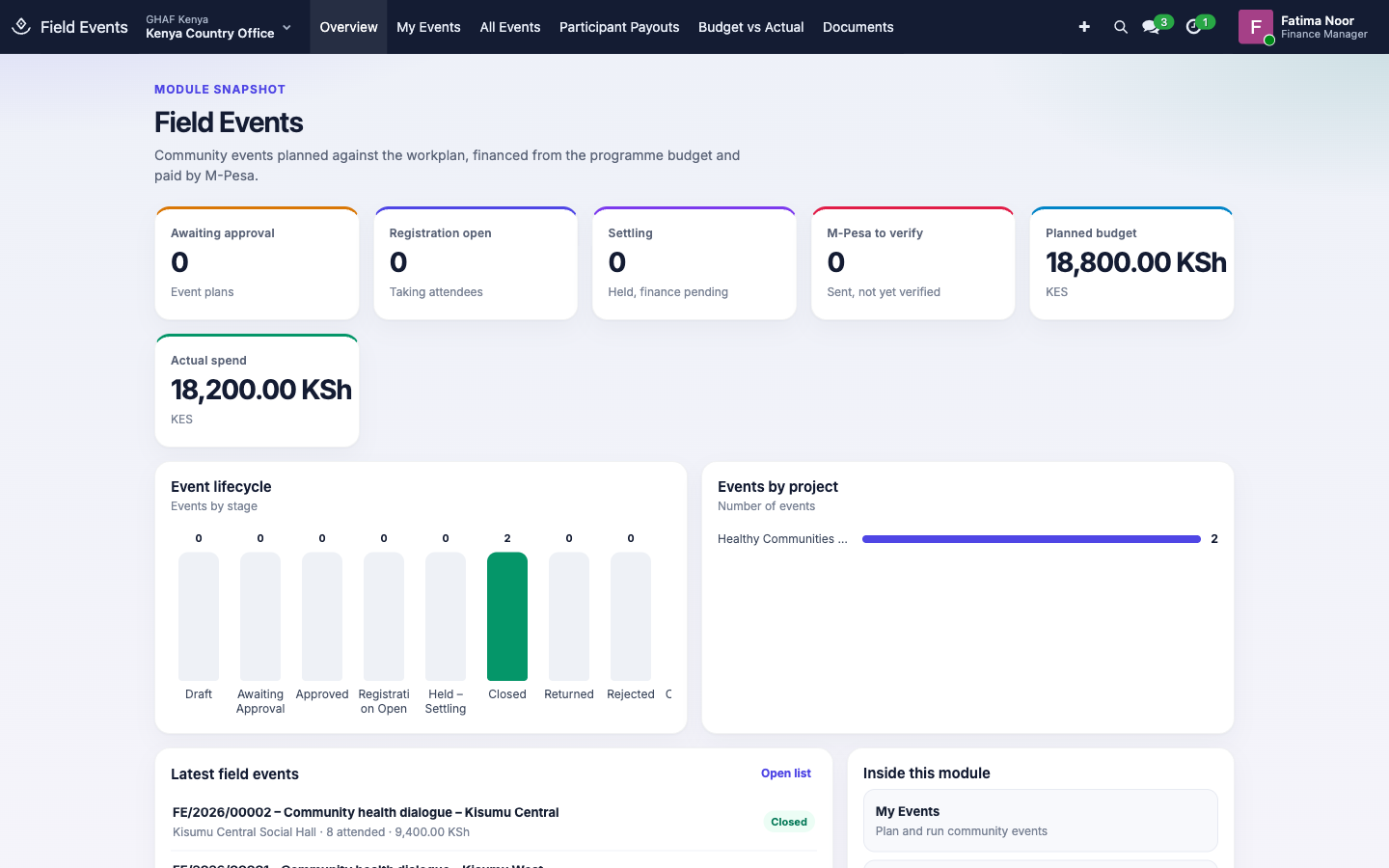
In plain words
- An event has a date, a venue, objectives, and an event budget: lines such as participant transport refunds, meals or venue hire, each charged to a budget line.
- Check Budget confirms the budget line has the money. Approval follows the office's Field Event policy.
- When approved, registration opens: a public page participants fill in on their phones, with their M-Pesa number and consent. Staff can also enter people directly.
- After the event, the officer records who attended and closes attendance. Each attendee's payout comes from the participant payment line.
- Pay Participants makes a payout batch, approved under the office's Payment policy, then paid by M-Pesa, bank or cash. Every payment is verified with its reference before it's posted.
- Supplier costs (caterer, venue, printing) are entered on the event and become vendor bills that finance posts.
- The event closes once the payouts and bills are posted and the report is written. Planned against actual is kept per budget line.
Before you start
- Each office has active Field Event and Payment approval policies in its currency. See the approval checklist.
- The project has an active budget line for events, such as Healthy Communities: community events and participant support, and a workplan activity.
- Configuration › Event Expense Lines has the kinds of cost you use: participant transport and lunch allowances, venue, meals, materials, facilitation.
- Payment providers are set up for the legal entity (in Travel). M-Pesa needs its live credentials before it moves real money.
- Suppliers exist as contacts, so their bills can be raised.
Who uses it
| Role | What they do | Access level |
|---|---|---|
| Programme officer | Plans events, opens registration, records attendance, raises payouts and supplier costs, closes events. MEAL officers have this. | Field Events › Programme Officer |
| Events manager | Sees all events of their offices and Budget vs Actual. Programme managers and Country Directors have this. | Field Events › Events Manager |
| Events finance | Pays out, verifies and posts payout batches. Finance managers have this. | Field Events › Events Finance |
| Events administrator | Maintains event expense lines. | Field Events › Events Administrator |
| Approver | Decides events and payout batches in Approvals. | Named in the office's Field Event and Payment policies |
| Menu | What's there |
|---|---|
| Overview | Events by stage, planned and actual spend, events by project |
| My Events, All Events | Your events; every event (managers) |
| Participant Payouts | Payout batches and their state |
| Budget vs Actual | Planned against actual, per event and budget line (managers) |
| Configuration | Event Expense Lines |
An event's life
Draft → Awaiting Approval → Approved → Registration Open → Held – Settling → Closed
(or Returned, Rejected, Cancelled)
1. Plan the event
- Open My Events and click New.
- Enter the name, Event Type (training, dialogue, campaign, distribution…), Project and Workplan Activity, start and end, Venue, Expected Participants and Objectives.
- On Event Budget, add a line for each cost: Expense Line, description, Budget Line, quantity and unit cost. For example, transport refund, 8 participants × 500 KES.
- On Registration & Attendance, choose the Participant Payment Line (the budget line participants are paid from) and the Amount per Participant.
- Click Check Budget, then Submit for Approval.
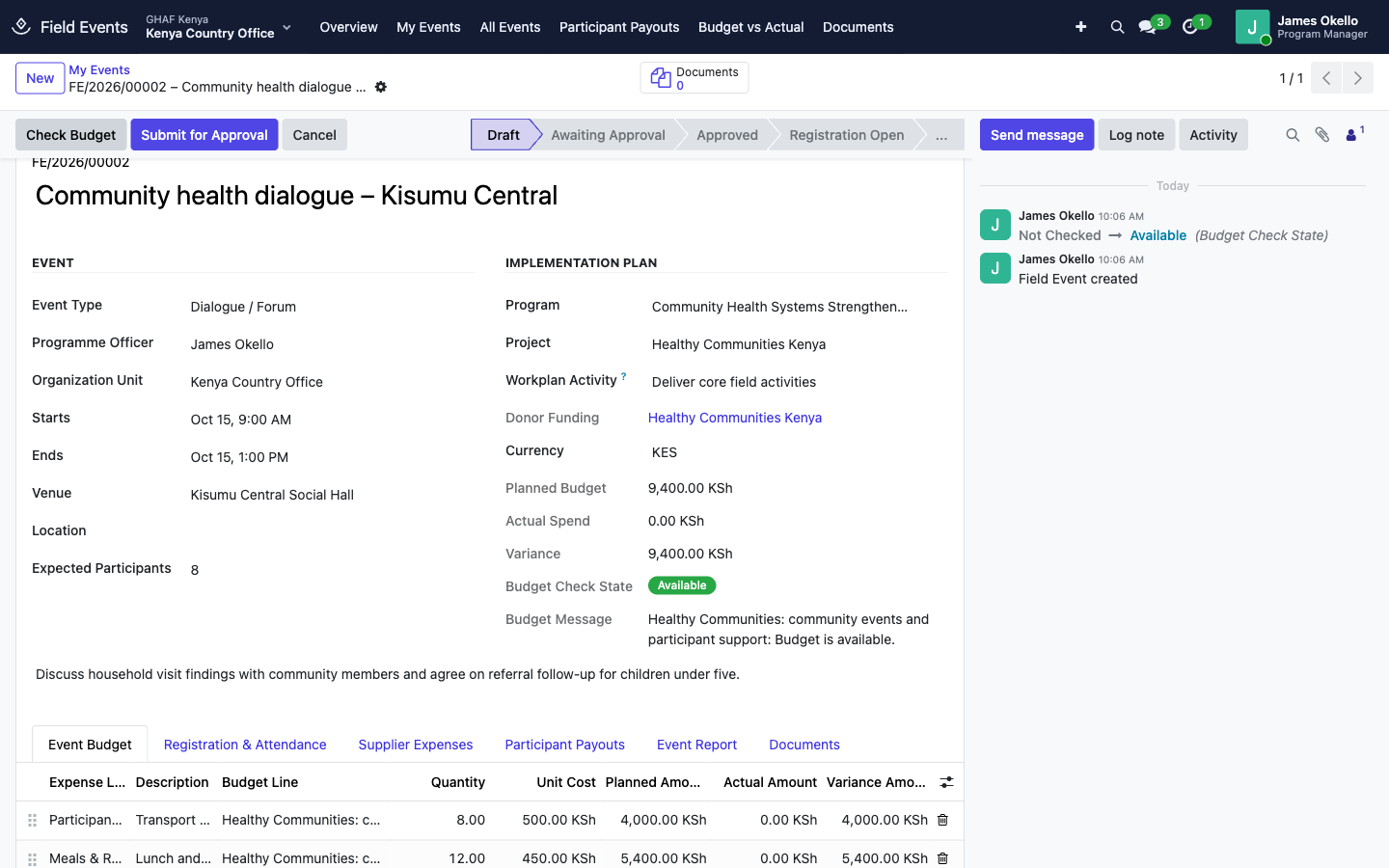
The approved budget is committed on the budget line until the event closes.
2. Register participants
- Click Open Registration. On Registration & Attendance, copy the Registration Url and share it by SMS, WhatsApp or a QR code at the venue. Set a Registration Deadline if you need one.
- Participants open the link on their phone and enter their name, M-Pesa phone number, the name on M-Pesa if different, ID number, gender and community, and confirm their consent.
- Staff can add people directly on the Attendees list too.
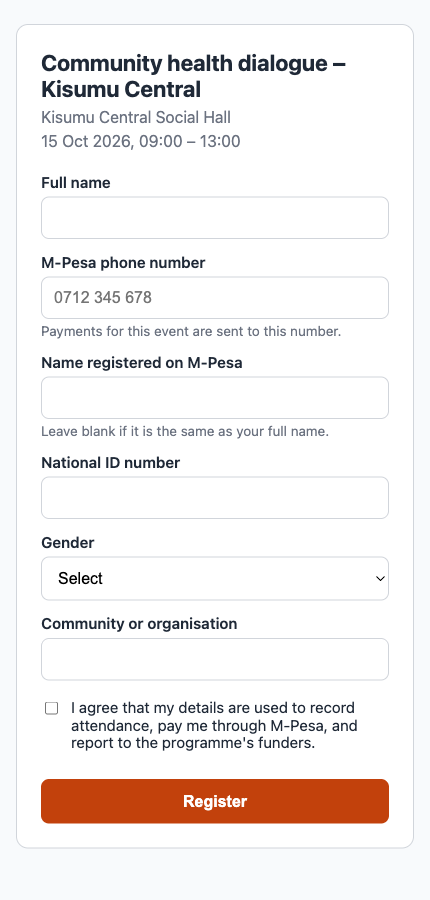
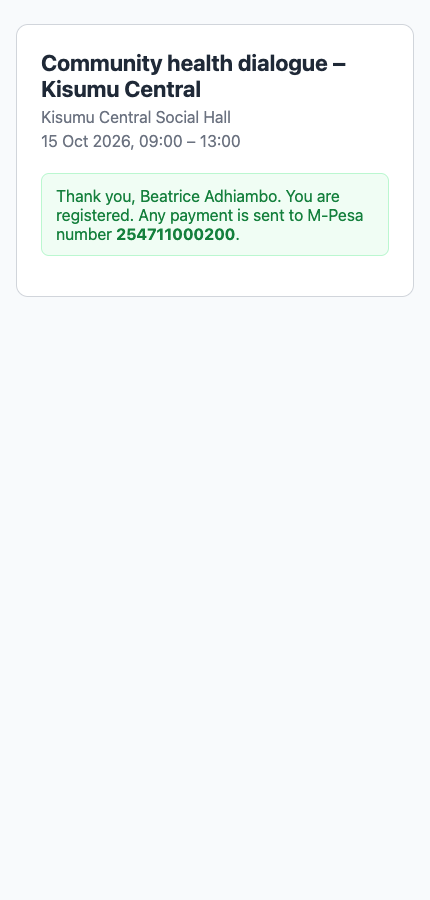
With Online Check-in Marks Attendance on, people who register while the event is running are marked as attended. A phone number can register only once per event.
3. Close attendance and pay participants
- On Attendees, tick Attended for everyone who came.
- Click Close Attendance. The event is Held – Settling.
- Click Pay Participants. A payout batch is made with one line per attendee not yet paid, at the participant amount.
- Choose Pay With (M-Pesa, bank or cash), check the payees, and click Submit for Approval.
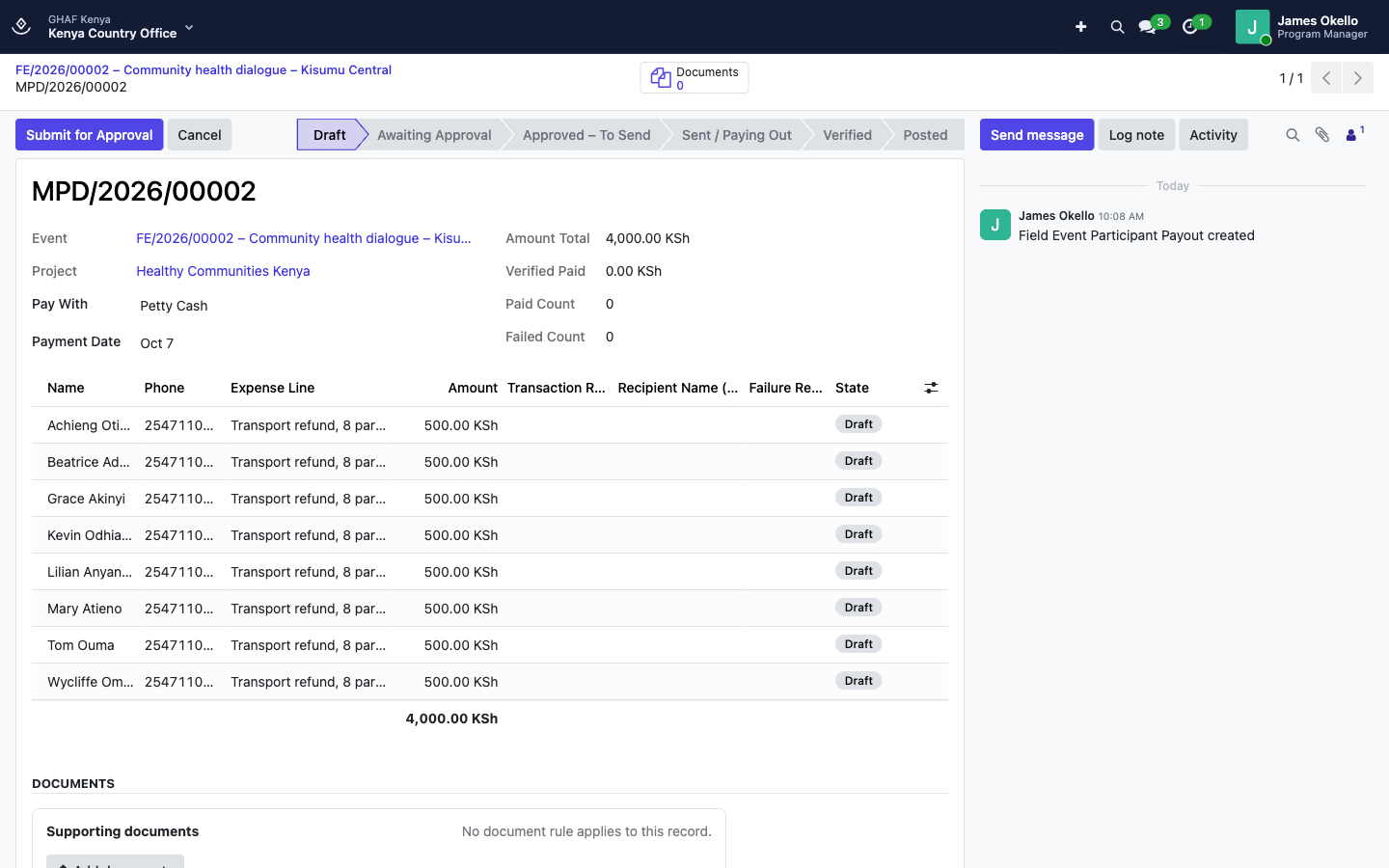
Finance then pays the approved batch in one of three ways:
| Paid by | Steps |
|---|---|
| M-Pesa, sent from Amana | Send Payments. Each payee's result comes back with its M-Pesa receipt. |
| M-Pesa bulk upload | Generate M-Pesa Bulk File, upload it to the M-Pesa portal, then Import M-Pesa Results with the results file. |
| Cash or bank, by hand | Mark Paid Out, type each payee's voucher or bank reference in Transaction Reference, then Verify Typed References. |
When every payee is verified (or marked Failed), click Post to Finance. The payout posts to the payment journal, charged to the event's budget line.
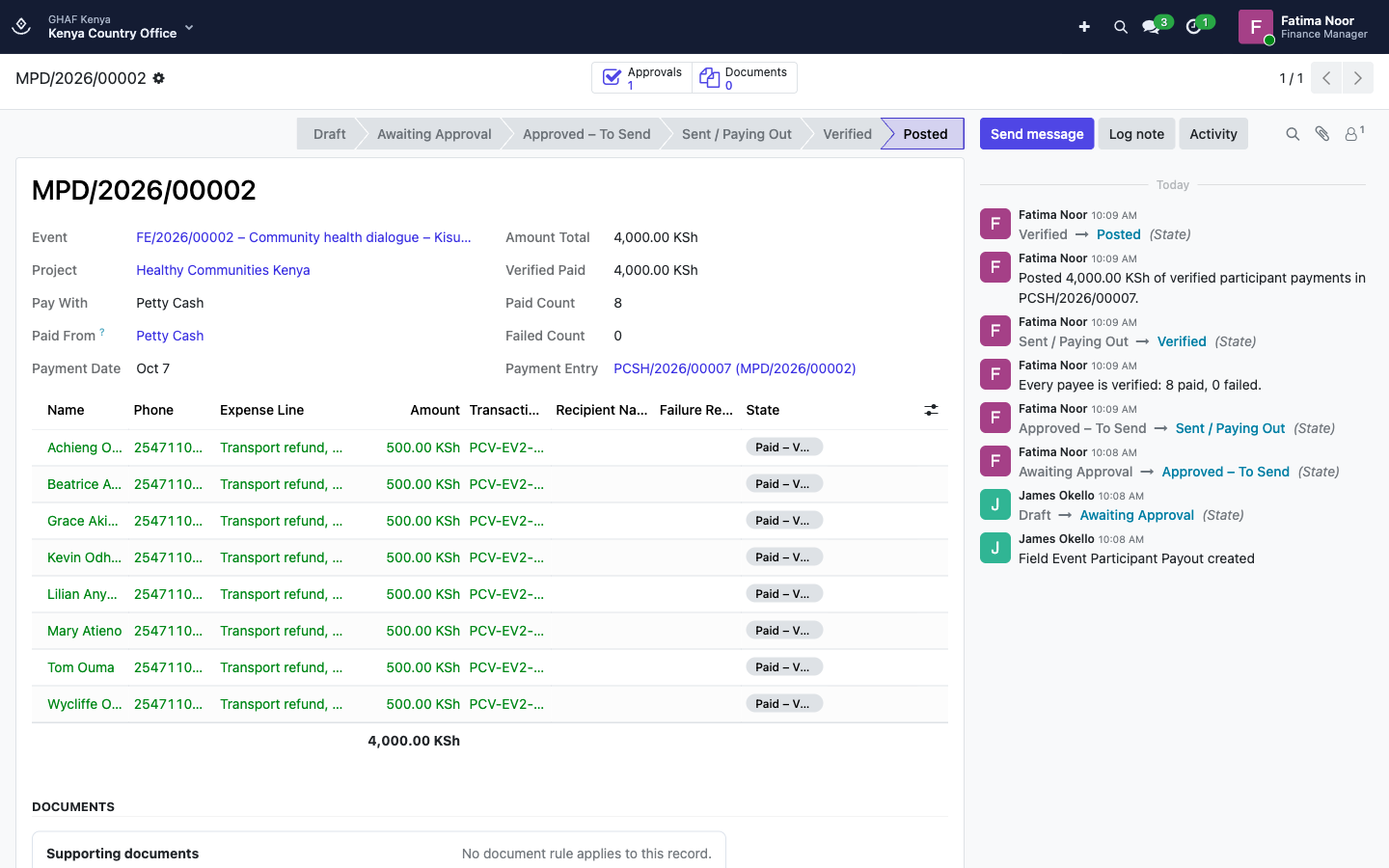
A payee whose payment failed stays unpaid. Click Pay Participants again to pay them in a new batch, for example in cash.
4. Supplier costs and closing
- On Supplier Expenses, add each supplier cost: the Expense Line, Supplier, description, amount and their invoice. Click Create Bill. A draft vendor bill is raised in Finance with the project, grant and fund.
- Accounts payable checks and posts the bill (Finance › Vendors › Bills). The expense shows Posted.
- Write the Event Report: what happened, who came, what was agreed.
- Click Close Event. The budget commitment is released, and the Event Budget shows planned, actual and variance per line.
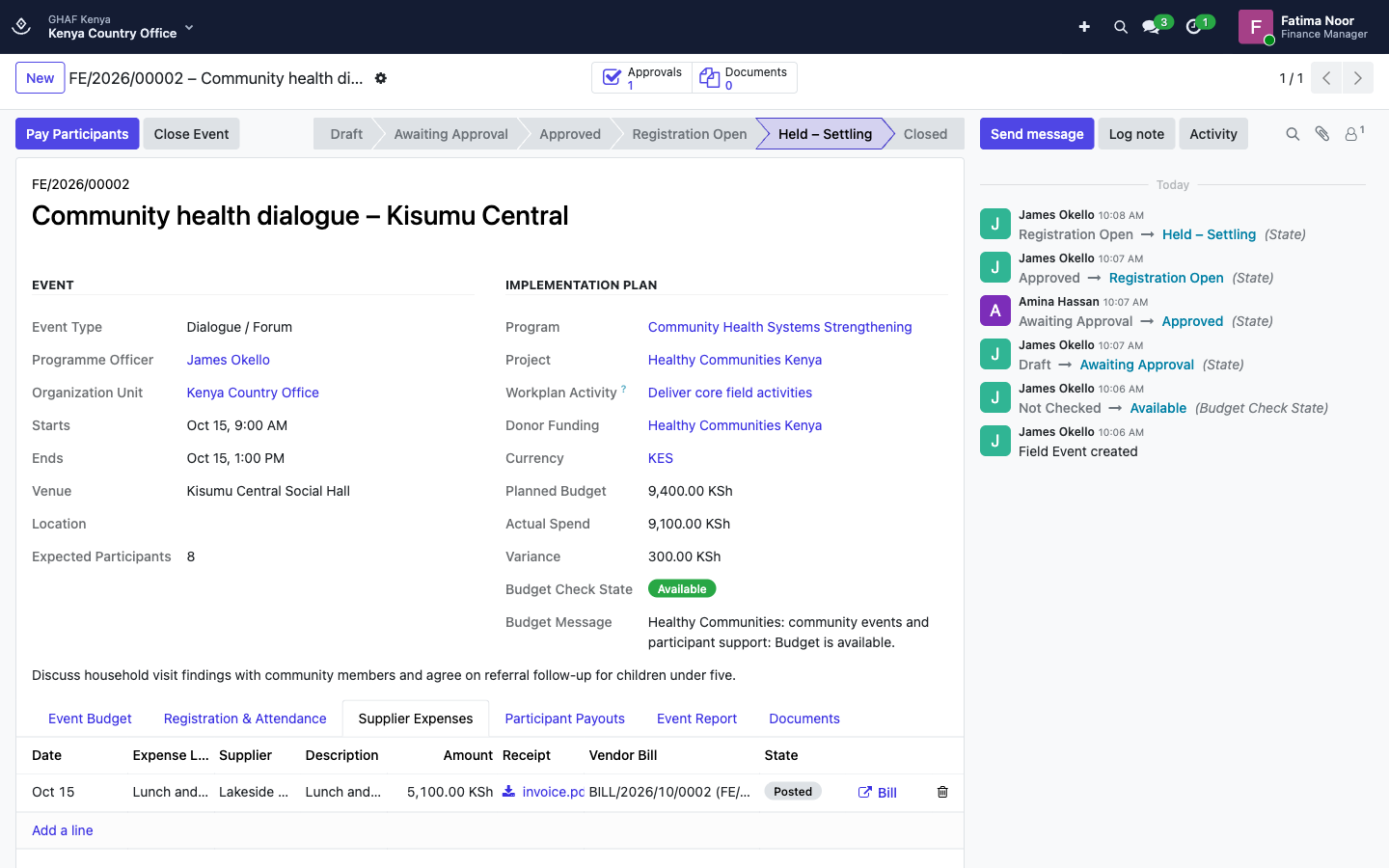
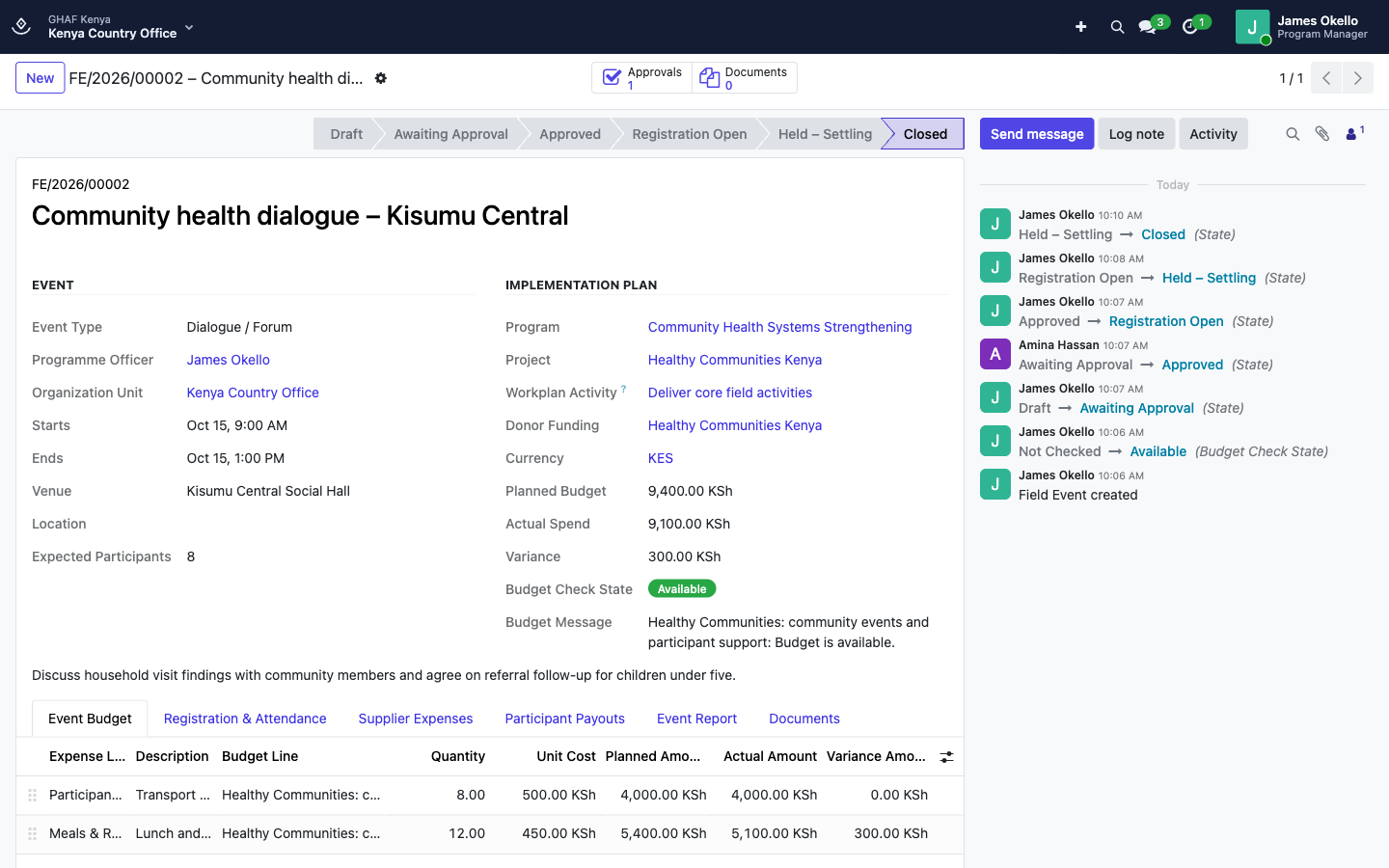
Budget vs Actual compares every event's plan and spend by budget line.
Troubleshooting
\"Budget control blocks this event: …\" / \"This event needs an approved budget exception before submission.\"
The budget line can't carry the event budget. Reduce it, choose another line, or ask the budget owner for a transfer or exception.
\"Add the event budget: at least one expense line.\"
Fill in the Event Budget before checking or submitting.
\"Record who attended before closing registration.\"
Tick Attended for the people who came, then Close Attendance.
\"Add a participant payment line to the event budget.\" / \"No attended participant is waiting for payment.\"
Set the Participant Payment Line on Registration & Attendance. If everyone who attended is already paid or in a batch, there's nobody left to pay.
\"… is paid by hand: use Mark Paid Out and record each reference.\"
Cash and bank payouts aren't sent from Amana. Use Mark Paid Out, type the references, then Verify Typed References.
\"Reference … is already used by another payment.\"
Every transaction reference must be unique. Check the voucher or receipt number.
\"Every supplier expense must have a posted bill before closure.\" / \"Write the event report before closure.\"
Ask accounts payable to post the bills, and complete the Event Report, then close the event.
Participants: \"Registration for this event is closed.\" / \"Enter a valid M-Pesa phone number, e.g. 0712 345 678.\"
Registration has passed its deadline or closed, or the number isn't a valid M-Pesa number. Staff can still add the participant on Attendees.