Timesheets
Staff Admin
Timesheets is where staff record the hours they work and what they worked on: a project and grant, or a cost centre for core work. Managers approve the time, and approved time decides how each salary is charged to grants. It's the evidence behind effort reports and the labour costs donors see.
Module: npo_timesheet
In plain words
- Every working day, staff record their hours. Each line says where the time went: a project, the award (grant) and fund paying for it, or a cost centre for work no grant pays for.
- Time is submitted, then approved by the person's manager (or a named timesheet approver). Approved time can't be changed.
- When payroll runs, each salary is charged in proportion to the person's approved hours that month. Six hours out of eight on a grant means 75% of that day's cost goes to the grant.
- Approved leave also appears as time, so a month adds up, but leave isn't charged to any grant.
- Staff who record nothing on a working day get a reminder the next day.
Before you start
- Staff who charge time have the Timesheet User role, plus their organisation and office on their user, so they can pick their grants (Settings › Users).
- Each employee has a Manager, or a Timesheet Approver on the employee's Timesheets & Costing tab.
- Projects, awards and funds exist and the award funds the project (in Grants).
- On each employee's Timesheets & Costing tab:
- Records Timesheets is ticked only for staff who should record time. Everyone ticked gets the daily reminder.
- Standard Hours per Day (8 by default).
- A Default Cost Centre, which gets salary cost for any time not covered by approved timesheets.
- Optionally a Fixed Cost Allocation (percentages by project, award and cost centre) for staff who don't record time.
Who uses it
| Role | What they do | Access level |
|---|---|---|
| Staff member | Records and submits their own time. | Timesheets › Timesheet User |
| Manager | Approves their team's time in Time to Approve. | Timesheets › Timesheet User (as the employee's manager or named approver) |
| Timesheet approver | Approves anyone's time and sees Time by Award / Project. | Timesheets › Timesheet Approver |
| Payroll interface officer | Exports approved hours and distributes an outside payroll's costs (Payroll Interface). | Timesheets › Payroll Interface Officer |
HR officers and recruiters get Timesheet User automatically, so they can see the grants they charge salaries to.
1. Record and submit your time
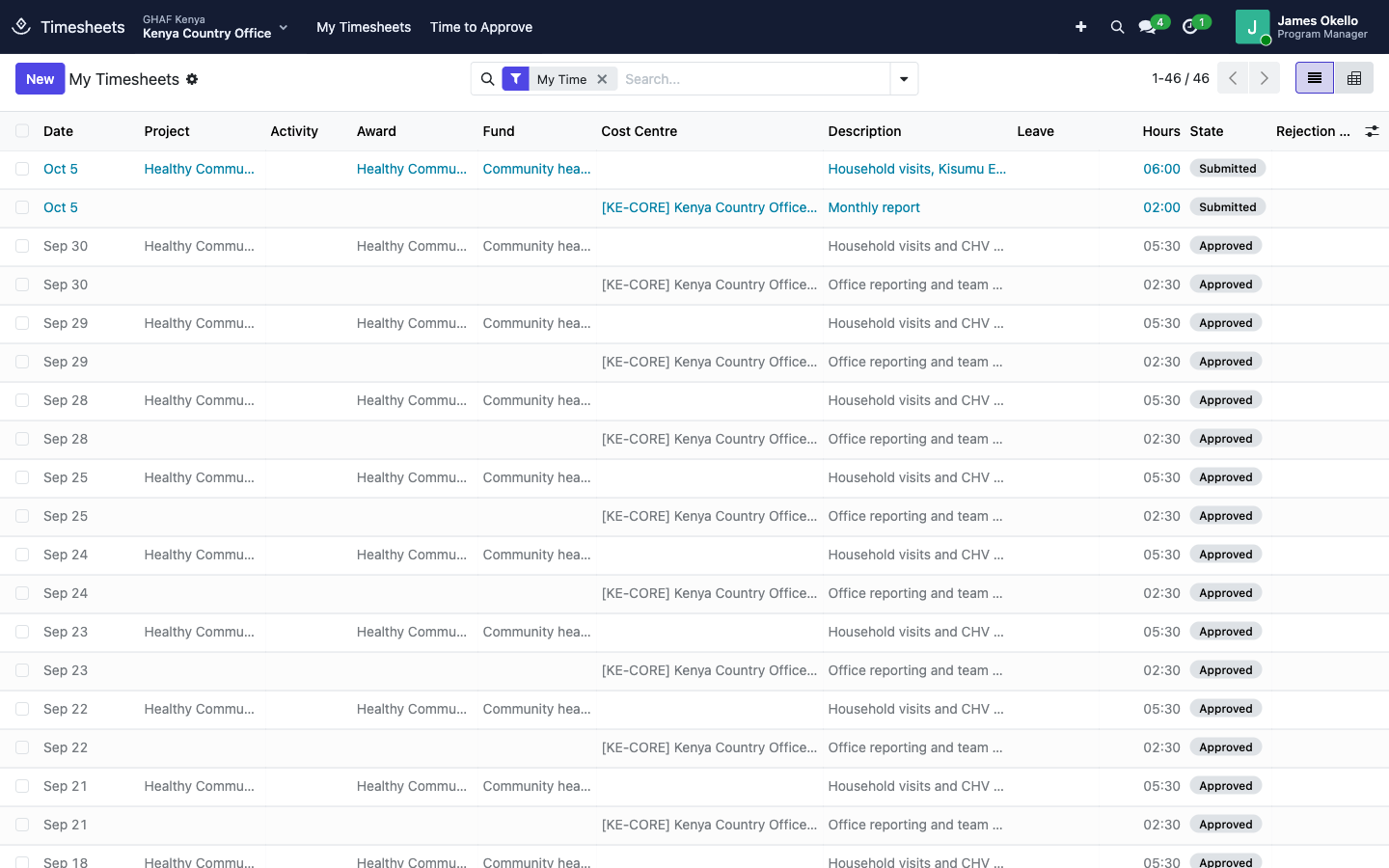
- Open My Timesheets and click New. A line opens at the top.
- Fill in:
- Date (today by default).
- For grant work: Project, Award and Fund, and the Activity if your project uses them. Picking the fund fills in its award, and picking the activity fills in its project.
- For core work: Cost Centre instead. Your default cost centre, if HR set one, is already filled in.
- Description: what you did.
- Hours, as hours:minutes (6:00).
- Save the line. Add one line per piece of work.
- Tick the lines to send and click Submit. Your manager gets an activity to approve them.
Record daily
The reminder comes the morning after a working day with no time. Recording daily keeps your effort report close to the plan and saves a long explanation at the end of the month.
2. Approve your team's time
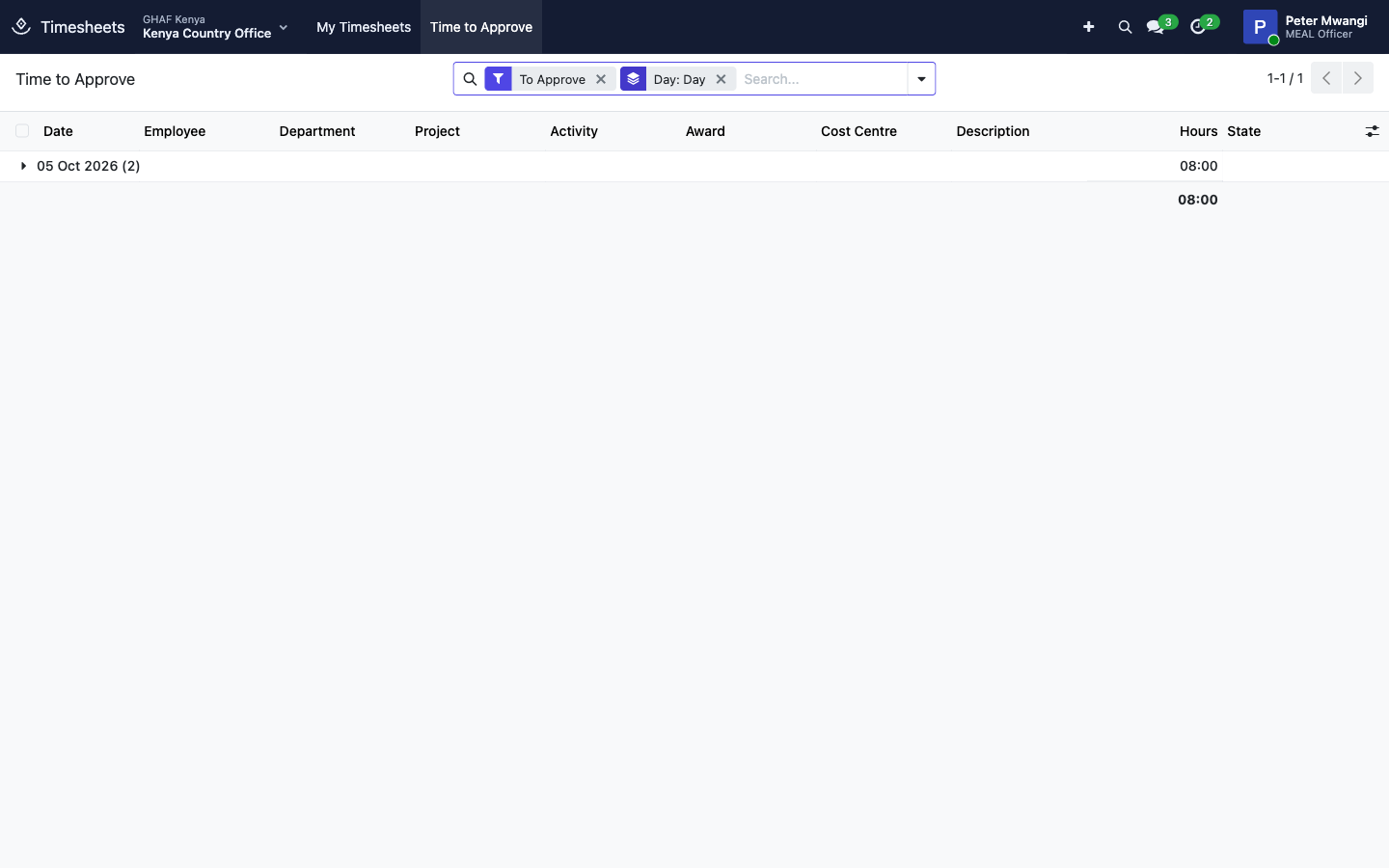
- Open Time to Approve. It lists submitted time waiting for you, grouped by day.
- Check the hours and where they're charged. Tick the lines, then click Approve or Reject.
- A rejected line comes back to the staff member marked Please correct and resubmit. Tell them what to change, for example in a message. They edit the line and submit it again.
Nobody approves their own time. A timesheet approver can approve anyone's.
3. See time by grant
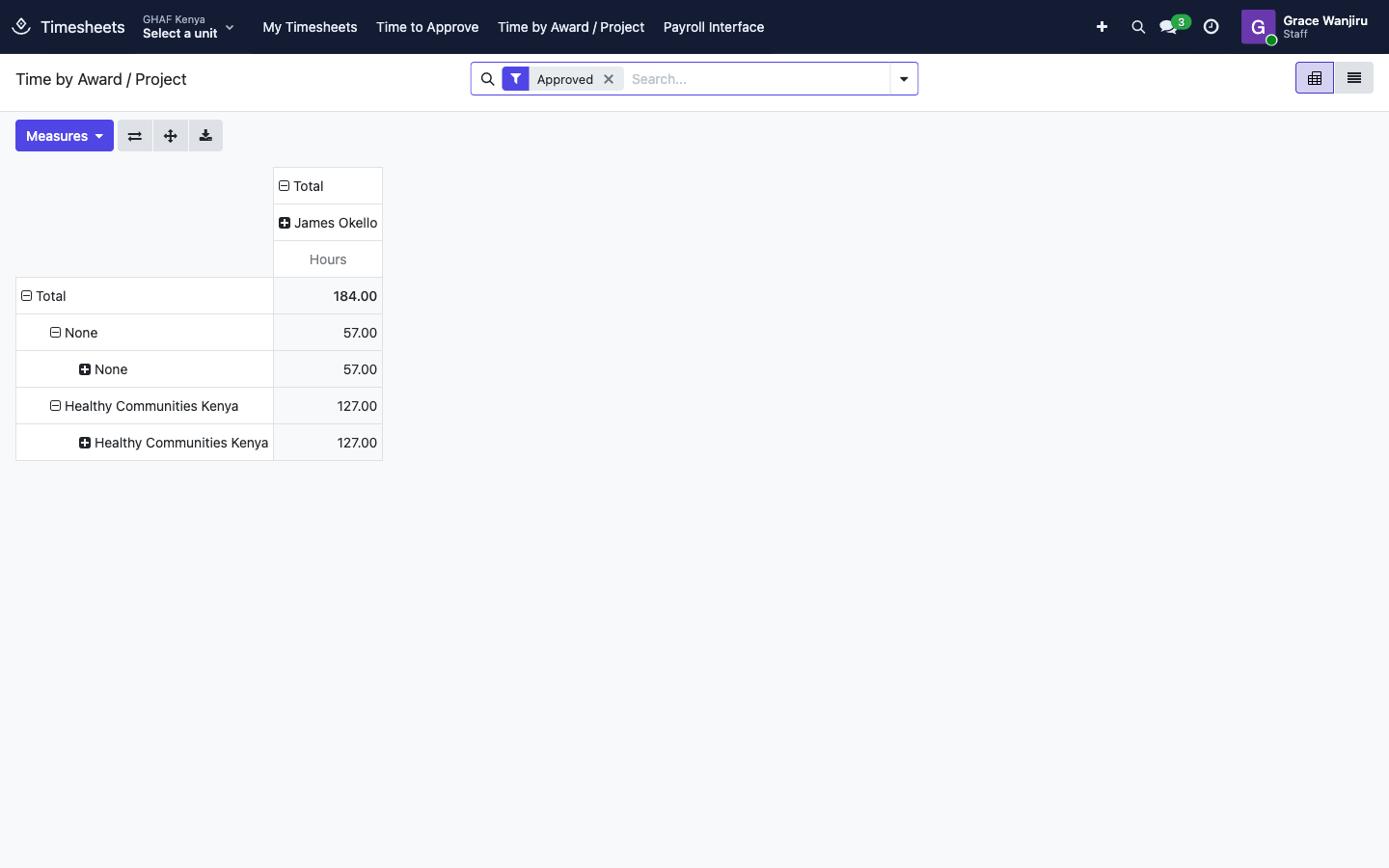
Time by Award / Project shows approved hours by award and project, per person. Time on cost centres shows under None. Switch to the list view, or use the filters and groupings, to drill in.
How salary costs are charged
When Payroll charges a salary for a period, it looks at the employee in this order:
- Approved worked time in the period. Cost is split in proportion to the hours.
- If there's none: the funding split of their employment contract.
- Then their Fixed Cost Allocation.
- Then their Default Cost Centre.
If none of these exist, payroll stops with … has no approved time in the period, no fixed cost allocation and no default cost centre.
Payroll interface (outside payroll)
Use this only if salaries are calculated in another payroll system. Amana's own Payroll charges grants by itself.
- Payroll Interface › Export Hours to Payroll downloads an Excel file of approved hours for a period and legal entity (optionally some departments): a Summary sheet per employee and a Daily Detail sheet.
- Payroll Interface › Payroll Cost Distribution takes the outside payroll's cost per employee and charges it to grants by approved hours:
- New: name, legal entity, period, journal, Salary Expense Account and the clearing account the outside payroll's entry clears.
- Load Employees with Approved Time, then enter or check each person's cost. The cost can instead be Computed from employee hourly cost.
- Distribute by Timesheets, then Post to Ledger.
Troubleshooting
\"Choose the fund of …. Time charged to an award needs its fund.\"
Pick the Fund on the line. Picking the fund first fills in the award for you.
\"… does not fund ….\" / \"The fund must belong to the award.\" / \"The activity must belong to the project.\"
The project, award, fund and activity don't belong together. Pick the award that funds this project, and one of its funds.
\"… is closed and cannot take new time.\"
The grant has closed. Charge the time to the grant that pays for the work now, or to a cost centre.
\"… already has … hours on …; a day has 24.\"
The lines for that day add up to more than 24 hours. Correct the hours.
\"Submitted or approved time cannot be edited. Ask the approver to reject it first.\"
Ask your manager to Reject the line, then correct it and submit again.
\"You can record time only for yourself.\"
Staff record their own time. A manager who needs to record time for someone else asks HR.
\"You cannot approve your own time.\" / \"Only … or a timesheet approver can decide this time.\"
Time is approved by the employee's manager or named approver, or by a Timesheet Approver.
I get a reminder every day but I don't record time
HR unticks Records Timesheets on your employee record (Timesheets & Costing tab).