Approvals
Staff Admin
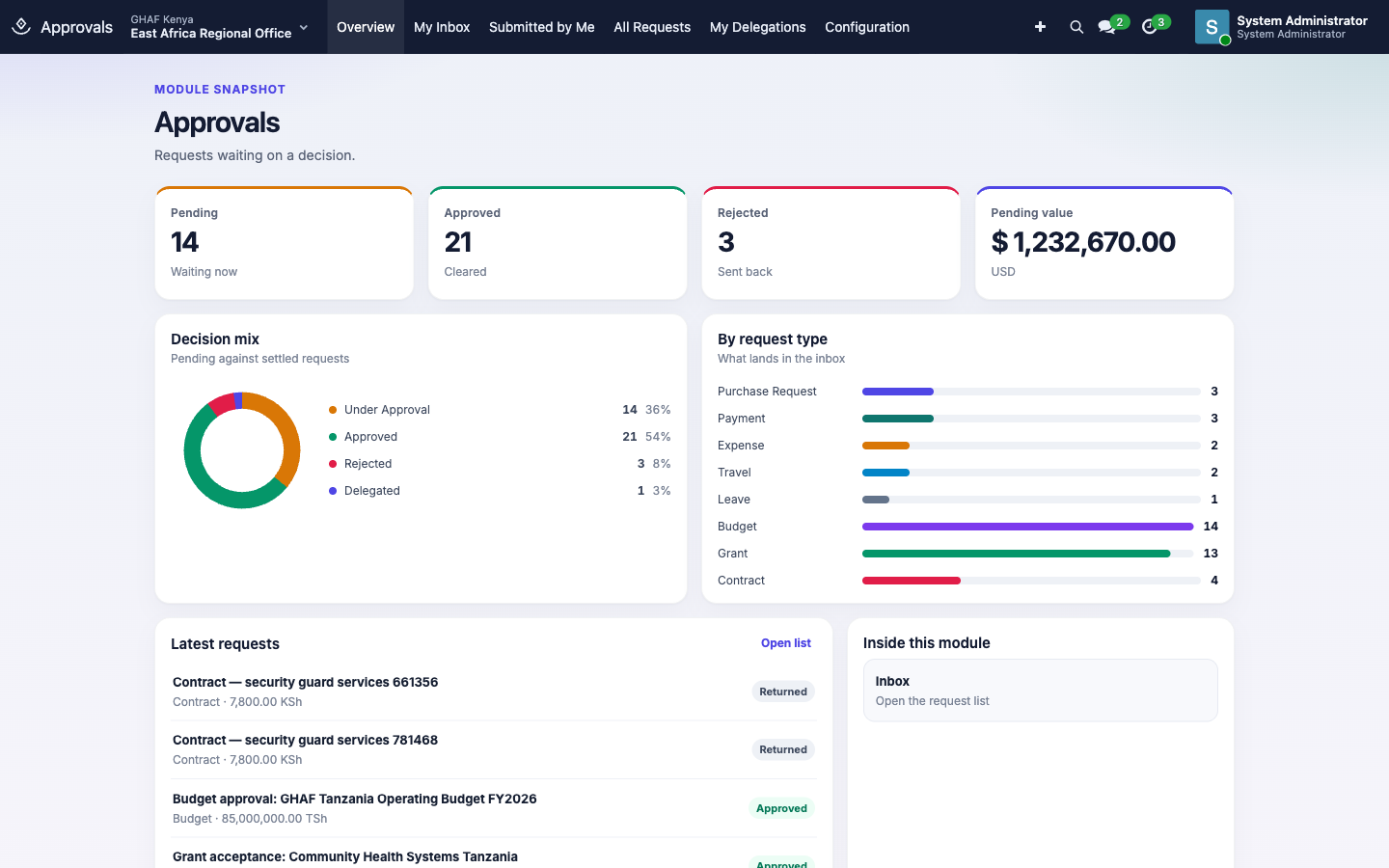
Approvals is the single place where requests from every Amana app wait for a decision. A purchase request, a travel advance, a leave request or a budget revision all become an approval request here. Each one is routed to the right people by rules your organisation sets up once.
Module: npo_approvals
Approvals in plain words
- Some actions need a "yes" from someone else before they go ahead. For example, a project going live, a travel advance, a leave request or a purchase.
- When you click Submit, Amana asks one question: who has to say yes to this?
- The answer comes from an approval policy: a rule written once by an administrator, such as "Kenya projects are approved by the Country Director."
- Amana picks the policy that matches what is being requested (its type), where (the office) and in which currency. It then sends the request to the people that policy names, in order.
- If no policy matches, nothing can be sent, and you see No active approval policy matches this request. That is never the requester's fault. It means a policy hasn't been set up yet for that office, type and currency.
Every office needs a policy for every type of request it uses
A policy only covers one request type, in one currency, for the office it's scoped to. When you open a new office or start using a new app there, check this list and create any missing policies before staff need them.
| App | Request type | Typical currency |
|---|---|---|
| Programs & Projects | Project | The office's currency (KES, UGX, TZS) |
| Grants, Subawards | Grant (Go / No-Go, proposal sign-off, award acceptance, subaward approval) | The donor's currency, usually USD |
| Budgets | Budget | The office's currency |
| Travel | Travel, Travel Settlement, Payment | The office's currency |
| Field Events | Field Event | The office's currency |
| Leave | Leave | The office's currency |
| HR / Recruitment | Employment Contract, Staff Requisition, Job Offer | The office's currency |
| Payroll | Payroll (optional: without it, a Payroll Manager approves the run on its form) | The office's currency |
| Fleet | Vehicle Request | The office's currency |
| Procurement | Purchase Request (requisitions, procurement plans, sourcing awards) | The office's currency |
| Documents | Document (document types that need review, e.g. Organizational policy). Disposal batches use it too if it exists; otherwise a second Documents Manager approves. Leave Scope Unit empty, because many documents have no office. | The submitter's company currency |
If an office deals in two currencies for the same type, for example grants from USD and EUR donors, it needs one policy per currency.
Who uses it
| Role | What they do | Access level |
|---|---|---|
| Requester (any staff member) | Submits requests from their own app and follows them in Submitted by Me. | Approvals › User |
| Approver | Approves, returns or rejects what lands in My Inbox. | Approvals › User |
| Approval manager | Sees every request in their part of the organisation through All Requests. | Approvals › Manager |
| Approval administrator | Sets up policies, authority limits, separation-of-duty rules and delegations. | Approvals › Administrator |
Each level includes the one above it. An administrator sets these under Administration › Users & Access.
How a request moves
flowchart LR
    A[Draft] -->|Submit| B[Under Approval]
    B -->|Every step approves| C[Approved]
    B -->|Return with reason| D[Returned]
    D -->|Requester fixes and resubmits| B
B -->|Reject with reason| E[Rejected]- Returned sends the request back to the requester, who can change it and submit again.
- Rejected is final. The requester has to start a new request.
- When a request is approved or rejected, the app it came from is told, so the purchase request, travel request or other document updates its own status.
One policy per request
When you submit, Amana picks one active approval policy that fits the request. The policy's steps decide who approves and in what order. If no policy fits, you'll see No active approval policy matches this request. See Troubleshooting.
For staff
Submit a request
You don't usually create approval requests in the Approvals app. You raise them in the app where the work happens:
- Open the document in its app, for example a purchase request in Procurement or a travel request in Travel.
- Fill it in and click the app's submit button, for example Submit for Approval.
- Amana creates the approval request, finds the right policy and sends it to the first approver.
The document shows its approval status. Use its Approval History or Approval Request button to open the approval request itself.
Follow your requests
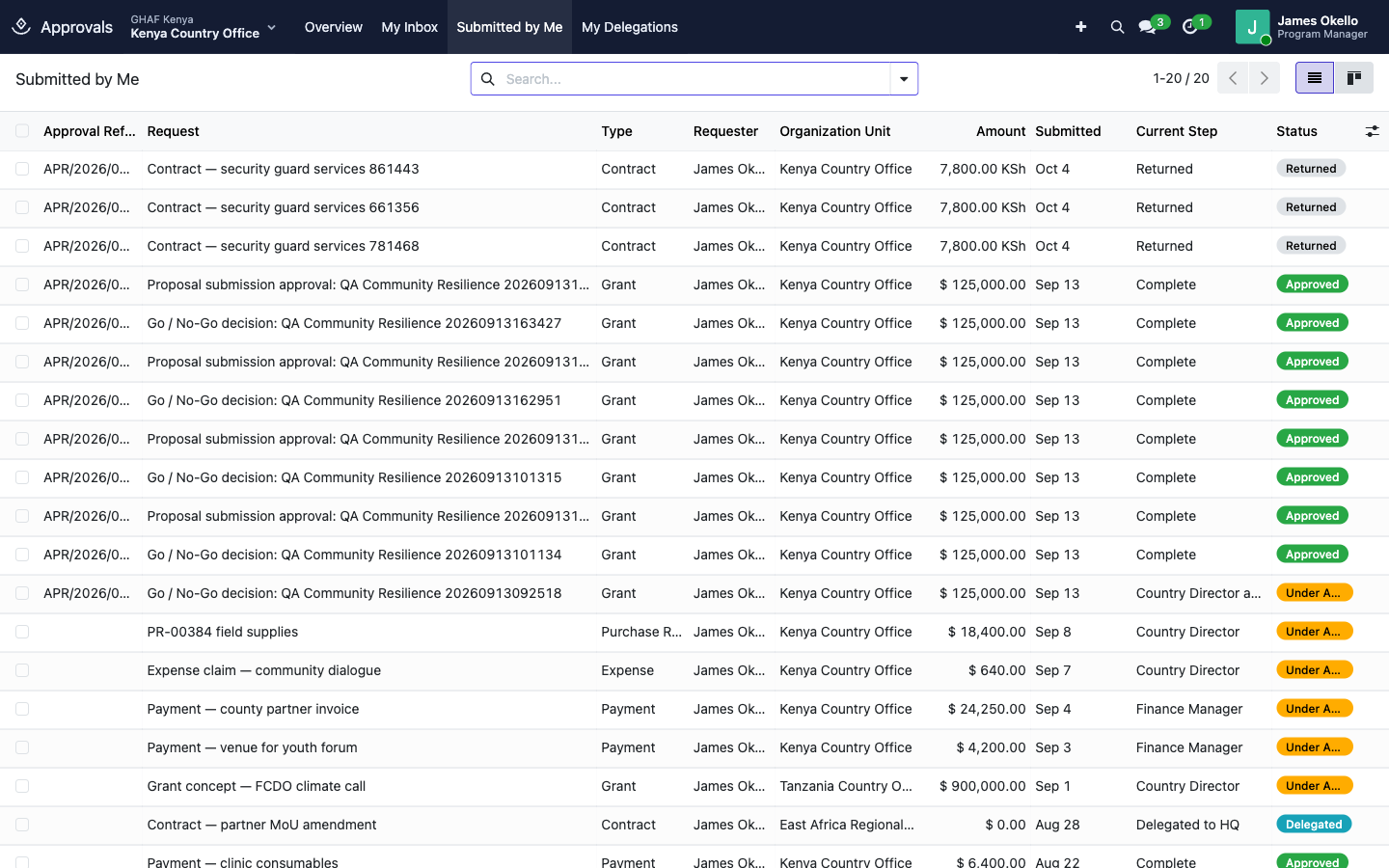
- Open Approvals › Submitted by Me.
- Each row shows the Current Step and the Status.
- Open a request to see the Approval Progress tab: every step, who it's with, and who has acted.
Fix a returned request
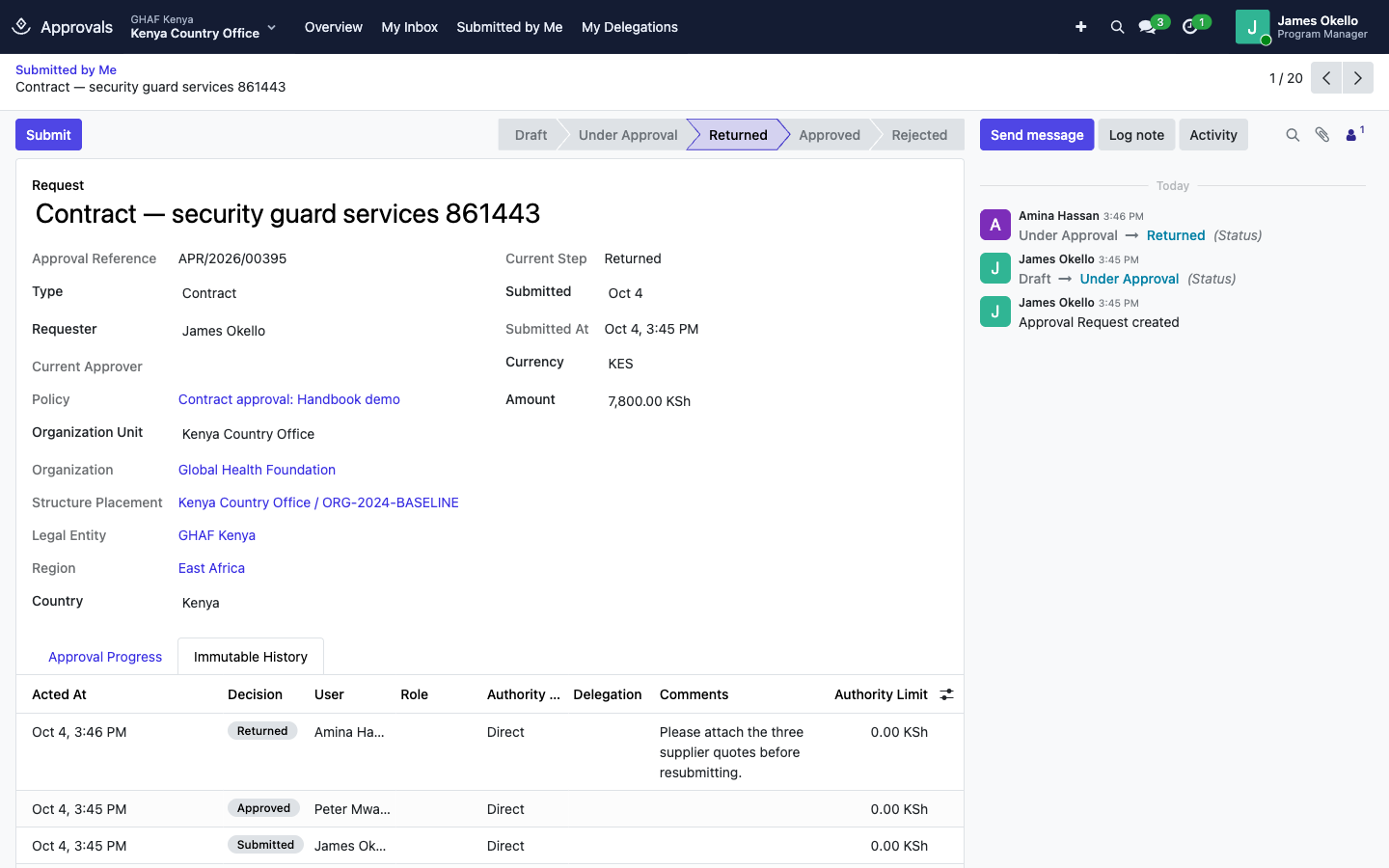
If an approver returns your request, the Status changes to Returned and their reason is shown in the Immutable History tab.
- Open the request (or the original document) and read the reason.
- Make the change. You can only edit your own requests while they are Draft or Returned.
- Click Submit again. The request starts again from the first step.
Approve, return or reject
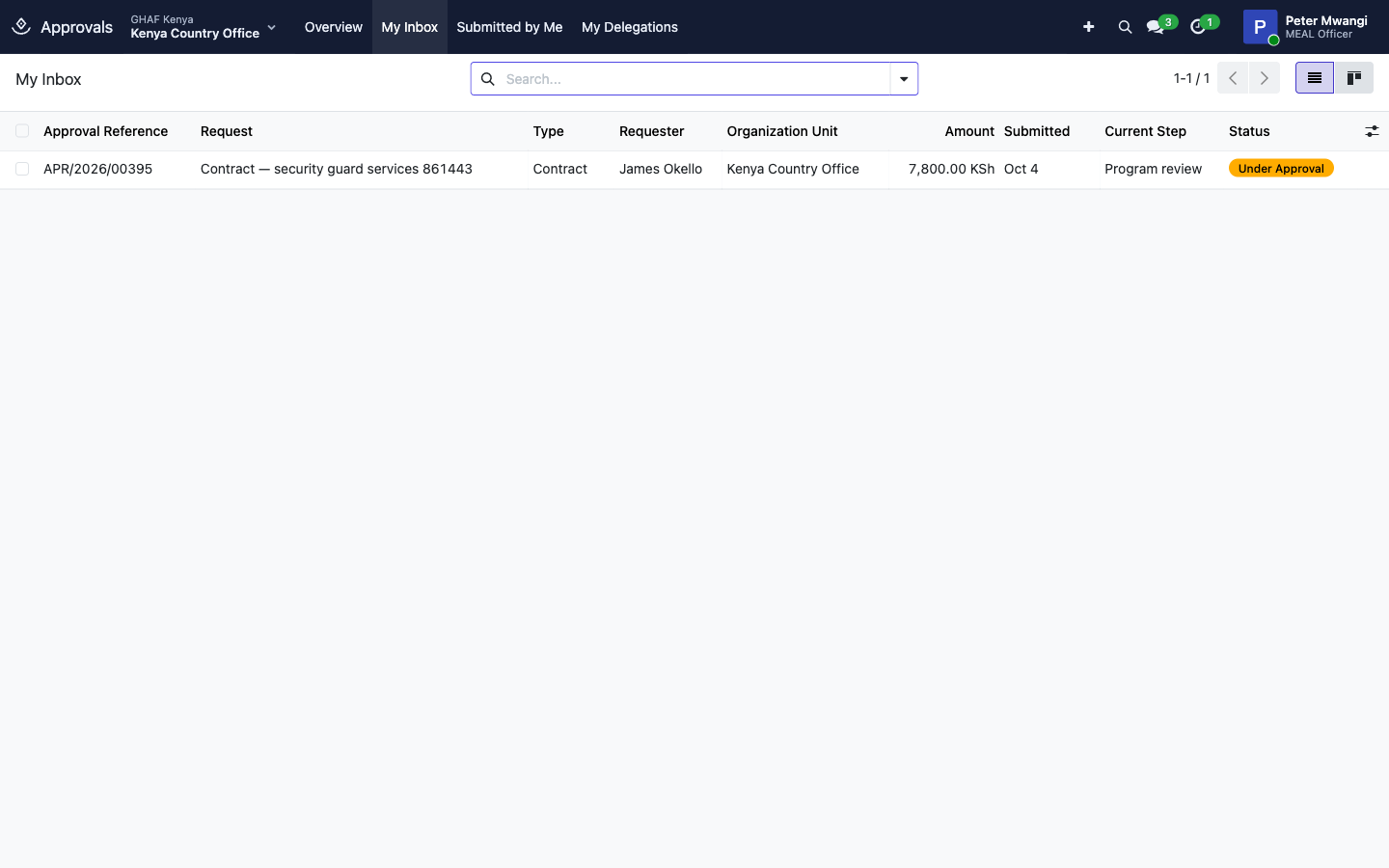
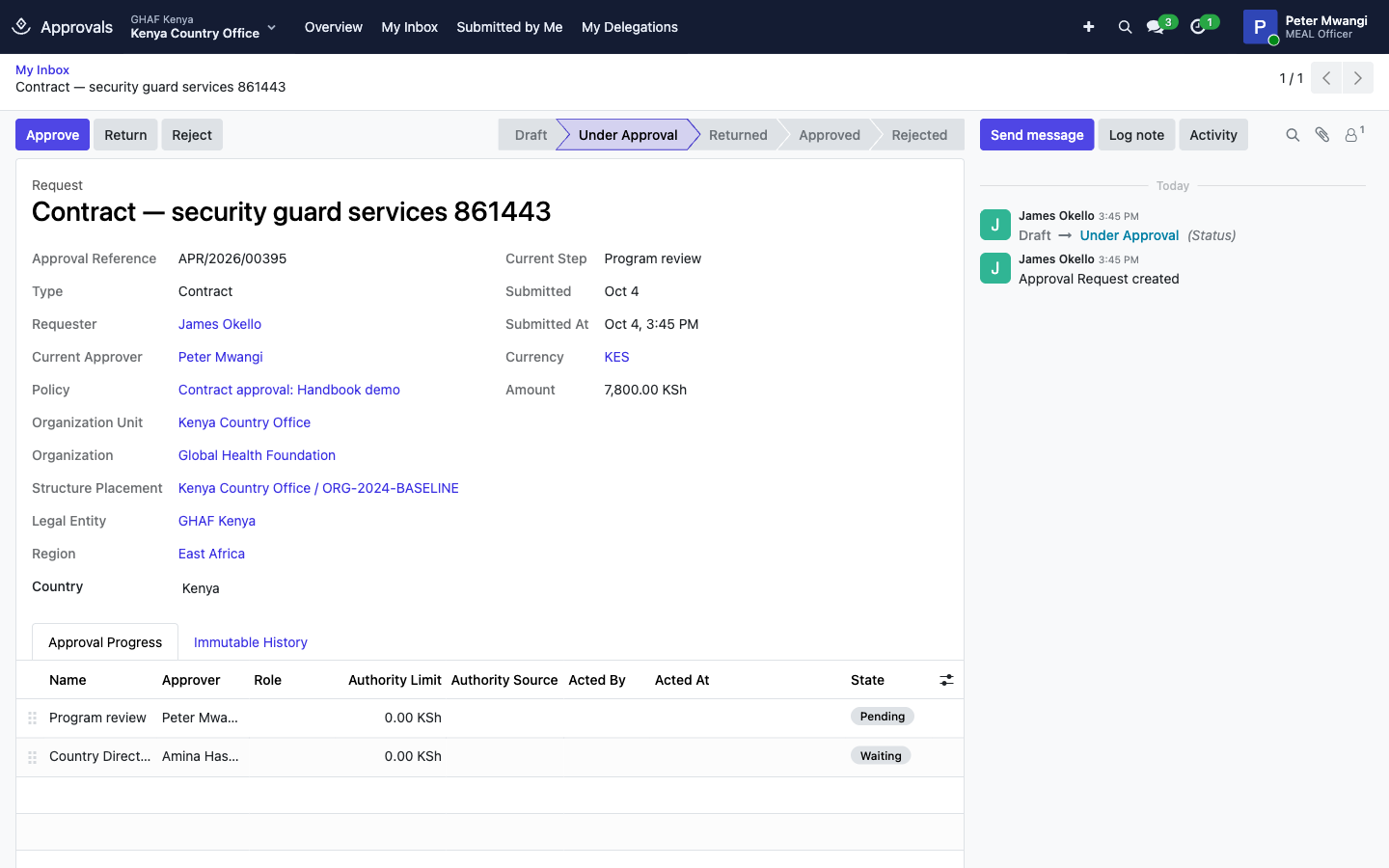
- Open Approvals › My Inbox. It lists every request waiting for you, either because you are the current approver or because someone delegated their approvals to you.
- Open a request. Check the amount, the requester and the Approval Progress tab.
- Choose one:
- Approve: your step is complete. The request moves to the next step, or becomes Approved if yours was the last.
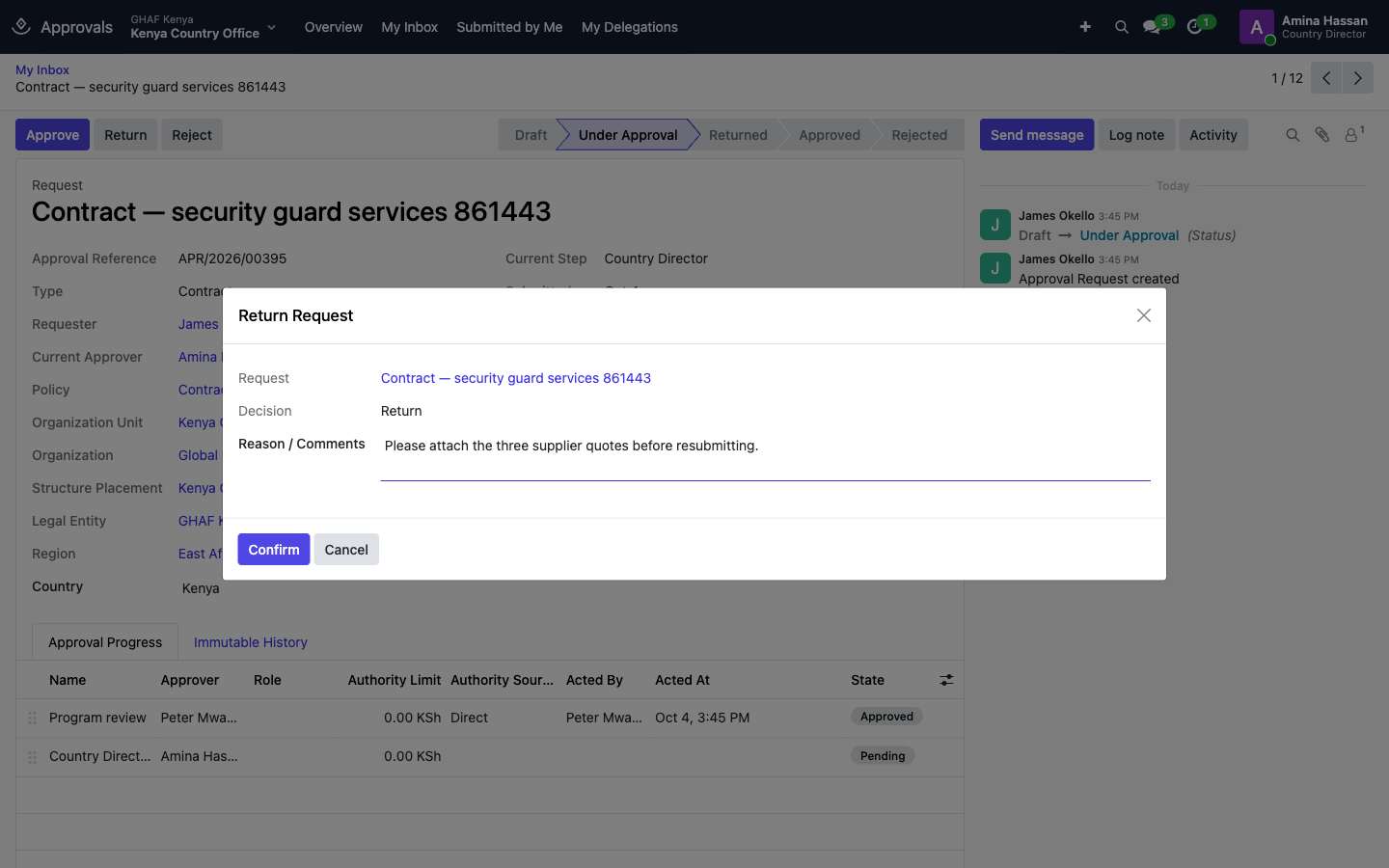
- Return: sends it back to the requester to fix. Write what needs to change.
- Reject: stops the request for good. Write why.
- Return and Reject open a box for Reason / Comments. A reason is required. Click Confirm.
The launcher badge
The number on the Approvals tile counts pending requests where you are the current approver. Country directors, finance managers and system administrators see every pending request they can access, so their badge is usually larger than their inbox. My Inbox is always the true list of what's waiting for you.
Cover for someone on leave (delegations)
If you'll be away, ask an approval administrator to set up a delegation. While it's active, your delegate sees your requests in their My Inbox and can act on them. You can still act on them too.
Open Approvals › My Delegations to see delegations you've given or received. Only an administrator can create or change them. See Set up a delegation.
For administrators
Before you start
Approvals depends on the organisation structure. Check these in Organization first:
- The organisation, legal entities and country office units exist.
- People & Responsibility has a current holder for every role your policies will use, such as Country Director or Finance Manager, in the right unit.
- If you'll use Requester's Manager steps, each employee has a Manager set in their employee record, and that manager has a user account.
Build an approval policy
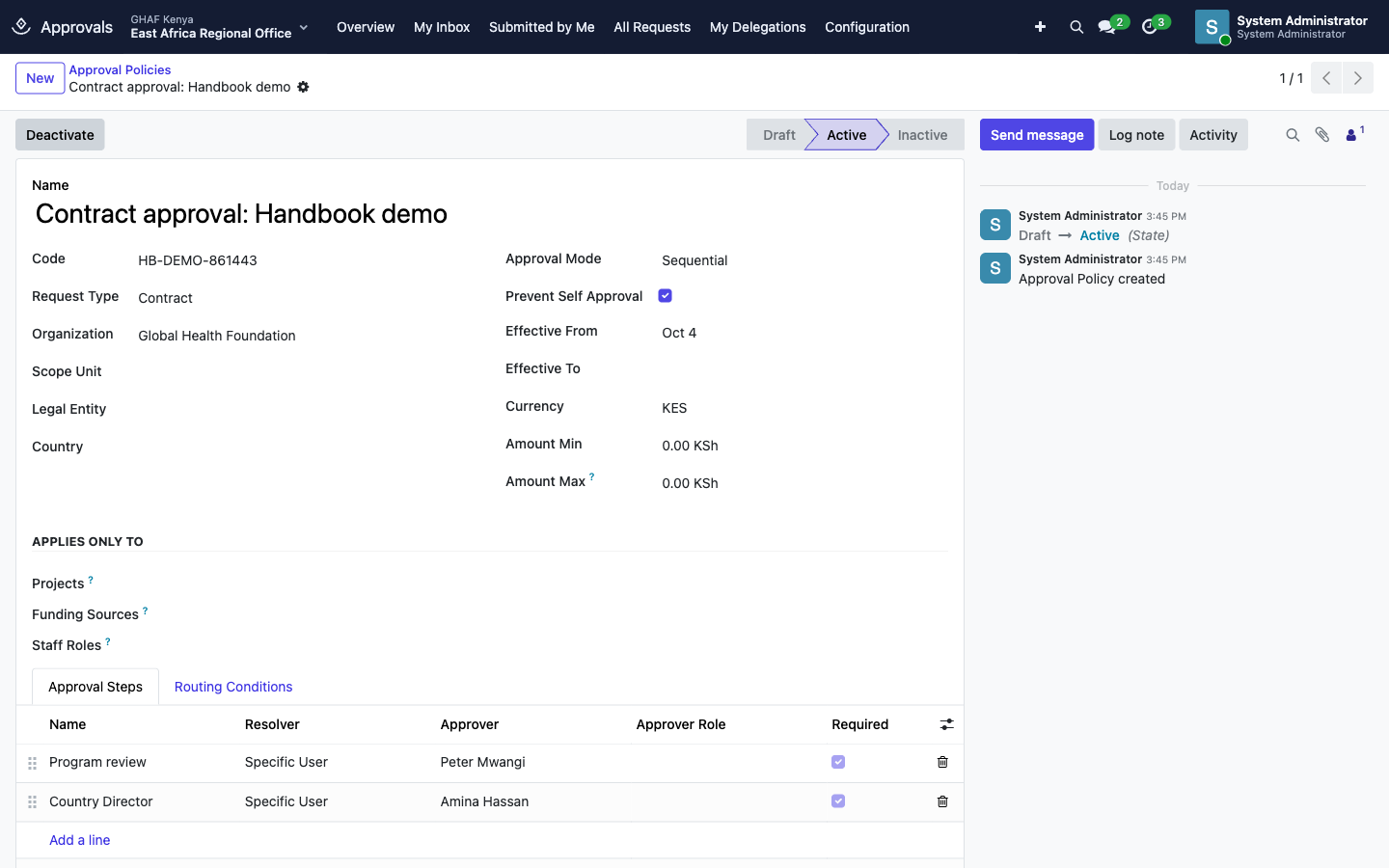
- Open Approvals › Configuration › Approval Policies and click New.
-
Fill in the header:
Field What to enter Name / Code A readable name and a short code. The code must be unique inside the organisation, e.g. PUR-KE-CO.Request Type The kind of request this policy handles, e.g. Purchase Request or Travel. Organization Required. Scope Unit Optional. Limits the policy to this unit and every unit below it, e.g. Kenya Country Office. Legal Entity / Country Optional extra filters. Currency, Amount Min, Amount Max The amount band. The request must be in the same currency. Leave Amount Max at 0 for no ceiling. Approval Mode How the steps run (see below). Prevent Self Approval On by default. Stops anyone approving their own request. Effective From / Effective To When the policy applies, judged on the request's submitted date. -
On the Approval Steps tab, add one line per step, in order. For each step, set a Name and how the approver is found (Resolver):
Resolver Who approves Specific User The named Approver. Simple, but you'll need to edit the policy when people change jobs. Organizational Role Whoever holds the Approver Role in the request's unit on the submitted date. Recommended. Requester's Manager The requester's manager from their employee record. Unit Manager Like Organizational Role. Set the Approver Role too. Custom Resolver Reserved for rules built by a developer. Don't use it unless you've been told to. -
Optional columns (open them from the column menu at the end of the steps table):
- Amount Min / Amount Max on a step: the step only applies when the request's amount is in that band. Use this to add, for example, an Executive Director step only above USD 50,000.
- Self-approval Escalation Role: who approves instead if the resolved approver turns out to be the requester.
- Require Authority Matrix: blocks submission unless the step's role has a matching authority limit (see below).
- Required: used by Quorum mode.
- Optional: narrow the policy under Applies Only To:
- Projects, Funding Sources and Staff Roles (the requester's job position). Leave a field empty to cover all of them.
- The request carries these values when its app knows them, for example a travel advance charged to a project, or a leave request from a given job position.
- Optional: on the Routing Conditions tab, add conditions to a step. A step only applies when all its conditions match the request. You can test Amount, Country, Legal Entity, Organization Unit, Project, Funding Source or Staff Role. For example, add the Finance Director step only when Amount is At Least 1,000, or only for one project.
- Save, then click Activate. A policy needs at least one step before it can be activated.
Approval modes
| Mode | How it works |
|---|---|
| Sequential | One step at a time, in order. The usual choice. |
| Parallel | All steps get the request at once. Every step must approve. |
| Any One | All steps get it at once. The first approval completes the request and the other steps are skipped. |
| Quorum | All steps get it at once. The request is approved once Quorum steps have approved. The quorum can't be more than the number of required steps. |
In every mode, a single Return or Reject ends the round straight away.
Which policy wins
When more than one active policy fits a request, Amana picks the most specific:
- The policy with the most Applies Only To fields filled in (Projects, Funding Sources, Staff Roles) wins.
- Then a policy with a Scope Unit beats one without.
- Then one with a Legal Entity beats one without.
- Then one with a Country beats one without.
- If they're still tied, the one higher in the list (drag to reorder) wins.
Example: purchases in Kenya
- Purchase approval: Kenya, Scope Unit Kenya Country Office, USD 0 – 0 (no ceiling), Sequential
- Finance review: Organizational Role Finance Manager
- Country Director: Organizational Role Country Director
- Executive Director: Organizational Role Executive Director, step Amount Min 50,000
A USD 18,400 purchase from the Kenya office goes to the Finance Manager, then the Country Director. A USD 60,000 one also goes to the Executive Director.
Set authority limits (authority matrices)
An authority matrix is your delegation-of-authority table: how much each role may approve, by request type. It records the limit on every decision. With Require Authority Matrix turned on for a step, it also blocks requests above the role's limit.
- Open Approvals › Configuration › Authority Matrices and click New.
- Enter Name, Code, Organization, Currency and the effective dates.
- Add one rule per role and request type: Request Type, Role, optional Scope Unit (with Include Descendants), Amount Min and Amount Max. Leave Amount Max at 0 for unlimited.
- Save and click Activate. A matrix needs at least one rule.
Separation of duties
Policies block self-approval by default. A separation-of-duty rule adds the same protection for a whole request type in an organisation, so it still applies when someone creates a policy and forgets the setting.
- Open Approvals › Configuration › Separation of Duties.
- Add a line: Name, Organization, Request Type, Prevent Self Approval, and an Alternate Role to approve instead when the requester would otherwise approve their own request.
If self-approval is blocked and no escalation role is set, the request can't be submitted. See Troubleshooting.
Set up a delegation
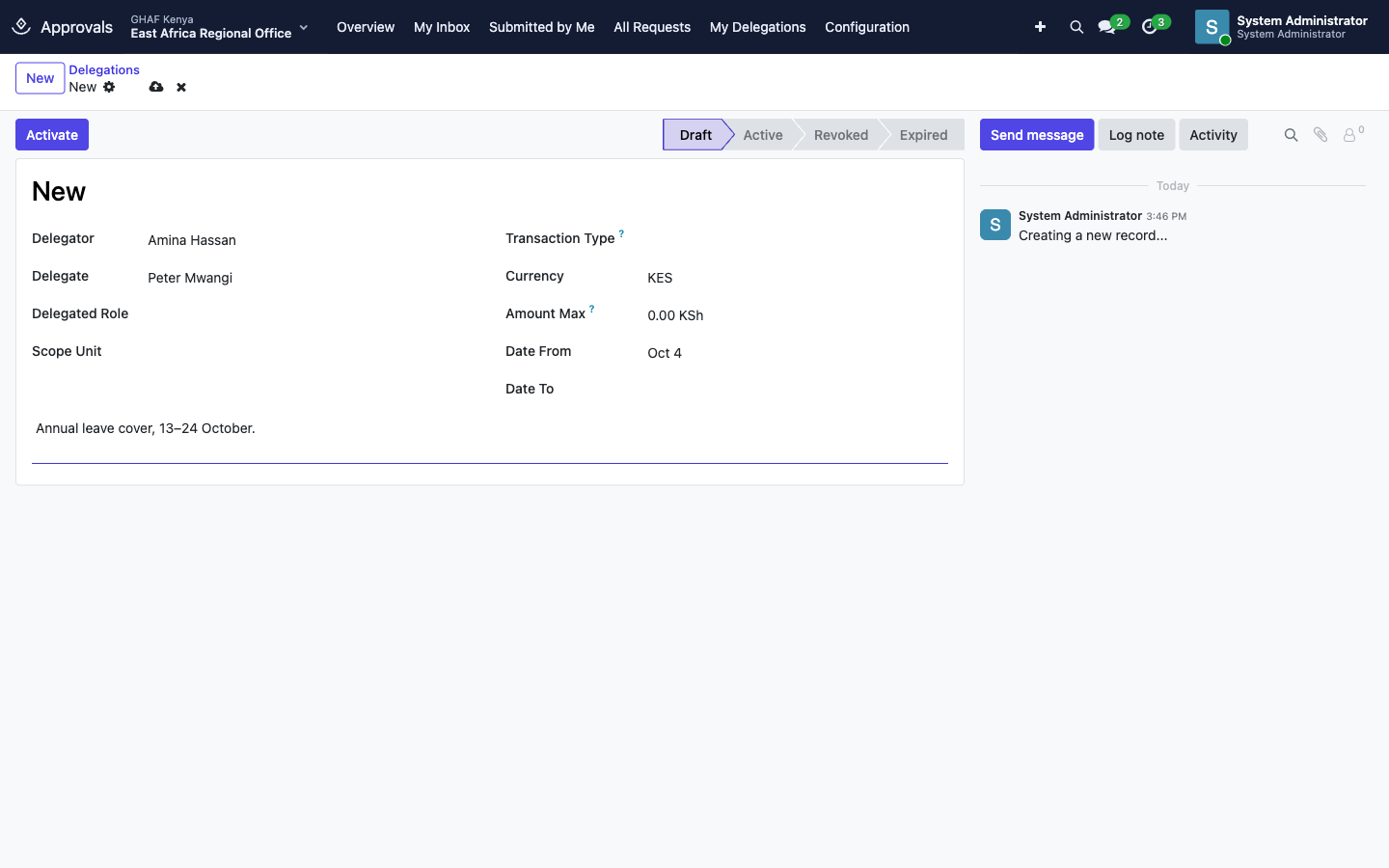
- Open Approvals › Configuration › All Delegations and click New.
- Fill in:
- Delegator: the person who will be away.
- Delegate: who covers for them. It can't be the same person.
- Scope Unit (required): the delegation covers requests from this unit and the units below it.
- Transaction Type: leave empty to cover every type.
- Delegated Role: optional. Limits the delegation to steps for that role.
- Currency and Amount Max: the delegate's ceiling. Leave at 0 for no ceiling.
- Date From / Date To, and a note explaining why.
- Save and click Activate. To end it early, click Revoke.
Dates are checked against the request's submitted date
A delegation covers a request only if the request's Submitted date falls between Date From and Date To. A delegation that starts today won't cover a request submitted last week. Start the delegation early enough to cover anything already waiting.
Review and audit
- Approvals › All Requests (managers and administrators) lists every request you can see, with list, kanban, graph, pivot and calendar views. It opens with the Pending filter on.
- Approvals › Configuration › Approval Audit lists every decision: who acted, when, in which role, under which delegation, and against what authority limit. These records can't be edited or deleted by anyone.
- The same history is on each request's Immutable History tab.
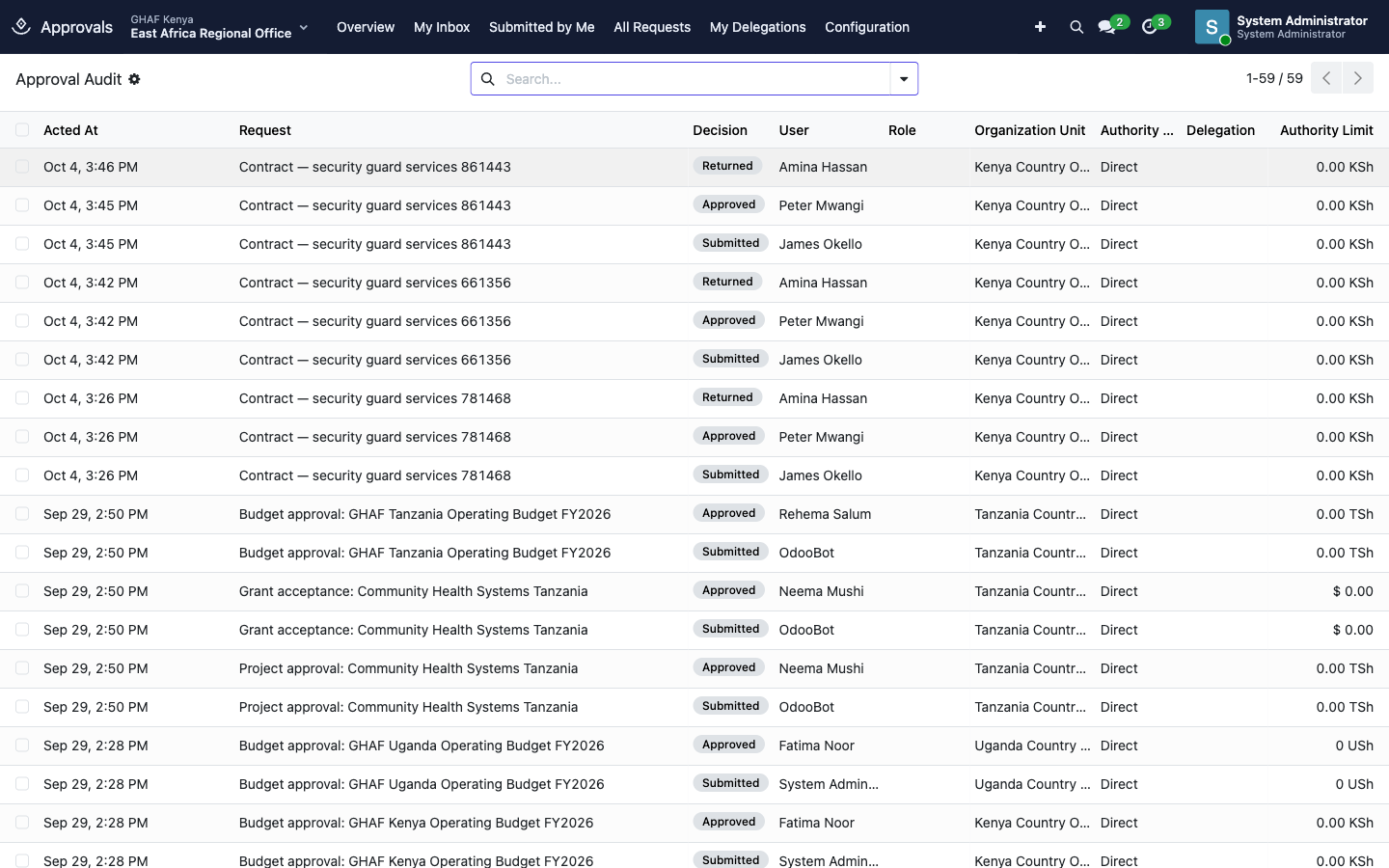
You'll also find these screens under Administration › Approvals and Administration › Delegations.
Request types
Request types come from the installed apps. The core list is Purchase Request, Payment, Expense, Travel, Leave, Budget, Grant, Contract, Project, Journal Voucher and Payroll. Other apps add their own types, such as Travel Settlement, Field Event, Vehicle Request, Employment Contract, Staff Requisition, Job Offer, Document and Sales Quotation.
Each type needs at least one active policy for every organisation that uses it. Without one, submissions of that type fail.
Troubleshooting
\"No active approval policy matches this request.\"
Every condition on a policy has to match. Check that a policy for this Request Type and Organization is:
- Active, with the request's submitted date between Effective From and Effective To;
- in the same currency as the request;
- in the right amount band (Amount Max 0 means no ceiling);
- if Applies Only To is filled in, the request's project, funding source and requester's staff role are in those lists;
- scoped to the request's unit or a unit above it, with Legal Entity and Country empty or matching.
\"No approver could be resolved for step …\"
The step's resolver found nobody.
- Organizational Role / Unit Manager: nobody holds that role for the request's unit on the submitted date. Add or extend the assignment under Organization › People & Responsibility. The role holder also needs a user account.
- Requester's Manager: the requester's employee record has no Manager, or the manager has no user account.
- Custom Resolver: switch the step to another resolver.
\"Self-approval is prohibited and no escalation role is configured.\"
The requester would be their own approver at one of the steps. Set a Self-approval Escalation Role on that step, or an Alternate Role on the separation-of-duty rule for this request type.
\"No active authority rule permits role … to approve this amount.\"
The step has Require Authority Matrix turned on, and no active authority rule covers that role, request type, unit and amount. Add or widen a rule in Authority Matrices, or route larger amounts to a more senior step.
\"You are not the current approver and hold no matching delegation.\"
The request is waiting on someone else's step. If you're covering for them, ask an administrator to check that your delegation is Active, covers the request's unit, type and amount, and covers the request's Submitted date.
I can't edit my request.
You can only edit your own requests while they are Draft or Returned. Once a request is under approval, ask an approver to Return it.
My badge shows more requests than My Inbox.
If you're a country director, finance manager or administrator, the badge counts every pending request you can see, not just yours. My Inbox shows only what's waiting for you.