Organization
Admin Staff
Organization holds the shape of your organisation: its offices and teams, the legal entities behind them, and who holds which job in each place. Every other Amana app reads it. A purchase request is raised in a unit, its approval goes to whoever is that unit's Country Director, and a person's access follows the units they work in.
Module: npo_organization
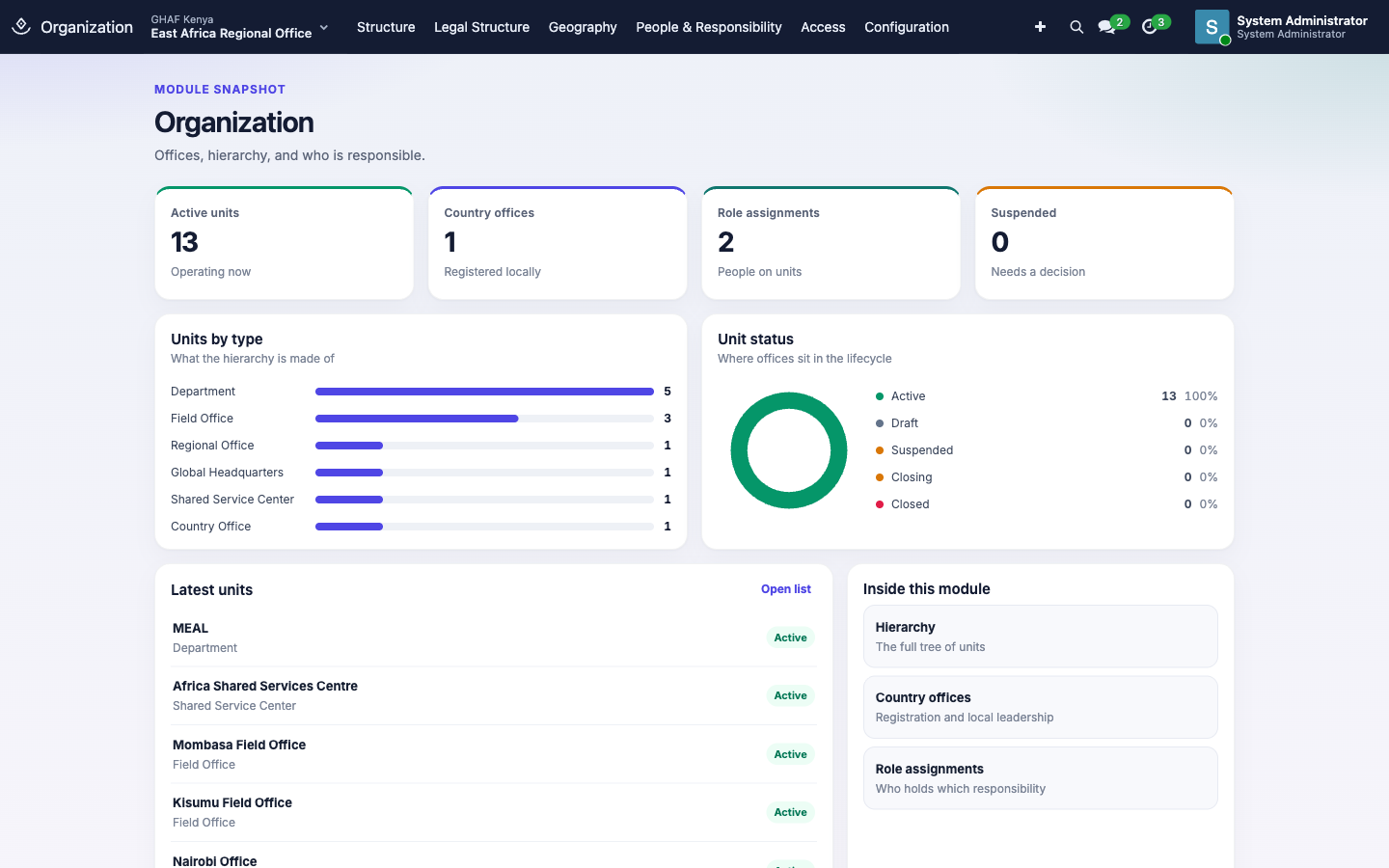
In plain words
- Amana needs to know how your organisation is laid out: which offices exist, which registered company each one belongs to, and who does which job where.
- Every other app relies on this. A request is raised in an office, its approval goes to whoever holds the right job in that office, and people only see the offices they work in.
- Changes to the layout are dated, so older records still show where things stood at the time.
Before you start
- The organisation and its legal entities exist (created at installation).
- You know the offices and departments you need, and a short code for each (e.g.
KE-CO,KE-MEAL). - Everyone who will hold a job (Country Director, Finance Manager…) has an employee record linked to their user. See Administration.
Who uses it
| Role | What they do | Access level |
|---|---|---|
| Everyone | Chooses their operating context (the unit new records start in). | Any Amana user |
| Viewer | Reads the structure inside their scope. | Organization › Viewer |
| Organisation officer | Creates draft units and edits units they operate. | Organization › Officer |
| Organisation manager | Prepares structure changes and appoints people to roles. | Organization › Manager |
| Organisation administrator | Activates structure changes, sets user scopes, unit types and regions. | Organization › Administrator |
| Global administrator | Configures the root organisation and sees every unit. | Organization › Global Administrator |
From Viewer down, each level includes the one above it. Set them under Administration › Users & Access.
How the pieces fit
flowchart TB
    O[Organisation] --> HQ[Global Headquarters]
    HQ --> R[Africa Region] --> EA[East Africa Regional Office]
    EA --> KE[Kenya Country Office<br/>legal entity: GHAF Kenya]
    KE --> D[Departments, field offices]
    KE -. role assignment .- CD((Country Director))
    CD -. used by .-> AP[Approvals]
KE -. user scope .- U((Staff access))- Units form a tree: headquarters, regions, regional offices, country offices, then field offices, project offices and departments.
- A unit can belong to a legal entity, the registered company that keeps its accounts, such as GHAF Kenya.
- A role assignment records who holds a job (e.g. Finance Manager) in a unit, from a date. Approvals look these up.
- A user scope decides which units a person can see and work in.
- A structure version is a dated snapshot of the tree. Moves and new units go live through a new version, so Amana remembers where every unit sat on any past date.
For staff: your operating context
The office name at the top left of every screen is your operating context. It is the unit new records start in, such as a purchase request or a travel request.
- Click the office name next to the app name.
- Pick the unit you're working for.
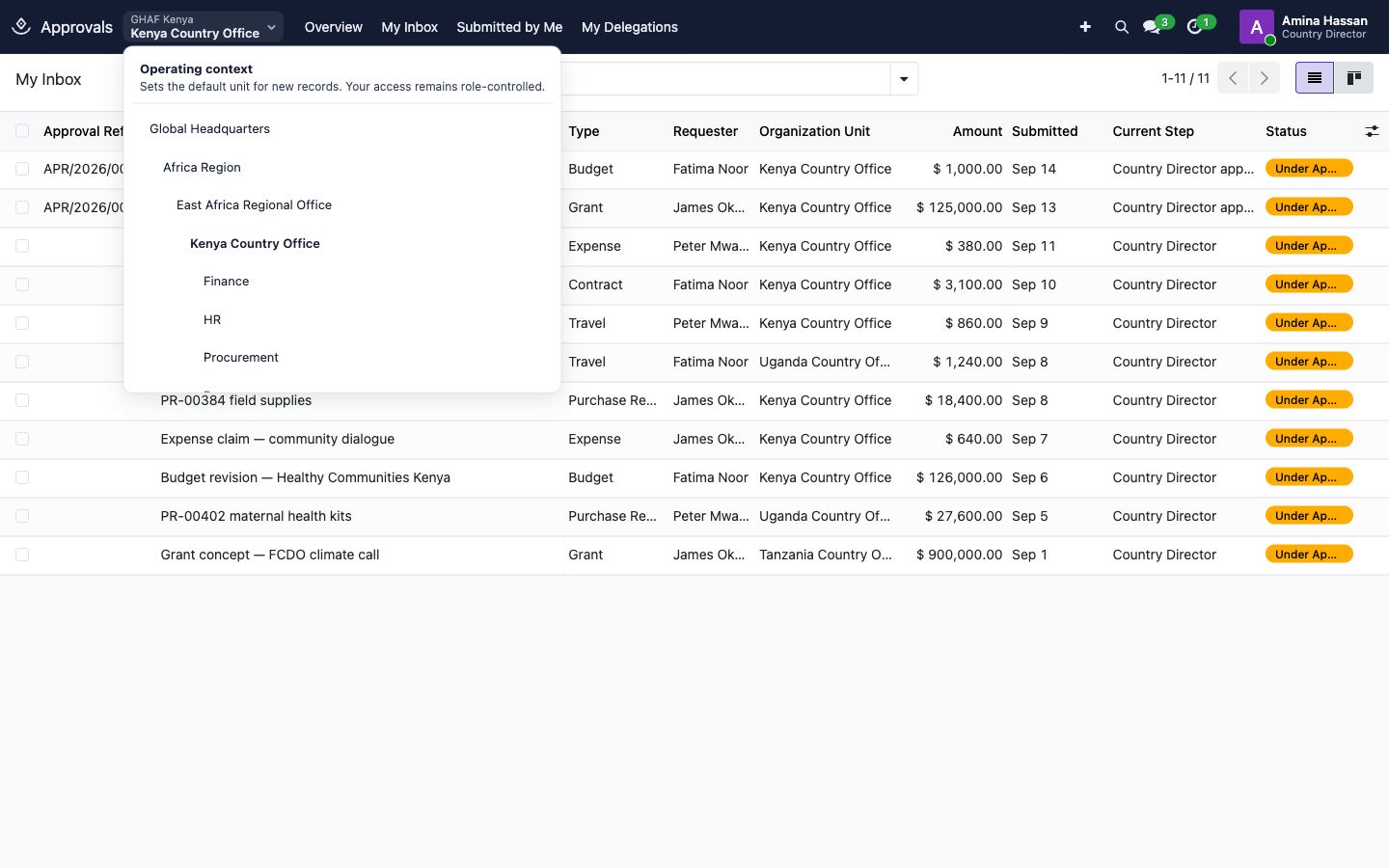
Changing it doesn't give you more access. You only see units your user scope allows, and your access is still set by your roles.
For administrators
Find your way around
| Menu | What's there |
|---|---|
| Structure › Organization Units | Every unit, with its full path, type, parent, legal entity and state |
| Structure › Country Offices | Country office units only |
| Structure › Structure Versions | The dated snapshots of the tree |
| Structure › Relationships | Links outside the tree, such as Provides Finance Support |
| Legal Structure › Legal Entities / Organization Profile | The registered companies and the organisation record |
| Geography › Regions / Locations | Regions (East Africa…) and physical places (Nairobi, Kisumu…) |
| People & Responsibility › Organization Roles / Role Assignments | Jobs, and who holds them where |
| Access › User Scopes | Which units each user can see and work in |
| Configuration › Organization Types / Unit Types | Types and the rules for what can sit under what |
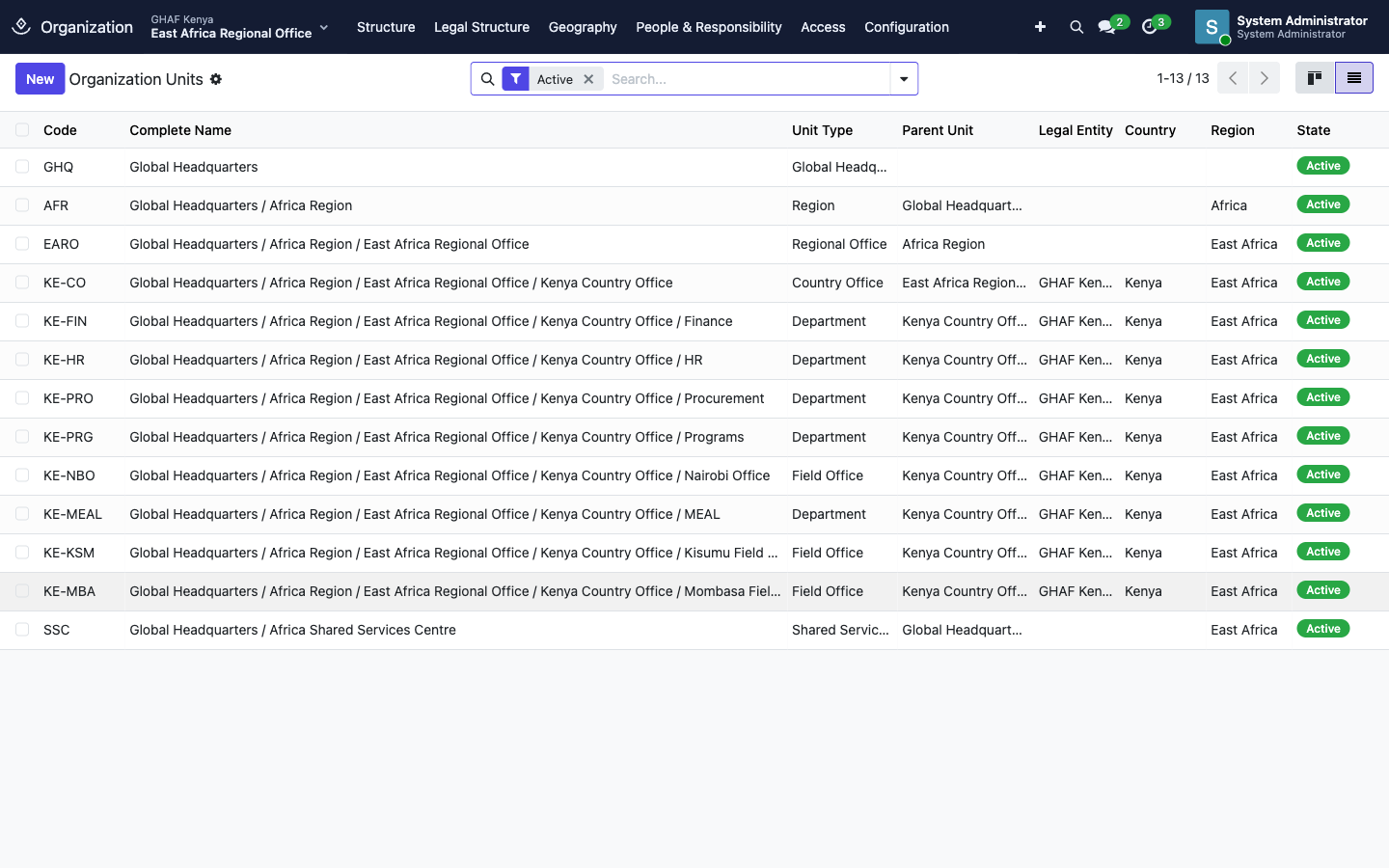
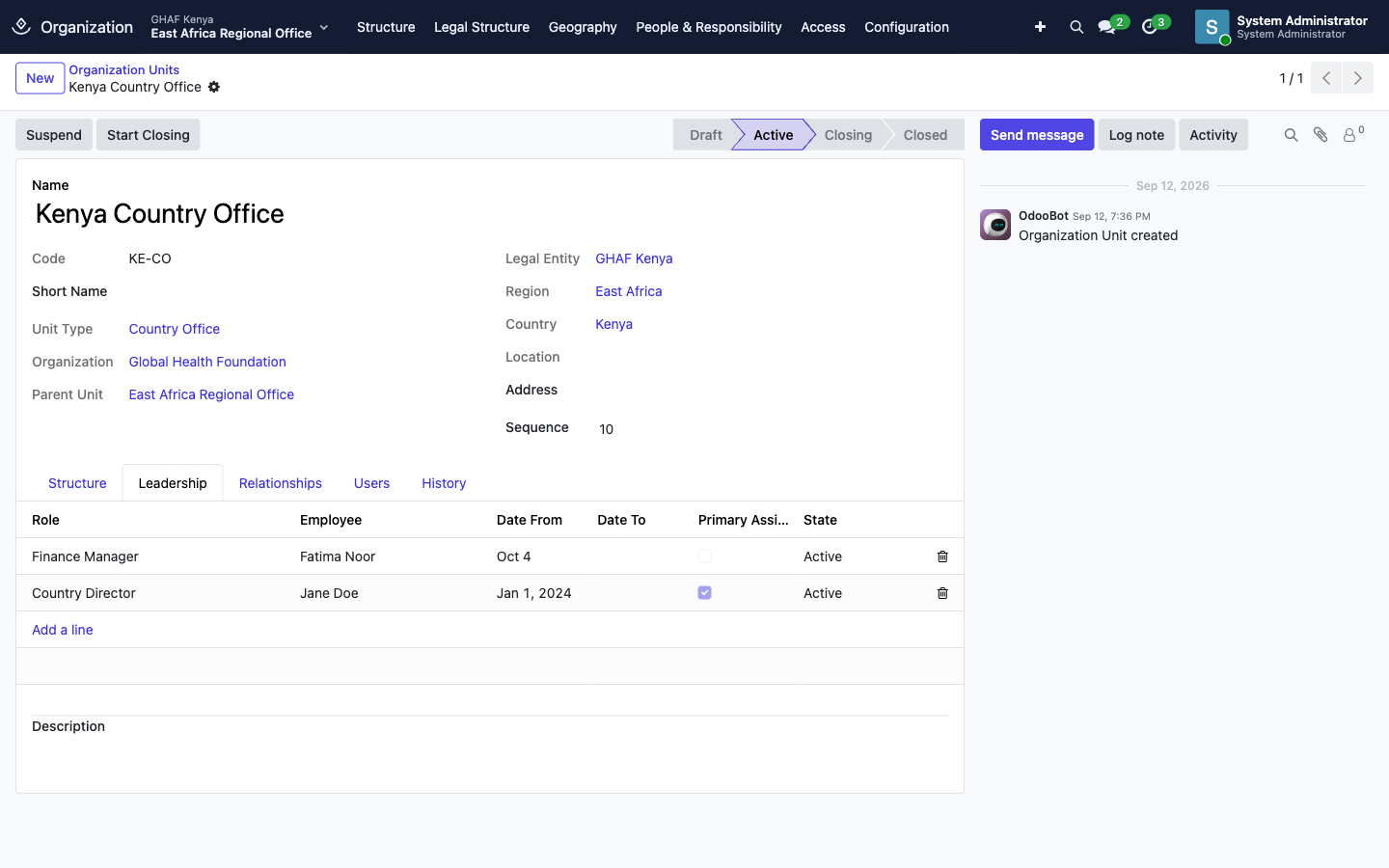
Open a unit to see its tabs:
- Structure: its current placement, level and child units.
- Leadership: its role assignments.
- Relationships: links to other units.
- Users: the user scopes on this unit (managers and above).
- History: every placement it has had, by structure version.
Add a unit and put it live
A new unit starts as Draft. It goes live when a structure version that includes it is activated. This keeps a dated record of every change.
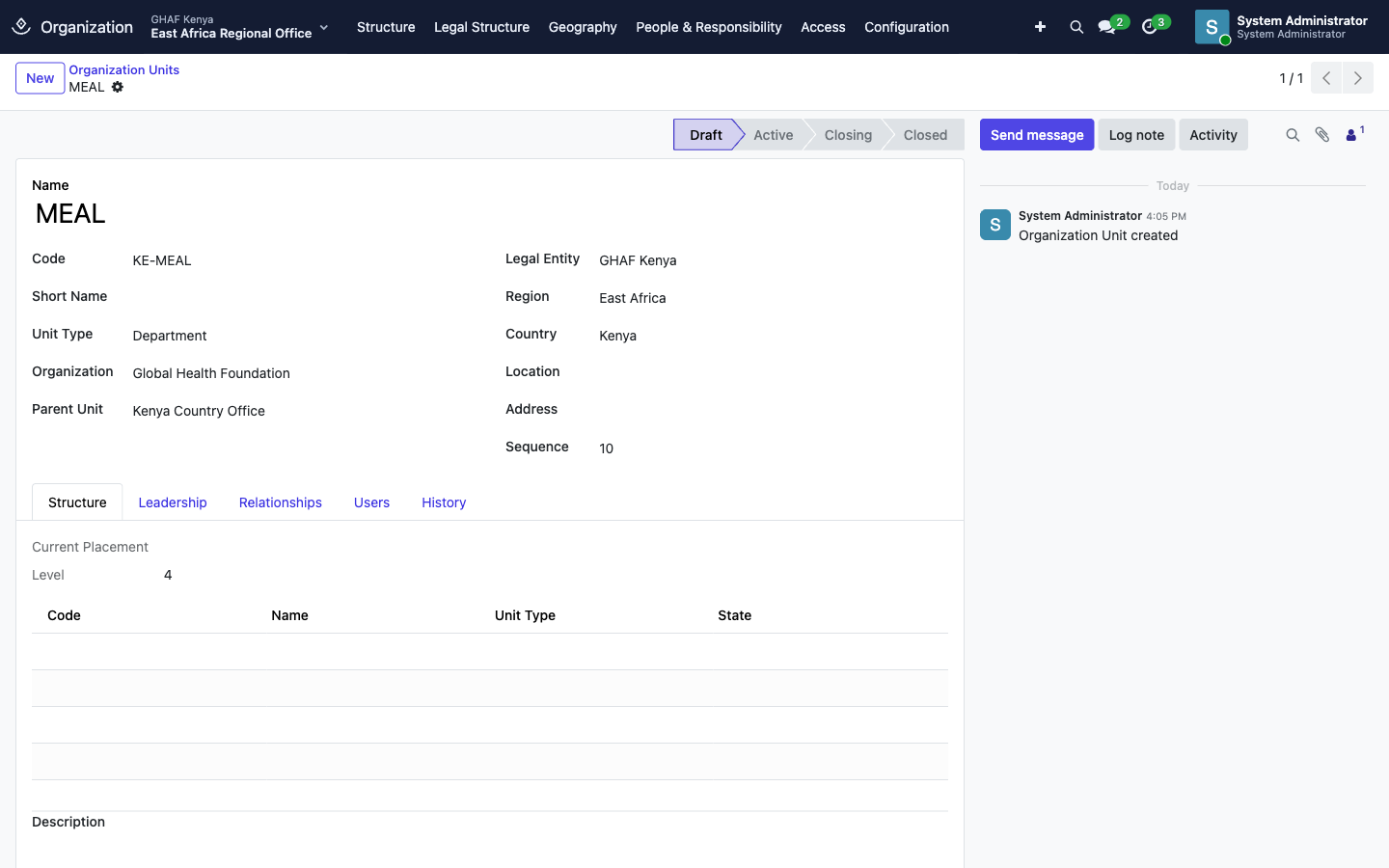
Step 1: create the draft unit
- Open Structure › Organization Units and click New.
- Enter the Name and a Code. The code must be unique in the organisation, e.g.
KE-MEAL. - Choose the Unit Type, Organization and Parent Unit. The parent must allow that type (see Unit types).
- Fill in Legal Entity, Region, Country and Location as the unit type requires.
- Save. The unit is now Draft.
Step 2: add it to a new structure version
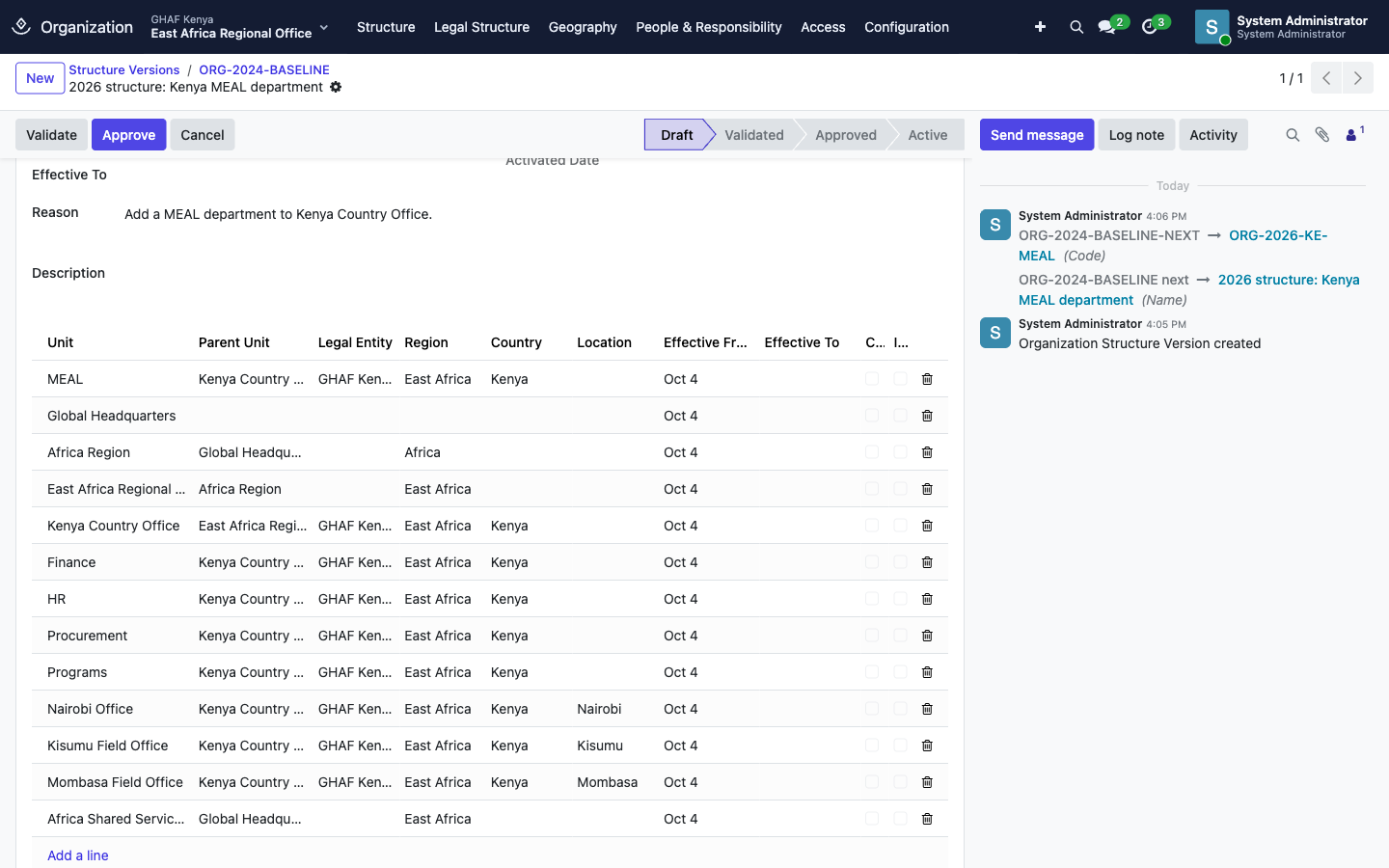
- Open Structure › Structure Versions and open the Active version.
- Click New Version. Amana copies every current placement into a new draft version starting today.
- Give it a clear Name, Code and Reason, e.g. Add a MEAL department to Kenya Country Office.
- Under the placements, click Add a line and fill in Unit, Parent Unit, Legal Entity, Region, Country and Effective From.
- Save.
Step 3: approve and activate
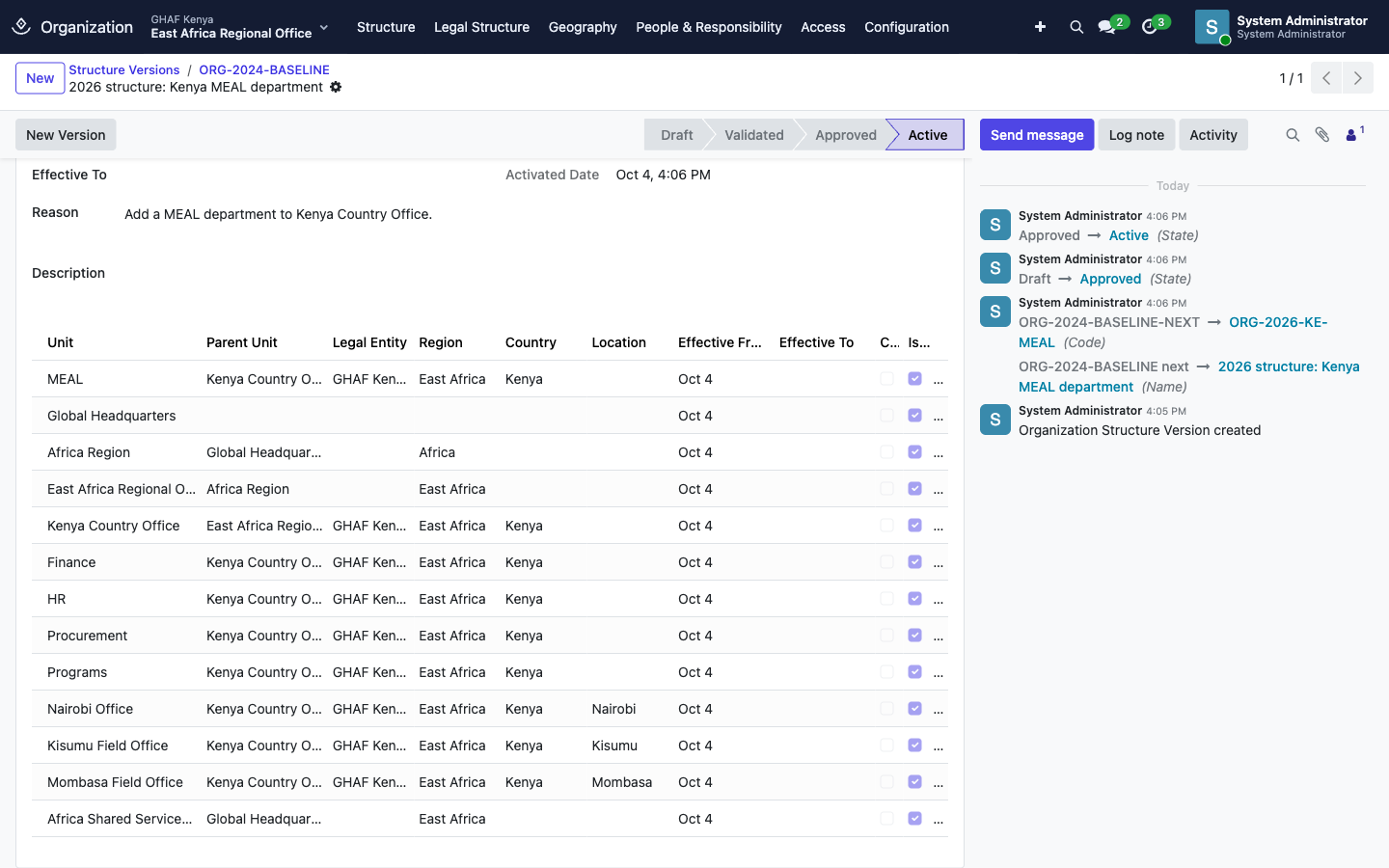
- Click Approve. Amana checks every placement: dates inside the version, required fields for each unit type, and no overlapping placements for the same unit.
- Click Activate. Only organisation administrators can do this.
- The previous version becomes Superseded and ends the day before.
- The new unit becomes Active and every unit takes its new parent and details.
- Department units are mirrored into Employees › Departments.
Units from other legal entities
While you work in one legal entity, the placements list only shows rows for that entity and for units with no entity. Placements for other entities are still copied into the new version and closed in the old one. They're just not shown.
Validate and Schedule
Validate runs the same checks as Approve without approving. Schedule marks an approved version as ready. It doesn't activate on its own: you still click Activate.
Change, move or close a unit
- Name, Short Name, Address and Sequence can be changed at any time.
- Code, Unit Type, Organization, Parent Unit, Legal Entity, Region, Country and Location are locked once a unit leaves draft. Change them with a new structure version: edit that unit's placement line, then approve and activate.
- To close a unit as part of a restructure, tick Close Unit on its placement line in the new version.
- To pause or close a unit directly, use the buttons on the unit:
- Suspend / Reactivate
- Start Closing, then Close
A unit can't close while it still has open child units or open role assignments. - Units can't be deleted once they've left draft. Close them instead, so their history stays.
Unit types and what can sit under what
| Unit type | Must have | Can contain |
|---|---|---|
| Global Headquarters | — | Region, Regional Office, Shared Service Center |
| Region | — | Regional Office, Country Office |
| Regional Office | — | Country Office, Field Office, Department, Shared Service Center |
| Country Office | Legal entity, country | Field Office, Department, Project Office |
| Field Office | Legal entity, country, location | Department, Project Office |
| Project Office | Legal entity, country | Department |
| Shared Service Center | — | Department |
| Department | Legal entity | Department. Also creates a matching HR department |
These rules are set under Configuration › Unit Types. An organisation-specific rule replaces the default one for that pair of types.
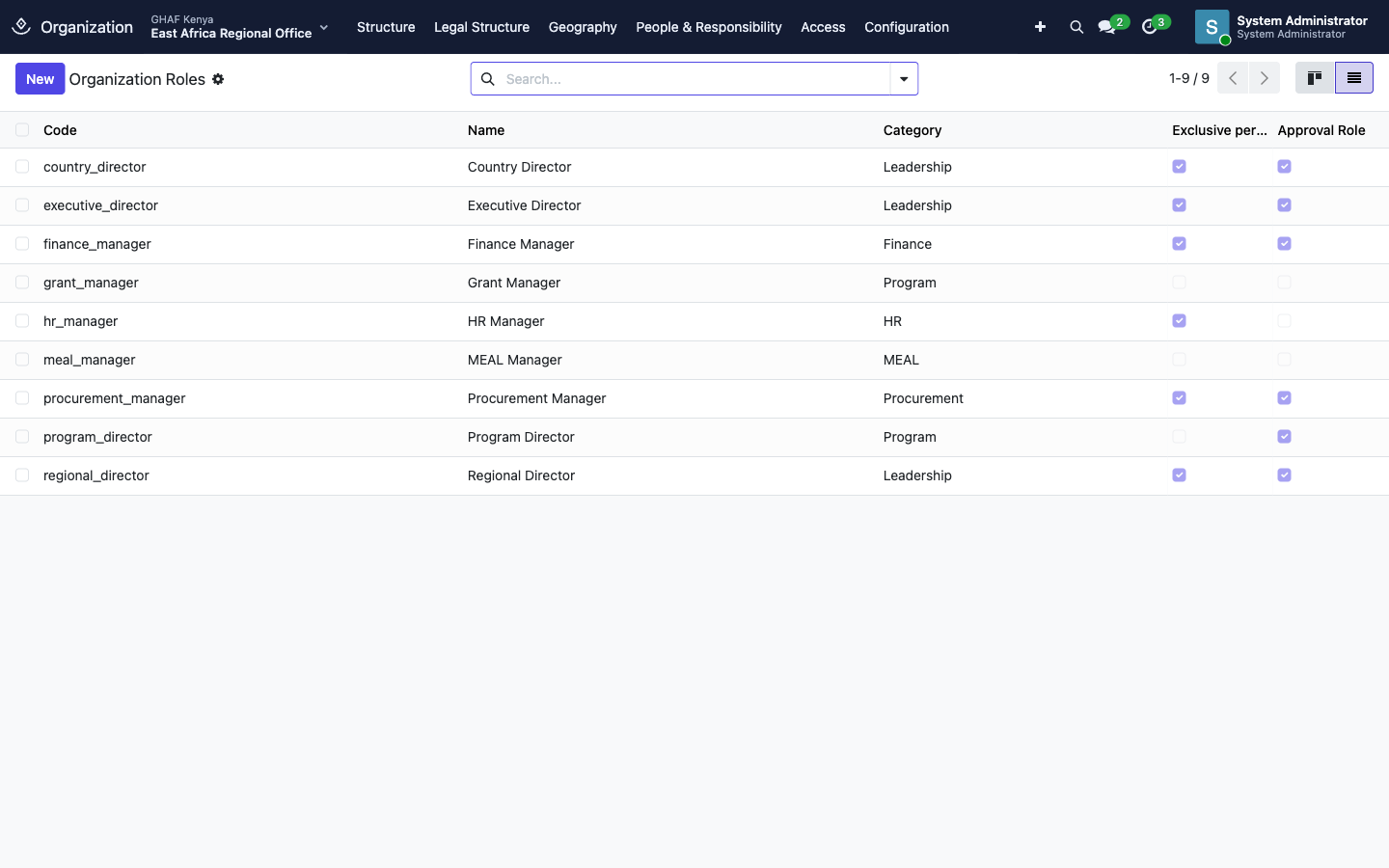
Appoint someone to a role
Approvals find approvers through role assignments. If a policy step says Country Director, the request goes to whoever holds that role in the request's unit on the date it was submitted.
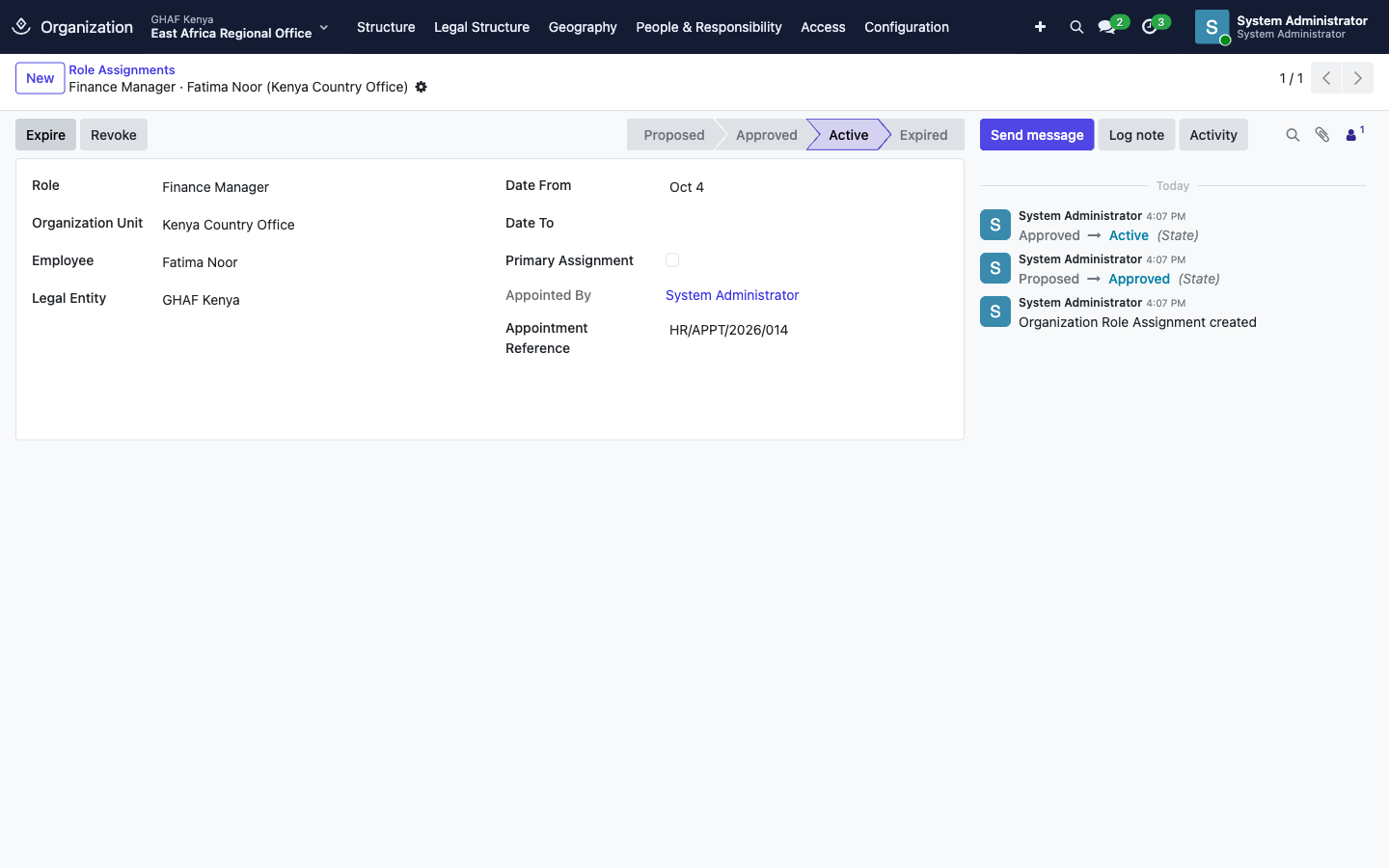
- Open People & Responsibility › Role Assignments and click New. You can also use Add a line on a unit's Leadership tab.
- Choose the Role, the Organization Unit and the Employee.
- Set Date From, and Date To if the appointment is temporary.
- Leave Primary Assignment ticked only if this is the person's main job. A person can have one primary assignment at a time. When it becomes active, their employee record moves to that unit's department and legal entity.
- Add an Appointment Reference (e.g. the HR letter number) and save. The assignment is Proposed.
- Click Approve, then Activate.
Proposed assignments don't count
Approvals only use assignments that are Approved or Active, or Expired if they covered the request's date. A Proposed assignment is ignored, so requests needing that role will fail to submit until you approve it.
To end an appointment, open it and click Expire (it ended normally) or Revoke (it was withdrawn). Both set Date To to today. Only Proposed assignments can be deleted.
Roles marked Exclusive per Unit can only have one approved or active holder per unit for any dates. Most leadership roles are exclusive.
Give users access to units (user scopes)
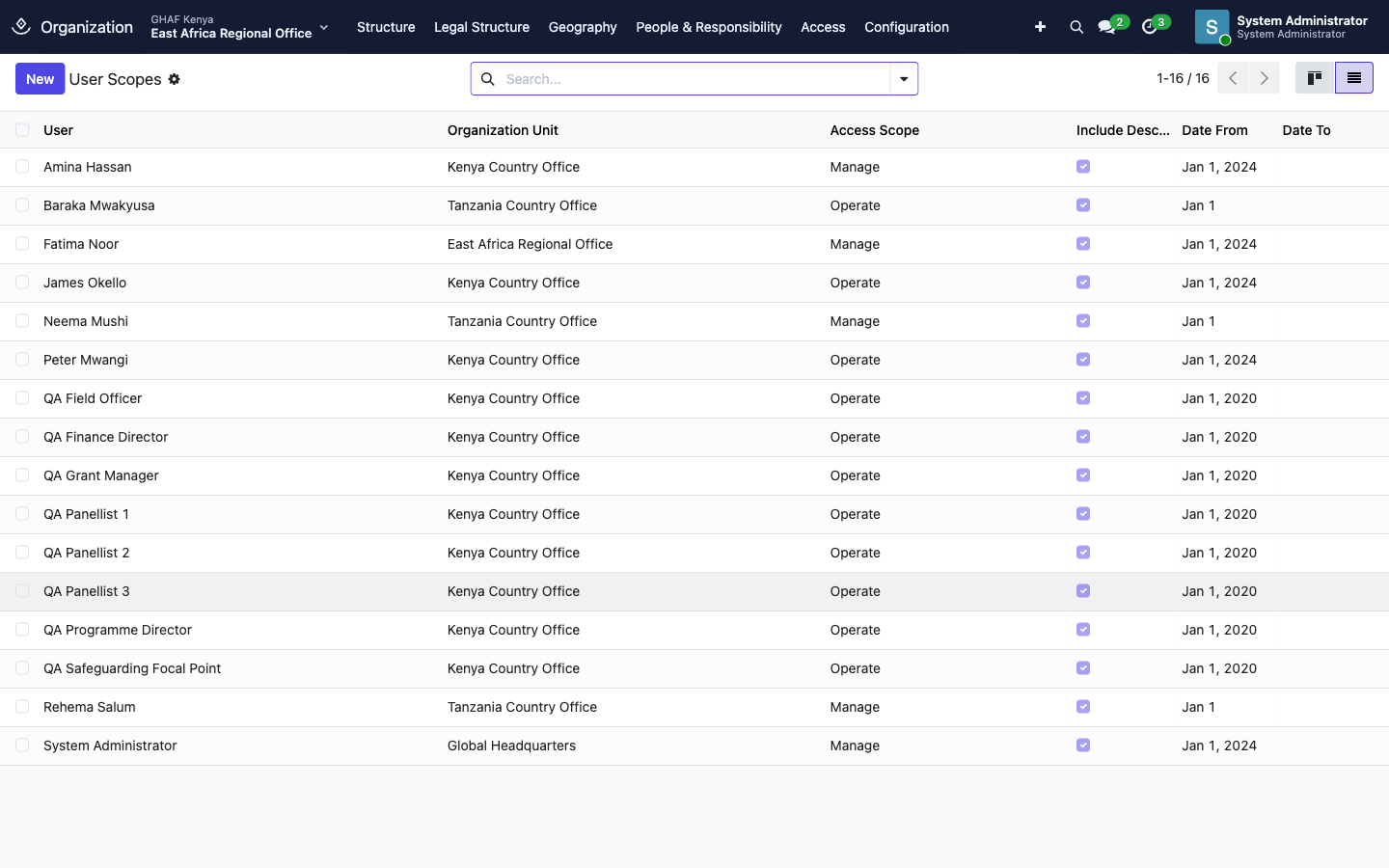
A user scope gives one user access to a unit, and to every unit below it when Include Descendants is ticked. People can always see the units above theirs, so the tree makes sense to them.
| Access Scope | What it allows |
|---|---|
| View | See the unit and its records. |
| Operate | Work in the unit: create and edit records there. The usual choice for staff. |
| Manage | Everything in Operate, plus manage the unit. For directors and managers. |
- Open Access › User Scopes and click New.
- Choose the User, the Organization Unit and the Access Scope.
- Set Date From, and Date To if the access is temporary. Save.
You can also see a user's scopes on their user record, on the Organization tab.
When scope changes take effect
Saving a scope applies it straight away. Scopes with a future Date From or Date To are applied by a daily scheduled job (NPO Organization: apply dated user scopes), so they start and end on their dates without anyone re-saving them.
Troubleshooting
These are messages Amana may show while you set up or change your organisation. Each one explains what to do next. Click a question to open it.
I can't change a unit's parent, type, code, legal entity or location
You see: Change parent, legal entity, geography, type, or code through a structure version.
Once a unit is live, these details are locked so its history stays correct. To change them:
- Make a new structure version.
- Change the unit's line in it.
- Approve and activate the version.
I can't put a unit under the parent I chose
You see: a message ending in cannot be placed under and the parent's name.
Some kinds of unit can't sit under others. For example, a Field Office can't go directly under a Region. It has to go under a Country Office or a Regional Office.
Choose a different parent. The table in Unit types and what can sit under what shows what can go where.
Amana says the unit needs a legal entity or a country
You see: a message saying the unit requires a legal entity, a country (or a location).
This kind of unit must have those details. Fill them in on the unit, or on its line in the structure version, then save again.
Amana says the unit already has dates in another version
You see: a message saying the unit already has a placement from one date to another.
Two structure versions cover the same dates for this unit. Check that:
- you're working in the newest version, not an old one;
- the new version starts after the current one.
I can't click Activate on a structure version
You see: Only an organization administrator can activate a structure version.
Only an organisation administrator can put a version live. Ask your administrator to open the version and click Activate.
I can't appoint someone because the job is already taken
You see: a message saying the role already has a holder for those dates.
Only one person can hold this job in this unit at a time. Do one of these:
- End the current holder's appointment first: open it and click Expire.
- Or set the new person's Date From to the day after the current holder's appointment ends.
I can't mark an appointment as the person's main job
You see: a message saying the person already has a primary assignment for those dates.
A person can only have one main job at a time, and they already have one. Do one of these:
- Untick Primary Assignment on the new appointment.
- Or end their other main-job appointment first.
I can't close a unit
You see: a message saying the unit cannot close because child units or role assignments are still open.
A unit can only close once everything inside it has closed. First:
- Close or move the units under it.
- End the appointments in it: open each one and click Expire or Revoke.
Then close the unit.
I can't find a unit in a list or drop-down
You only see the units you've been given access to, in the legal entity you're working in.
- Check the legal entity shown at the top of the screen. Switch it if needed.
- If the unit still doesn't appear, ask your administrator to check your access under Access › User Scopes.