Documents
Staff Admin
Documents is where every file Amana relies on is kept: grant agreements, vendor certificates, contracts, receipts, board minutes. Each file is a document with a type, an owner, versions and a confidentiality level. It's linked to the record it supports, so it can be checked, shared with auditors and kept for exactly as long as the rules require.
Module: npo_documents
In plain words
- Every important file is kept once, as a document with a type, an owner and versions, and linked to the record it supports: an award, a bill, a vendor or an employee.
- Rules say which documents a record must have before it can move on. Amana warns, or blocks the step, when one is missing.
- Who can open a file depends on its confidentiality level. People outside the organisation only ever get a time-limited share, never access to a workspace.
- Files are kept for as long as donor and tax rules require, then disposed of with a second person's approval.
Before you start
- Each workspace has its members and a records officer (Configuration › Workspaces).
- The requirement rules you want are switched on and fit your thresholds (Configuration › Requirement Rules).
- Retention policies match your donors' terms (Configuration › Retention Policies).
- If any document type needs review before it takes effect (on live: Organizational policy), each office has a Document approval policy. See the approval checklist.
Who uses it
| Role | What they do | Access level |
|---|---|---|
| Staff | Upload files to the records they work on, and read what their units and workspaces allow. | Documents › Documents User |
| Records officer | Files the Inbox, verifies documents and manages folders in their workspaces. | Documents › Records Officer |
| Documents manager | All workspaces, configuration, lowering confidentiality, legal holds and disposal. | Documents › Documents Manager |
Each level includes the one above it. Seeing Confidential or Strictly confidential documents also needs a Document Clearance level (see below).
Confidentiality levels
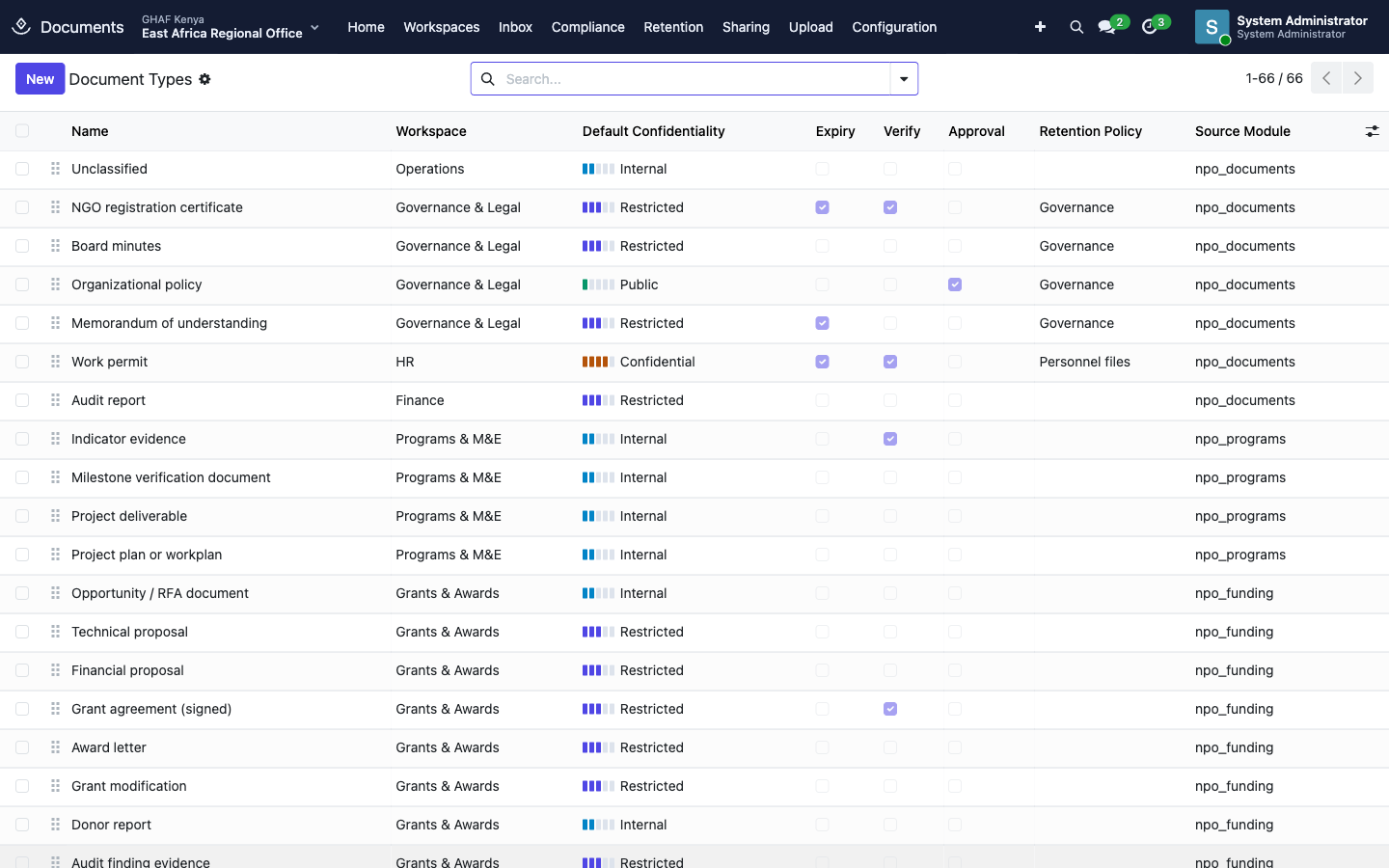
Every document has one of five levels. The bars next to a document show its level.
| Level | Who can see it | Examples |
|---|---|---|
| Public | Anyone in the document's units | Published reports |
| Internal | Anyone in the document's units | Programme and finance working files |
| Restricted | Members of the document's workspace | Grant agreements, board minutes |
| Confidential | Workspace members with Confidential clearance | Contracts, payslips, CVs |
| Strictly confidential | Workspace members with Strictly Confidential clearance | Safeguarding cases, medical files |
- Anyone who can edit a document can raise its level. Only a Documents Manager can lower it, and the change is logged.
- Clearance comes with some roles: HR users and procurement tender managers get Confidential, safeguarding focal points get Strictly Confidential. Other people (such as the HR director) are given clearance by an administrator on their user record.
- HR documents about a person are also visible to that person.
For staff
Find documents
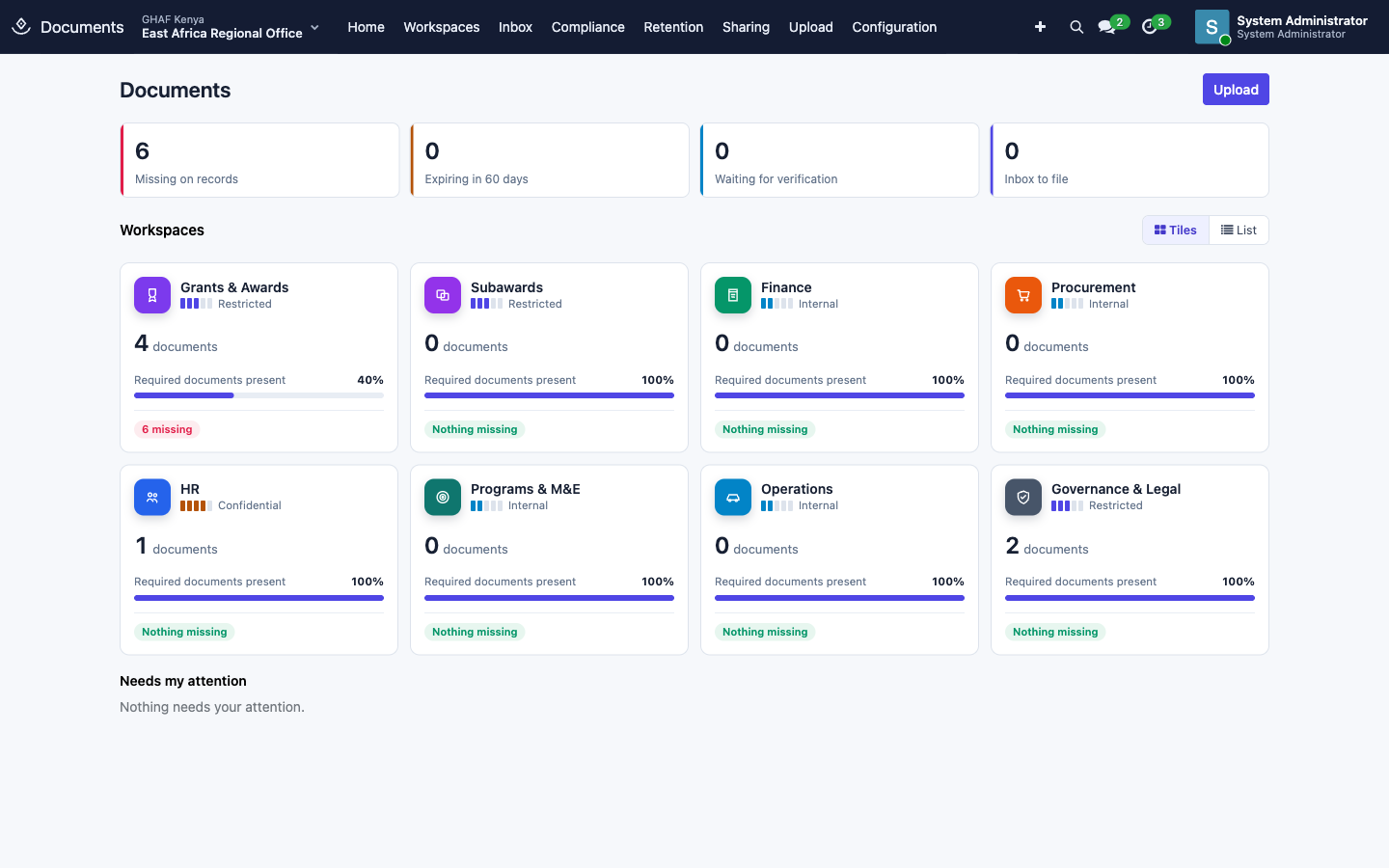
- Home shows four counts:
- Missing on records: required documents not yet uploaded.
- Expiring in 60 days.
- Waiting for verification.
- Inbox to file.
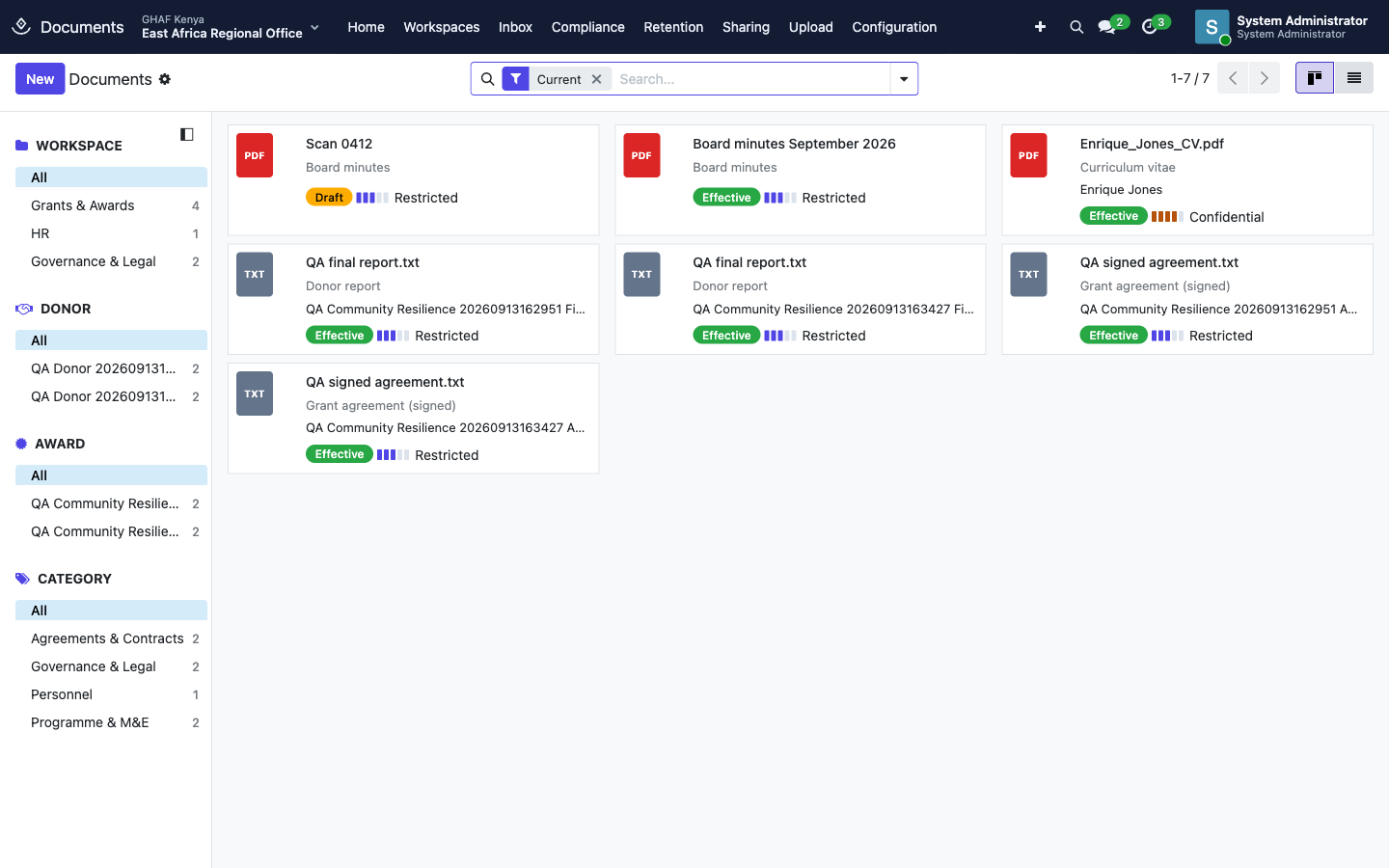
Below them is a tile per workspace, with how complete its required documents are. Switch between Tiles and List at the top right of the workspaces. - Workspaces lists every document you can see. Use the panel on the left to narrow it down by Workspace, Donor, Award and Category, or search by name, reference, or text inside PDFs.
Inside other apps, records that hold documents have a Documents button and tab. The button turns amber when a required document is missing, and red when one has expired.
Upload and classify
- Click Upload on Home, or Add documents on a record's Documents tab so the file is linked to that record.
- Choose one or more files. Each file gets a row.
- Check each row. Amana suggests a Document Type from the file name and content, shown in green. Fill in what that type needs, such as Reference No., Issue Date or Expiry Date.
- Click Save.
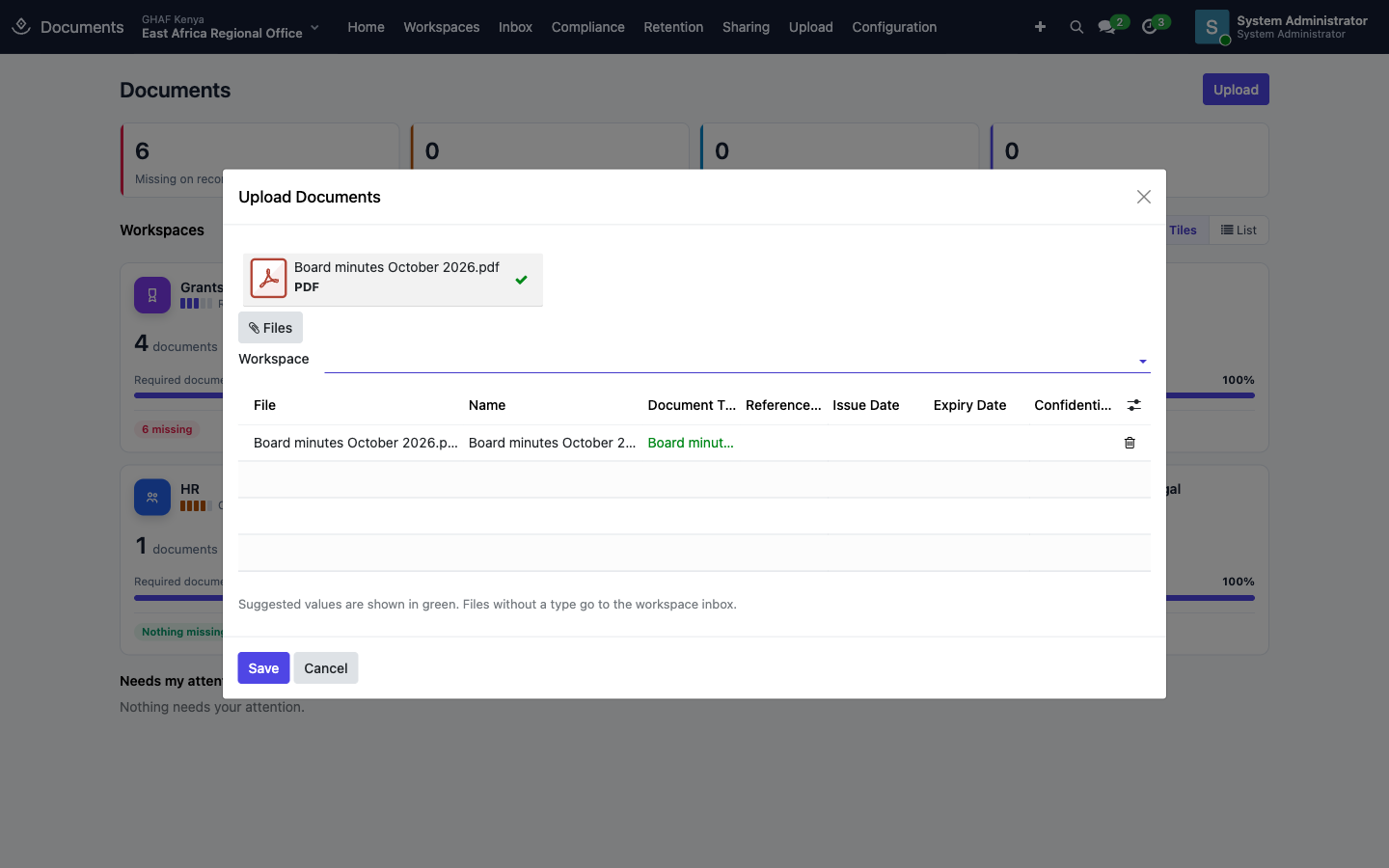
A typed file goes straight to its workspace. A file with no type goes to the Inbox for a records officer to file.
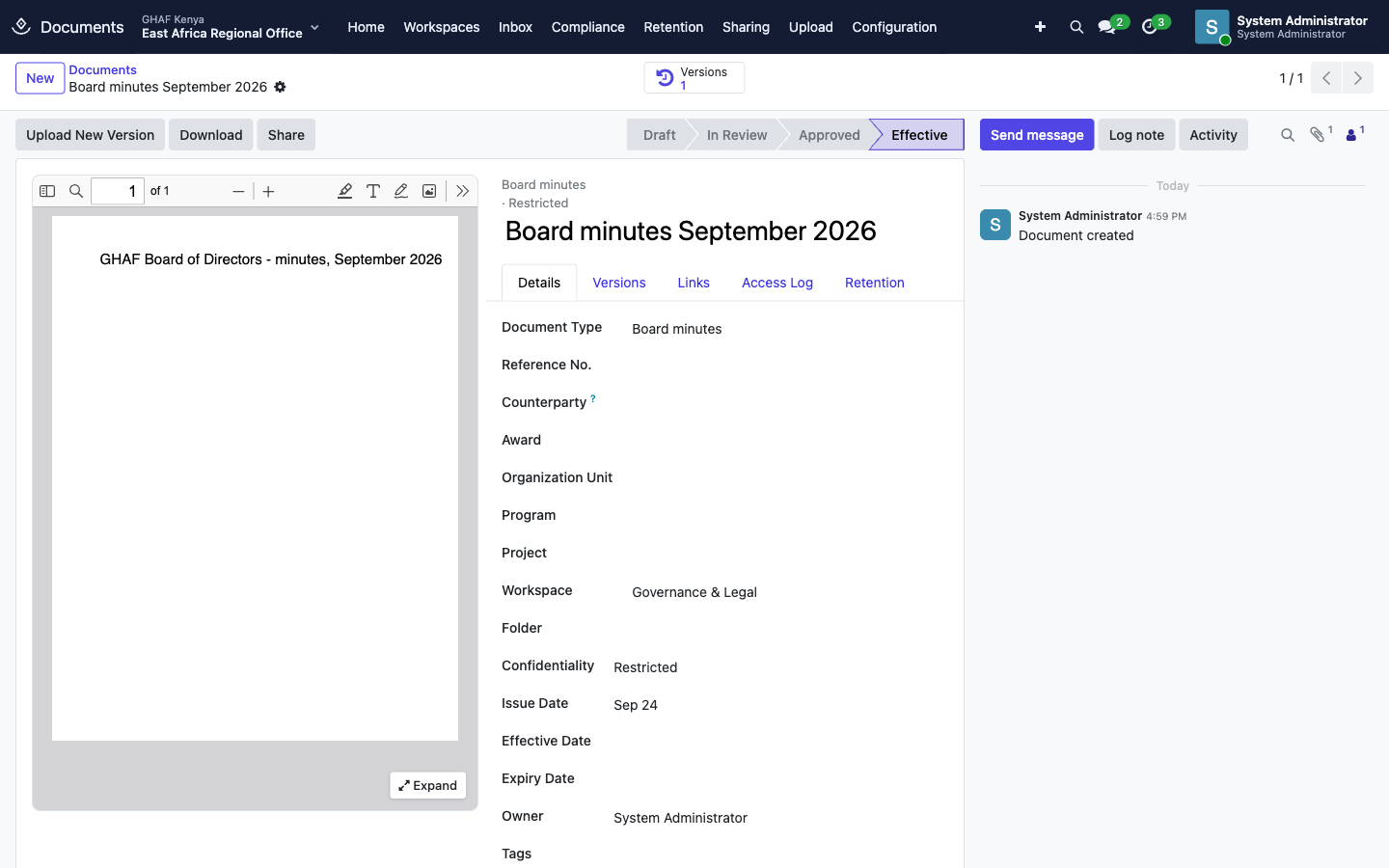
The document opens with a preview on the left. Click Expand for a full-screen view. The tabs show:
- Details.
- Versions: every file uploaded, with its SHA-256 fingerprint.
- Links: other records this file supports.
- Access Log: views and downloads of sensitive documents.
- Retention: how long it's kept, and why.
How a document moves
flowchart LR
    I[Inbox] -->|File| D[Draft]
    D -->|Submit| R[In Review]
    D -->|Submit, no review needed| E[Effective]
    R -->|Approved| A[Approved] -->|effective date| E
    E -->|newer one of same type| S[Superseded]
E -->|expiry date| X[Expired]- Submit sends a document for approval if its type needs review. Otherwise it becomes Effective straight away, or Approved until a future Effective Date arrives.
- Approved and effective versions are locked.
- Only Inbox and Draft documents can be deleted. Everything else is kept until its retention period ends, then disposed of with approval.
Approve an organisational policy
Organisation-wide policies (finance manual, procurement, HR, safeguarding, code of conduct) carry legal and donor weight, so they're approved the way most NGOs do it: the Board decides, on the Executive Director's recommendation. Amana records that decision.
- The policy owner uploads the policy as type Organizational policy and clicks Submit. The owner must be a member of the Governance & Legal workspace. The person who submits can't also approve it.
- The Compliance Officer reviews the draft and approves it in Approvals › My Inbox, or returns it with comments.
- Once the Board has approved the policy, attach the Board resolution or minutes (type Board minutes) and the Executive Director approves it in Amana.
- The policy becomes Effective, and its file is locked. A revision is uploaded as a new version and goes through the same two approvals.
Procedures and SOPs that don't need the Board use other document types, so they don't go through this approval.
Upload a new version
- Open the document and click Upload New Version.
- Choose the file and click Save. It becomes version 2. Version 1 stays, locked, with its own fingerprint.
- A new file on an approved or effective document puts it back to Draft, so the change is checked. Click Submit again.
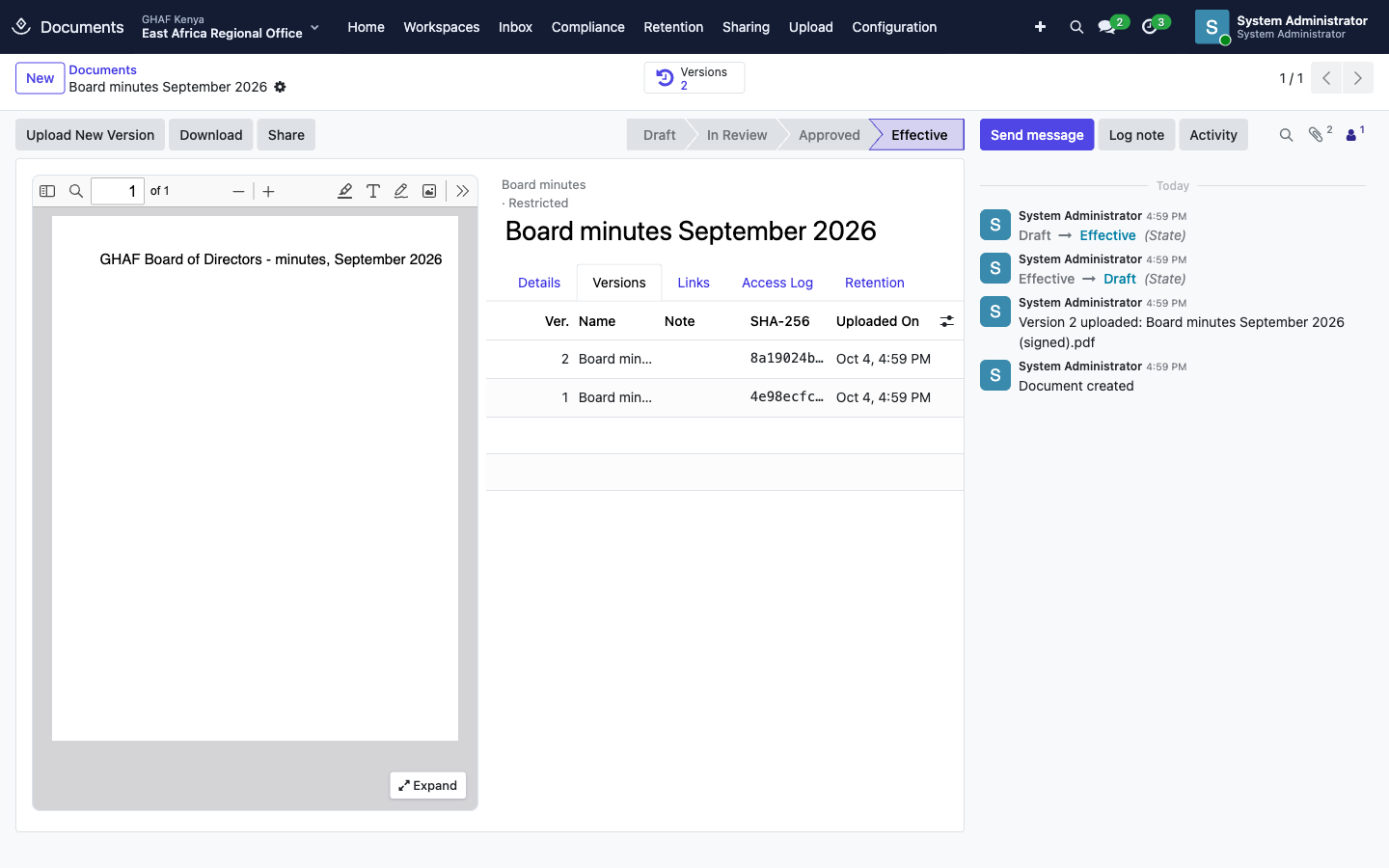
Use Download to save the current file and Share to send it outside the organisation (see Share with auditors, donors and partners).
For records officers
File the Inbox
Files arrive in the Inbox when they're uploaded without a type, emailed to a workspace, or sent in by a partner through the portal.
- Open Inbox.
- In the row, set the Document Type.
- Click File. The document moves to its workspace as Draft.
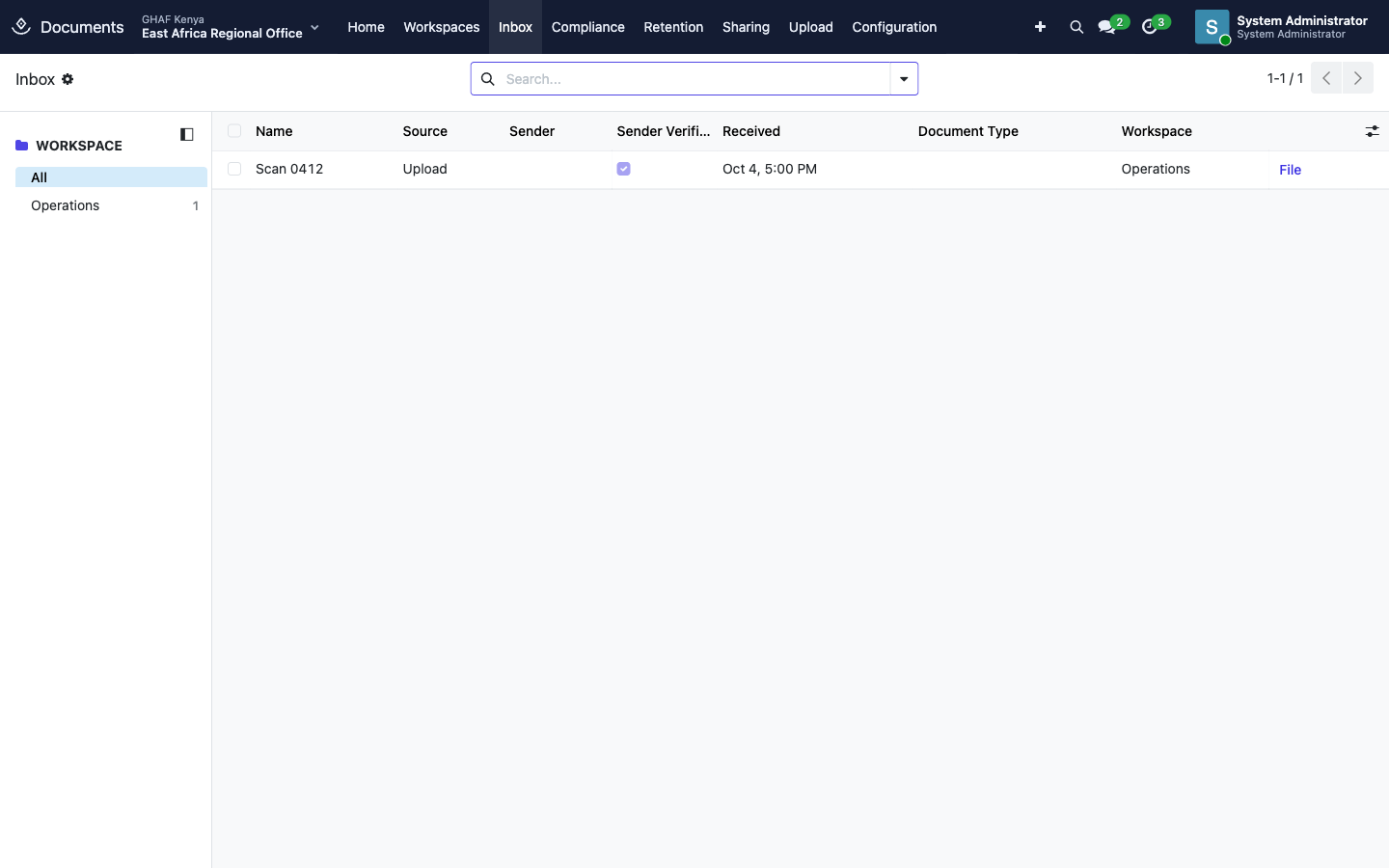
Files sent in from outside show whether the sender was verified. Check them before filing.
Verify documents
Some types, such as vendor registration certificates, must be verified before they count. Open the document and click Verify or Reject. You can only verify in workspaces you belong to, and not after the document has expired.
Compliance
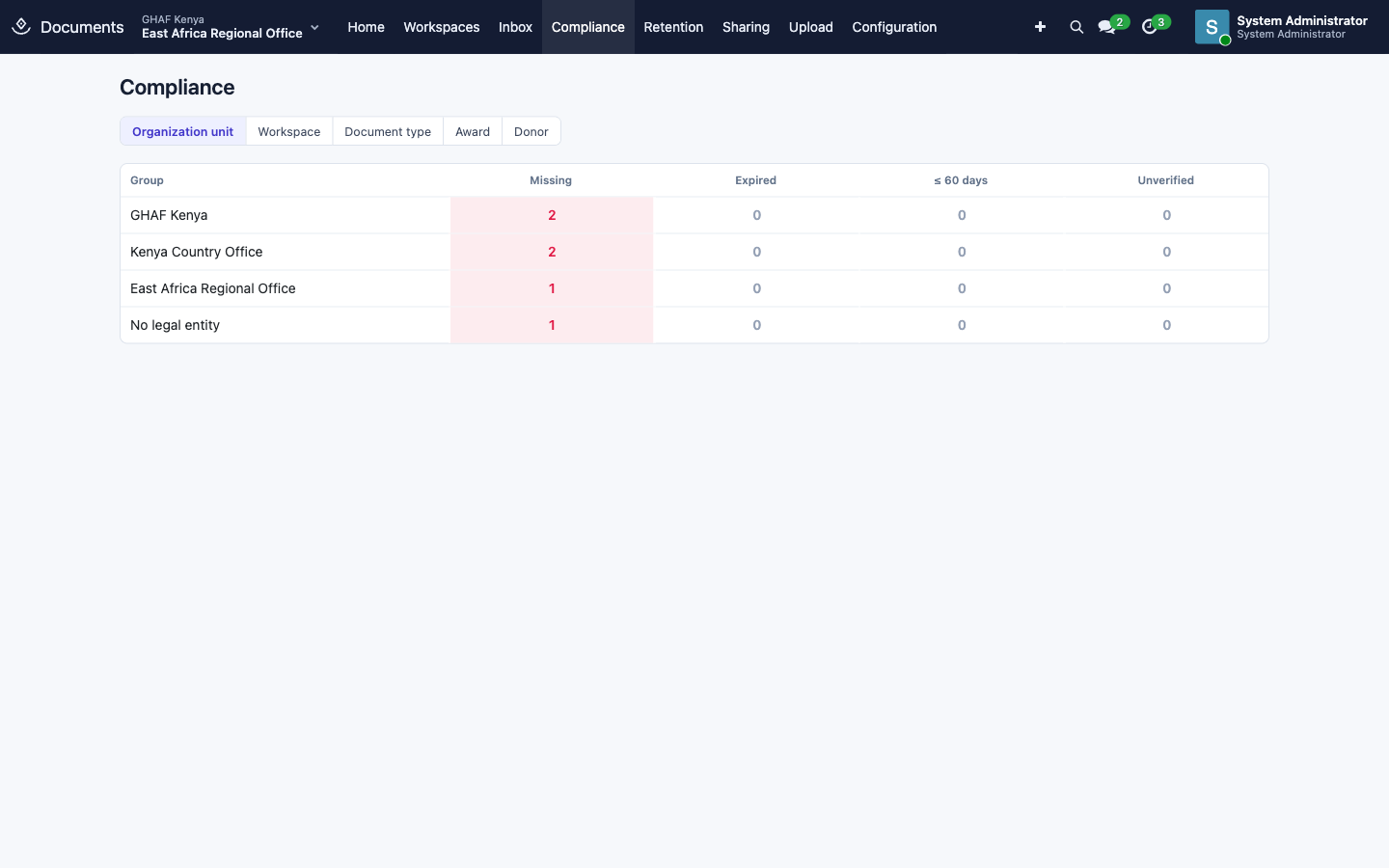
Compliance shows missing, expired, soon-expiring (≤ 60 days) and unverified documents. Group it by Organization unit, Workspace, Document type, Award or Donor. Click a number to see the records behind it.
Share with auditors, donors and partners
Records officers
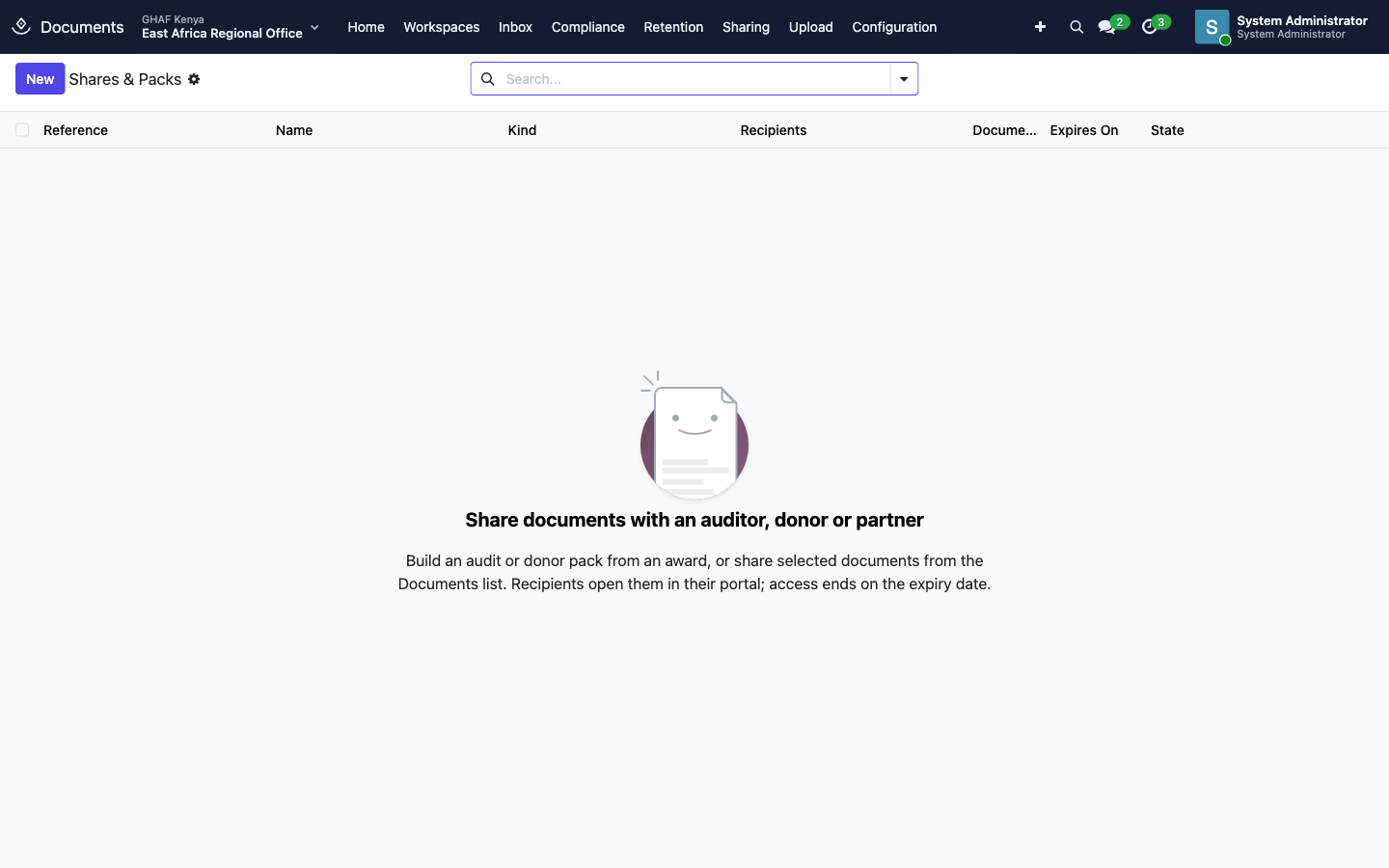
People outside the organisation never get access to a workspace. They get a share: a set of documents, for a limited time, opened in their portal at /my/documents.
Share documents or build a pack
- To share particular documents, open a document and click Share.
- To share everything for an award, use Sharing › Build a Pack, or Build audit or donor pack on the award's Documents tab.
In the pack builder:
- Under Scope, choose the purpose, the record it's about, and the period. Agreements and governance documents are included whatever the period.
- Under Recipients, choose the people, then:
- Expires On: 90 days ahead by default.
- Allow Download and Watermark.
- Require 2-Step Sign-in: on by default.
- Highest Tier Shared: documents above it are left out and counted.
- Review the sections, switching any off, and click Build Pack.
Missing required documents for the award are listed on the share's Gaps tab.
On a share, click Share to give access, Create Link for someone without a portal account, or Revoke Access to end it at once. Shares end by themselves on their expiry date.
Watermarks
With Watermark on, each PDF page shows the viewer's name, the date and time, the organisation and the pack reference, on screen and in downloads. A file shown in a browser can still be saved, but the watermark shows who saved it.
Requests and queries
- Requests are what one side asks the other for.
- We ask a partner for a document. They upload it from their portal and it arrives in the Inbox, unverified. Click Accept & File, or Return to Partner with a reason they can see.
- An auditor asks us, from the pack's request list. Attach the documents and click Mark Provided to add them to the pack.
- Queries are questions an auditor raises about a specific document. Answer in the chatter. The status switches between Open and Answered by itself.
Every external view and download is logged.
For documents managers
Requirement rules
Requirement rules say which documents a record must have before a step, and what happens if they're missing.
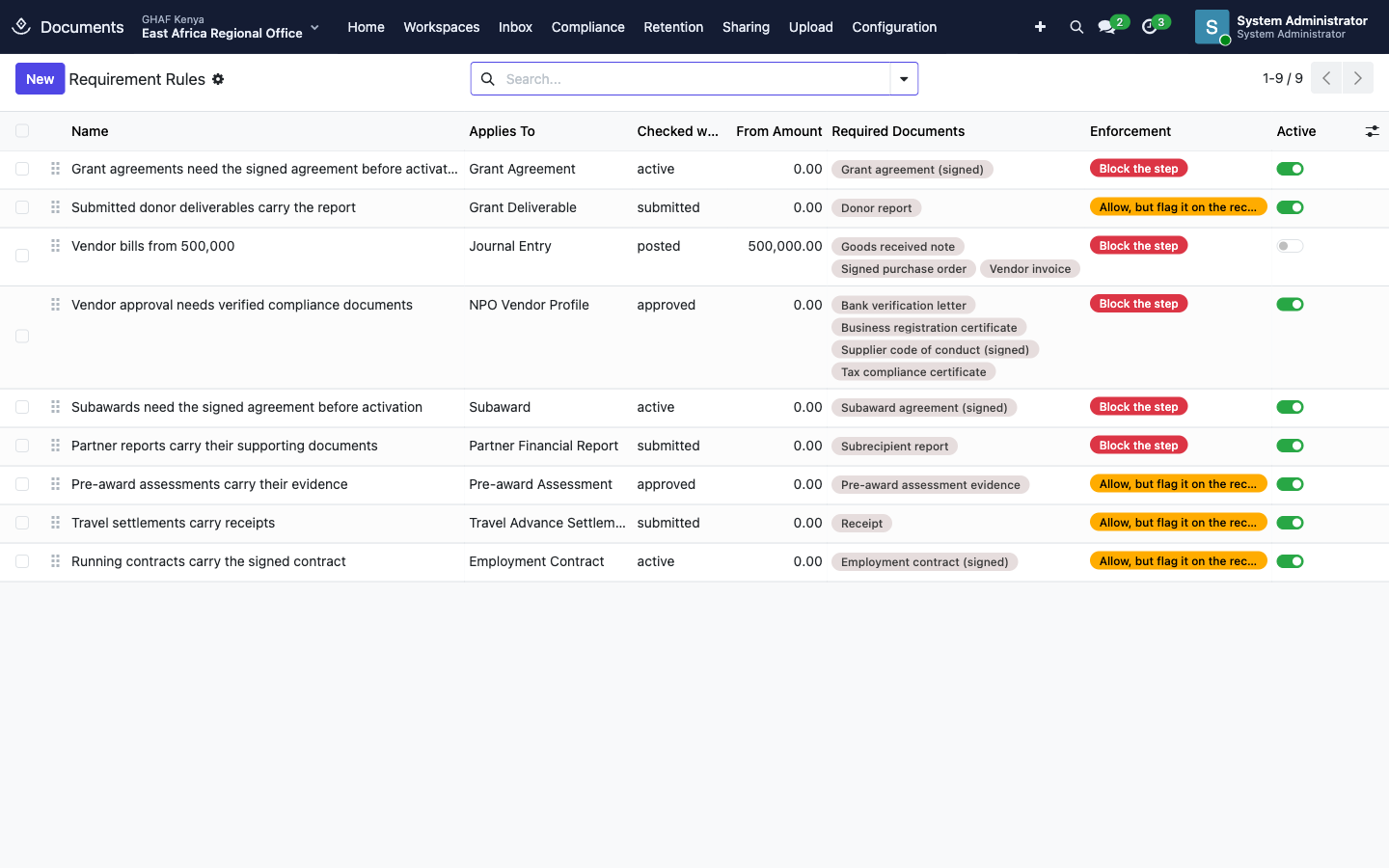
For each rule, Applies To is the kind of record and Checked when is the state it's moving into. From Amount is an optional threshold, and Required Documents lists the types that must be there. Leave Required Documents empty to accept any document.
Enforcement decides what happens when a document is missing:
- Block the step: the record can't move on. People see … needs its supporting documents first. Missing: …
- Allow, but flag it on the record.
Switch a rule on or off with Active. The vendor-bill rule ships switched off: set a threshold for each legal entity before turning it on.
Retention, legal holds and disposal
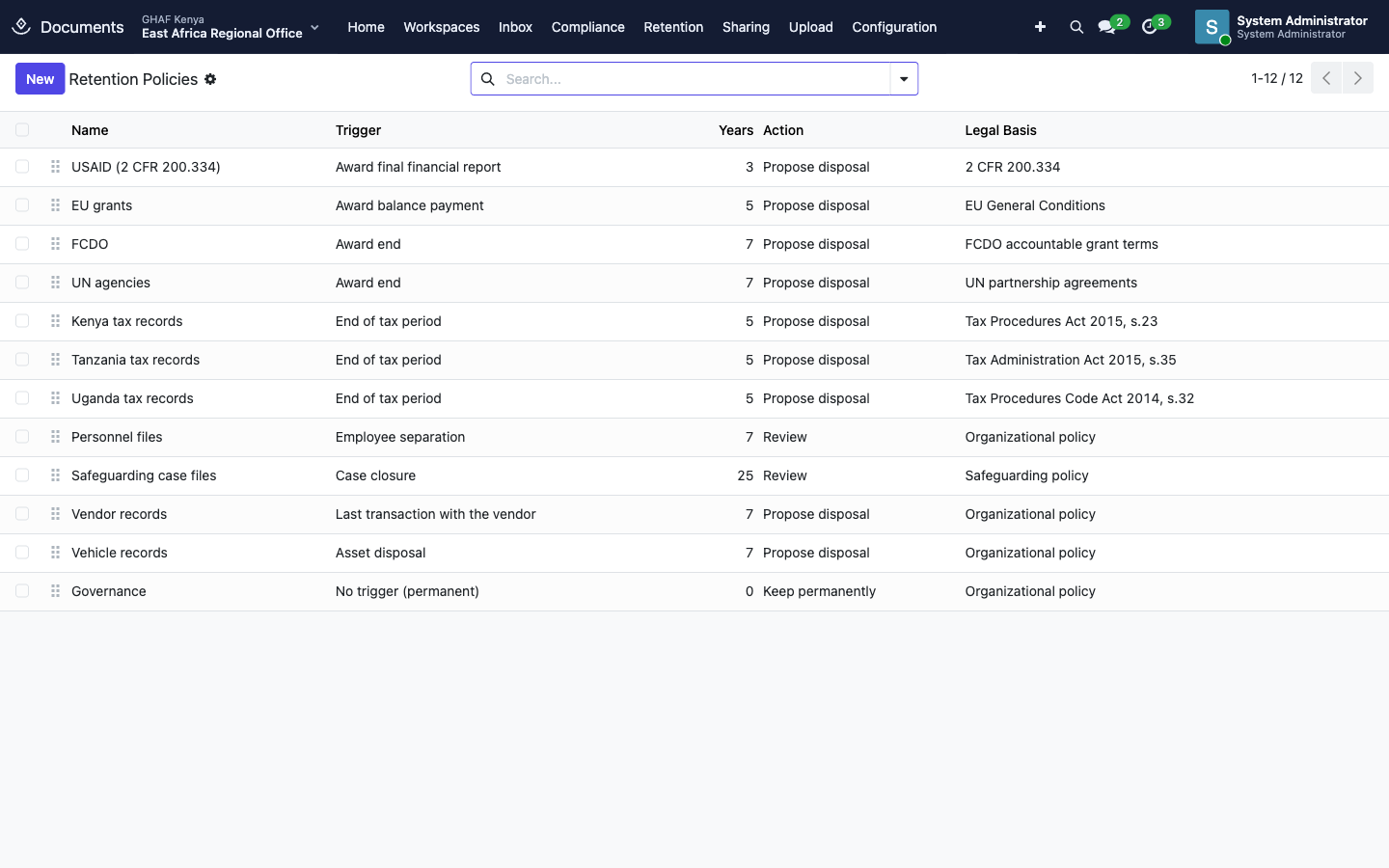
- Retention policies say how long documents are kept after a trigger, such as an award's final report, the end of a tax period or an employee leaving. Each policy either proposes disposal, asks for review, or keeps documents permanently.
- When several policies apply to a document, the latest date wins, and a permanent policy keeps it forever. If a trigger date isn't known yet, the document is kept. The Retention tab shows how its date was worked out. Click Recalculate to refresh it.
- Retention › Legal Holds freeze everything about a record and its related records, such as an award and its bills and subawards. A held document can't be deleted, given a new version or disposed of. Click Release Hold to end it.
- Retention › Disposal Batches: a monthly job proposes a batch of documents past their date. It never deletes anything by itself.
- Submit for Approval. If an approval policy covers disposals, the batch goes through Approvals.
- Otherwise, a second Documents Manager clicks Approve. The proposer can't approve their own batch.
- Dispose of Documents deletes the files and keeps a permanent certificate (name, type, reference, fingerprint, policy, date) that can't be changed.
- Retention › Due for Review lists documents whose policy asks for a review instead of disposal.
Configuration
| Menu | What it holds |
|---|---|
| Workspaces | The eight workspaces (Grants & Awards, Subawards, Finance, Procurement, HR, Programs & M&E, Operations, Governance & Legal). For each: members, records officer and default confidentiality |
| Document Types | Each type's workspace, confidentiality, retention policy, required fields (reference, issue date, expiry), whether it needs review or verification, allowed file types and size, and the words that make Amana suggest it |
| Requirement Rules | See above |
| Retention Policies | See above |
| Tags | Free labels for searching |
Troubleshooting
\"Set the document type of … before filing it.\"
Set the Document Type on the Inbox row first, then click File.
\"… needs a reference number / issue date / expiry date.\"
The document type requires that field. Fill it in on the upload row or on the document, then submit again.
\"… accepts … files only.\" or \"… files must be … MB or smaller.\"
The document type limits file types or size. Save the file in an accepted format, such as PDF, or reduce its size.
\"Only inbox and draft documents can be deleted.\"
Documents past draft are records. They're kept until their retention period ends and are then disposed of with approval. Upload a corrected version instead.
\"Add the new file as a new document; … is no longer current.\"
The document is superseded or expired. Upload the new file as a new document of the same type.
\"… is on legal hold; no new version can be added.\"
A legal hold covers this document. Ask a Documents Manager whether the hold can be released.
\"Only a records officer of … can verify its documents.\"
You need Records Officer access and membership of that workspace.
\"Only a Documents Manager can lower a document's confidentiality.\"
Anyone can raise a level. Lowering it needs a Documents Manager, and the change is logged.
\"… needs its supporting documents first. Missing: …\"
A requirement rule blocks this step. Open the record's Documents tab, upload the missing types (verified, if the rule asks for that), and try again.
I can't see a document a colleague can see.
Check its confidentiality level: you may need workspace membership or a clearance level. HR documents are only visible to HR, the workspace members and the person they're about.