Employees
Staff Admin
Employees holds every staff member's record and, for a grant-funded organisation, the part that matters most: which grants pay each salary. HR prepares employment contracts with a funding split, gets them approved, and Amana keeps the donor budget, payroll and effort reports in line with that split. When someone leaves, an exit clearance makes sure time, money, equipment and handover are settled first.
Module: npo_hr
In plain words
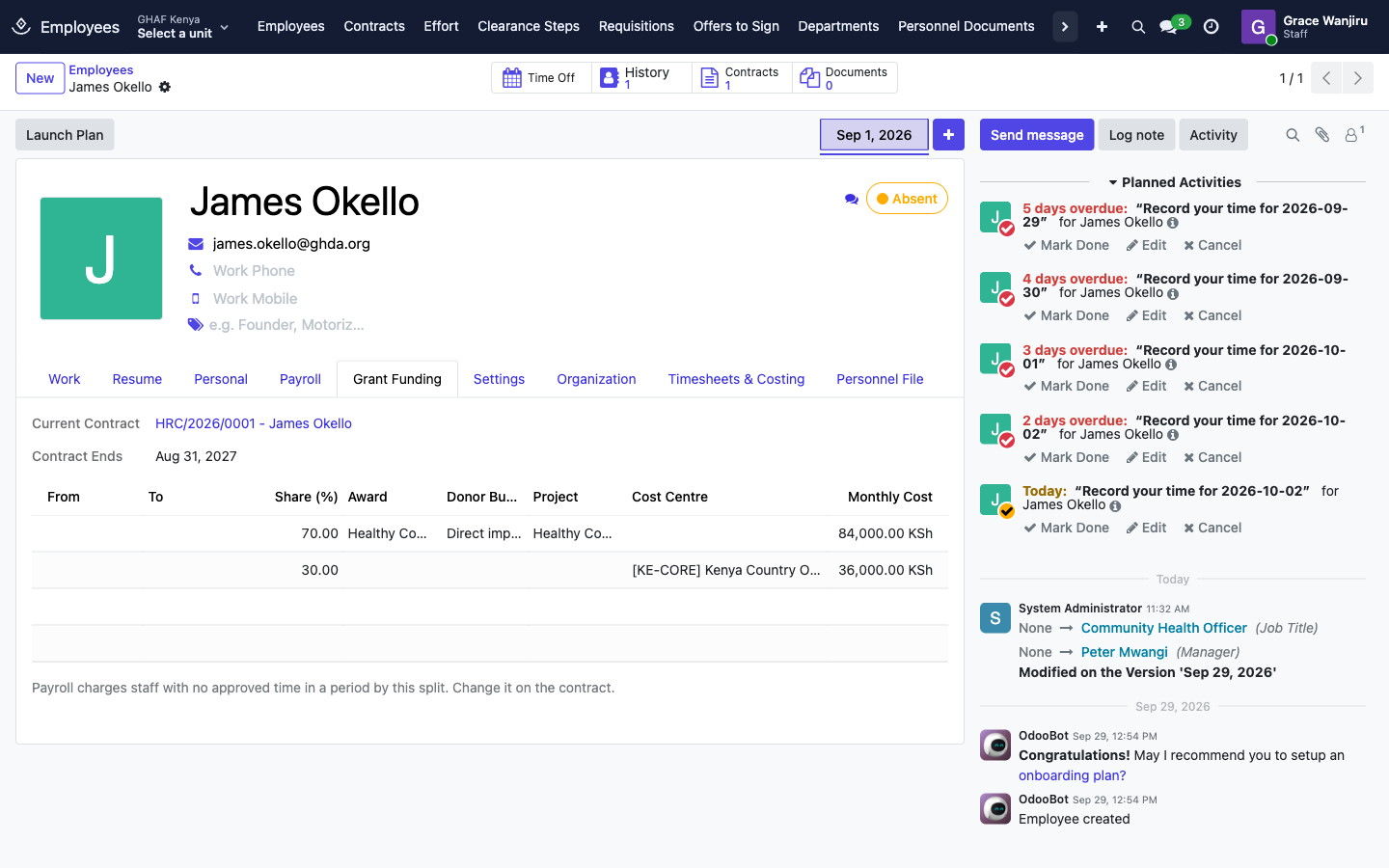
- Every paid staff member has an employment contract: dates, monthly gross wage, pay grade, and a funding split that says who pays the salary. For example: 70% Healthy Communities Kenya, 30% Kenya core costs.
- The split must add up to 100% for the whole contract. Each line charged to a grant must name the grant's fund and the donor budget line that pays for staff, and can't run past the grant's end date.
- A contract is approved before it starts. Once it's running, its wage goes onto the employee record that Payroll reads, and its share is committed on the donor budget line, so grant managers see salary costs before they're spent.
- Each month, staff certify their effort: they confirm that the time they recorded matches the split their salary was charged to. Their supervisor approves it. Donors audit this.
- Before a contract ends, HR decides to renew it or not renew it. A non-renewal opens an exit clearance: a checklist that finance, IT, the manager and HR each sign off, with system checks for open time, advances, approvals and leave.
Before you start
- Each employee has a Manager on their record. The manager's user approves their time and effort.
- Pay grades exist for each legal entity, with a minimum and maximum monthly wage (Configuration › Pay Grades).
- Each office has an active Employment Contract approval policy in its currency. See the approval checklist. Without one, an HR Manager approves the contract on its form.
- Grants that pay salaries are active and have an approved donor budget line for staff costs.
- HR staff have their organisation and office on their user (Settings › Users › Organization tab), or they can't see any grants to charge salaries to.
- Each exit clearance step has an owner: finance steps to finance, IT to IT, and so on (Configuration › Exit Clearance Steps). A step with no owner goes to the leaver's manager.
- The defaults under Configuration › Settings › Grant-Funded Contracts suit you: Renewal notice (60 days), Funding alert (90 days), Effort variance (5%) and the Funding contingency clause printed on grant-funded contracts.
Who uses it
| Role | What they do | Access level |
|---|---|---|
| Staff member | Sees the directory, certifies their effort, clears exit steps assigned to them, raises staff requisitions and signs offers. | Any user |
| Manager / supervisor | Approves their team's effort reports and clears handover steps. | Any user (as the employee's manager) |
| HR officer | Keeps employee records, prepares contracts, effort reports and clearances. | Employees › Officer: Manage all employees |
| HR manager | Approves contracts when no policy applies, waives clearance steps, completes clearances, configures HR. | Employees › Administrator |
| Menu | What's there |
|---|---|
| Employees | Employee records (HR). Staff see Directory instead. |
| Contracts | Contracts, Salary Funding (every split line), Staff Budget Position (donor budget lines with staff commitments), Exit Clearances |
| Effort | My Effort Reports, All Effort Reports and Prepare Effort Reports (HR) |
| Clearance Steps | Exit clearance steps assigned to you |
| Requisitions, Offers to Sign | Staff requisitions and job offers. See Recruitment. |
| Personnel Documents | Documents filed on employees, contracts and clearances |
| Configuration | Pay Grades, Exit Clearance Steps, departments, job positions, working schedules, onboarding and offboarding plans, Settings |
1. Prepare a contract
A contract's life:
Draft → Awaiting Approval → Approved → Running → Ended (or Renewed when a follow-on contract starts; Cancelled before it starts)
- Go to Contracts › Contracts and click New.
- Choose the Employee. Legal Entity, Position, Department and Operating Unit fill in from their record. The operating unit decides which office's approval policy applies.
- Set the Contract Kind: Fixed term, Open-ended, Consultancy or Casual. All but open-ended need an End date.
- Enter Start, End, End of Probation and Notice Period (days).
- Choose the Pay Grade and enter the Monthly Gross Wage. If the wage is outside the grade's band, explain why in Reason Outside the Grade Band.
- Tick Key Personnel if the donor must approve who holds the post. A Donor Approval tab appears for the approval date and letter.
- On Funding Split, add one line per source:
- Share (%).
- For a grant: Award, Fund and Donor Budget Line (and the Project if the grant funds several).
- For core or unrestricted money: a Cost Centre.
- From and To if the split changes during the contract, for example when one grant ends and another takes over.
- Save. Check Monthly Cost per line and Contract Wage Cost for the whole contract.
- Click Submit for Approval. Amana checks the split first and lists anything to fix.
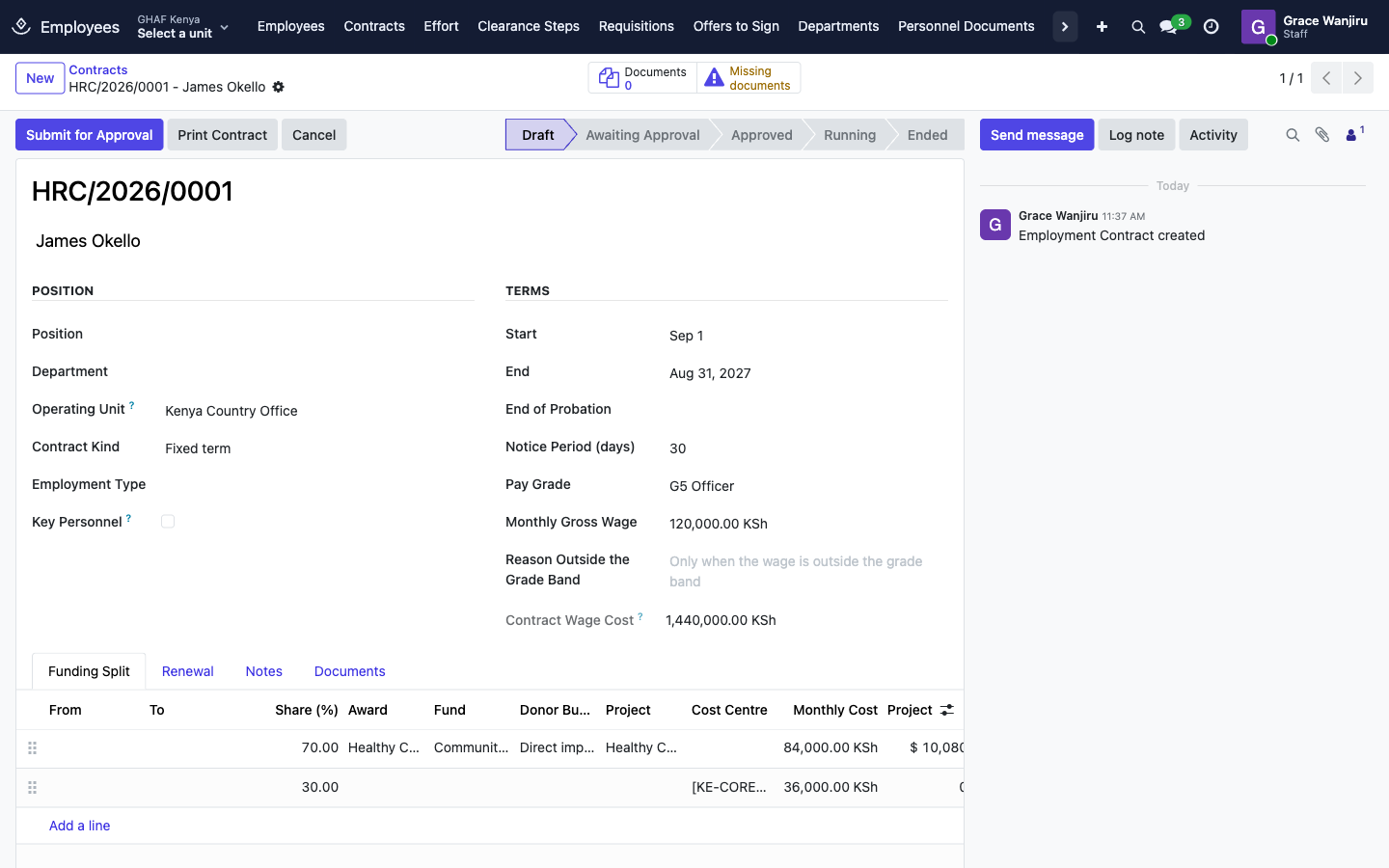
The contract then goes through the office's Employment Contract policy. In Kenya that's the Country Director:
When it's approved:
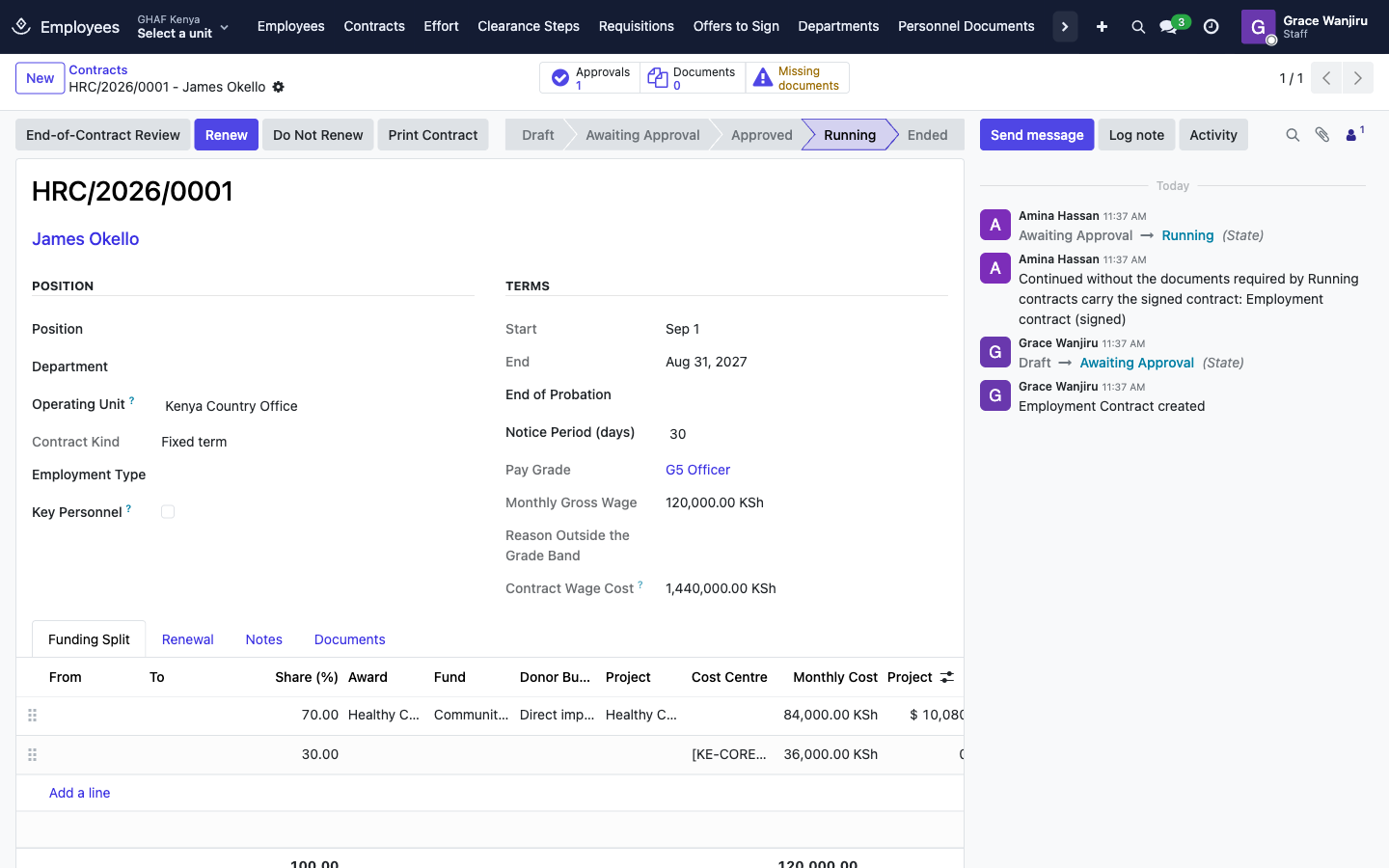
- If the Start date has arrived, the contract starts (Running) and its wage, dates and position go onto the employee's record for payroll. A contract approved ahead of time starts by itself on its start date.
- A key personnel contract waits until the donor's approval date and letter are recorded on the Donor Approval tab.
- Upload the signed contract to the contract's Documents. Until it's there, the Missing documents button stays on the form.
A signed contract keeps its terms
Once submitted, the employee, wage, grade, dates and kind can't be edited. To change pay or dates, Renew the contract (a new contract from a new date). Cancel only works before the contract starts; after that, employment ends through an exit clearance.
2. Follow staff costs on the grants
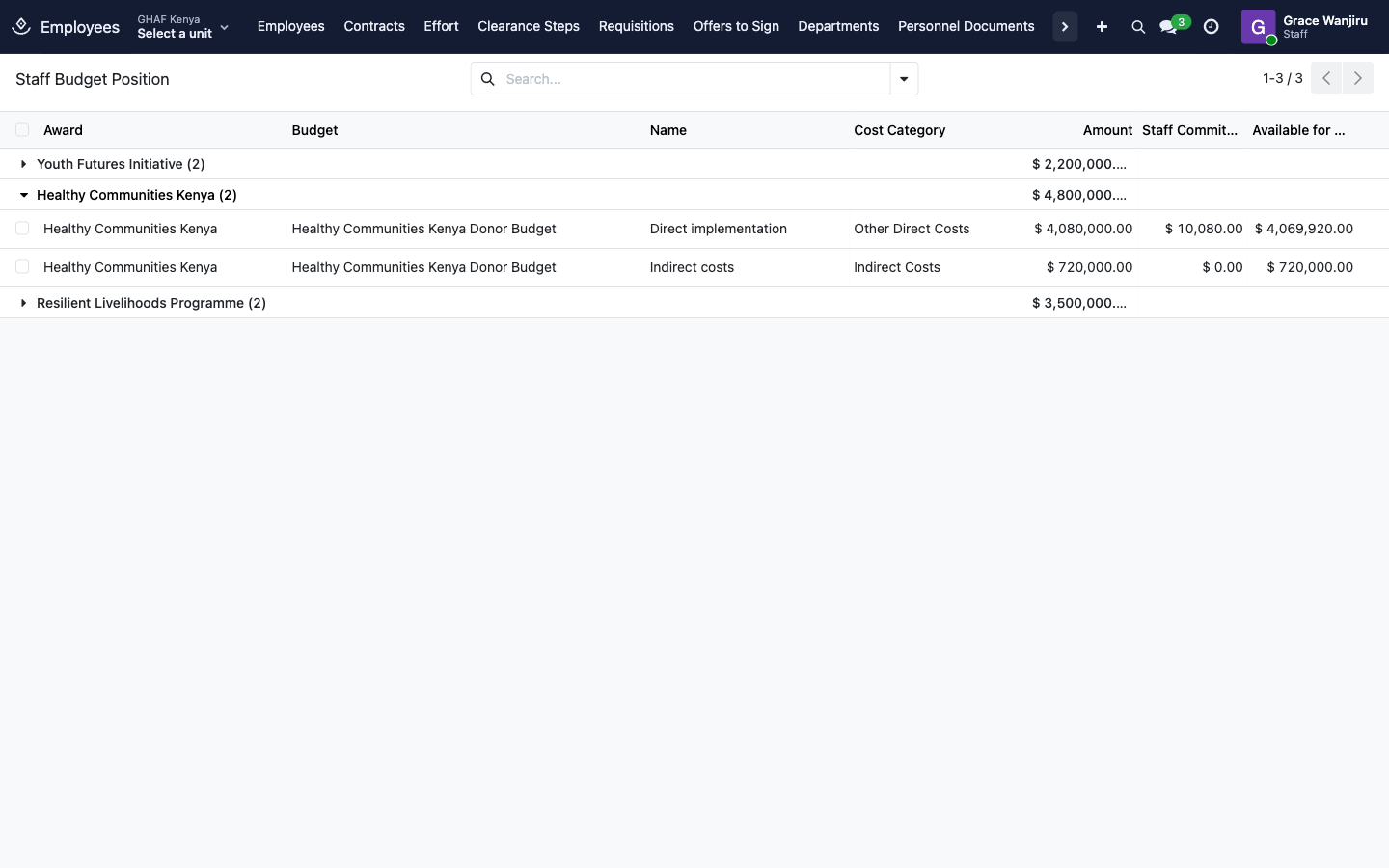
- Contracts › Staff Budget Position lists each donor budget line with Staff Commitments (what running and pending contracts will cost it) and what's Available after them. Contracts that are awaiting approval, approved or running hold their share.
- Contracts › Salary Funding lists every split line across contracts, grouped by award or employee.
- The employee's Grant Funding tab shows their current contract and split.
Who gets charged when there's no timesheet
Payroll charges salaries by approved time first. For a month with no approved worked time, it uses the contract's funding split. See Timesheets.
A daily job also:
- starts approved contracts on their start date;
- flags renewals that are due: HR gets Decide whether to renew …, the manager gets Renewal of …: your recommendation, and the contract shows that the decision is due;
- warns HR Funding alert days before a grant on the split ends (Funding ends: …);
- reminds HR to record the donor's approval for key personnel;
- after a contract ends, reminds HR to start the exit clearance.
3. Certify effort each month
Donors ask for proof that the time charged to their grant was really spent on it. Each month Amana compares what staff recorded in Timesheets with the split their salary was charged to.
-
Once a month, a job prepares last month's effort reports for everyone paid by a grant or recording time on one. HR can also run Effort › Prepare Effort Reports for any period (empty Employees means everyone it applies to).
Grace prepares September's effort reports. -
Each staff member gets an activity Certify your effort for …. They open Effort › My Effort Reports, check Planned (%) against Actual (%), and click Certify My Effort. If any line is further than the Variance Threshold from the plan, they write an Explanation first.
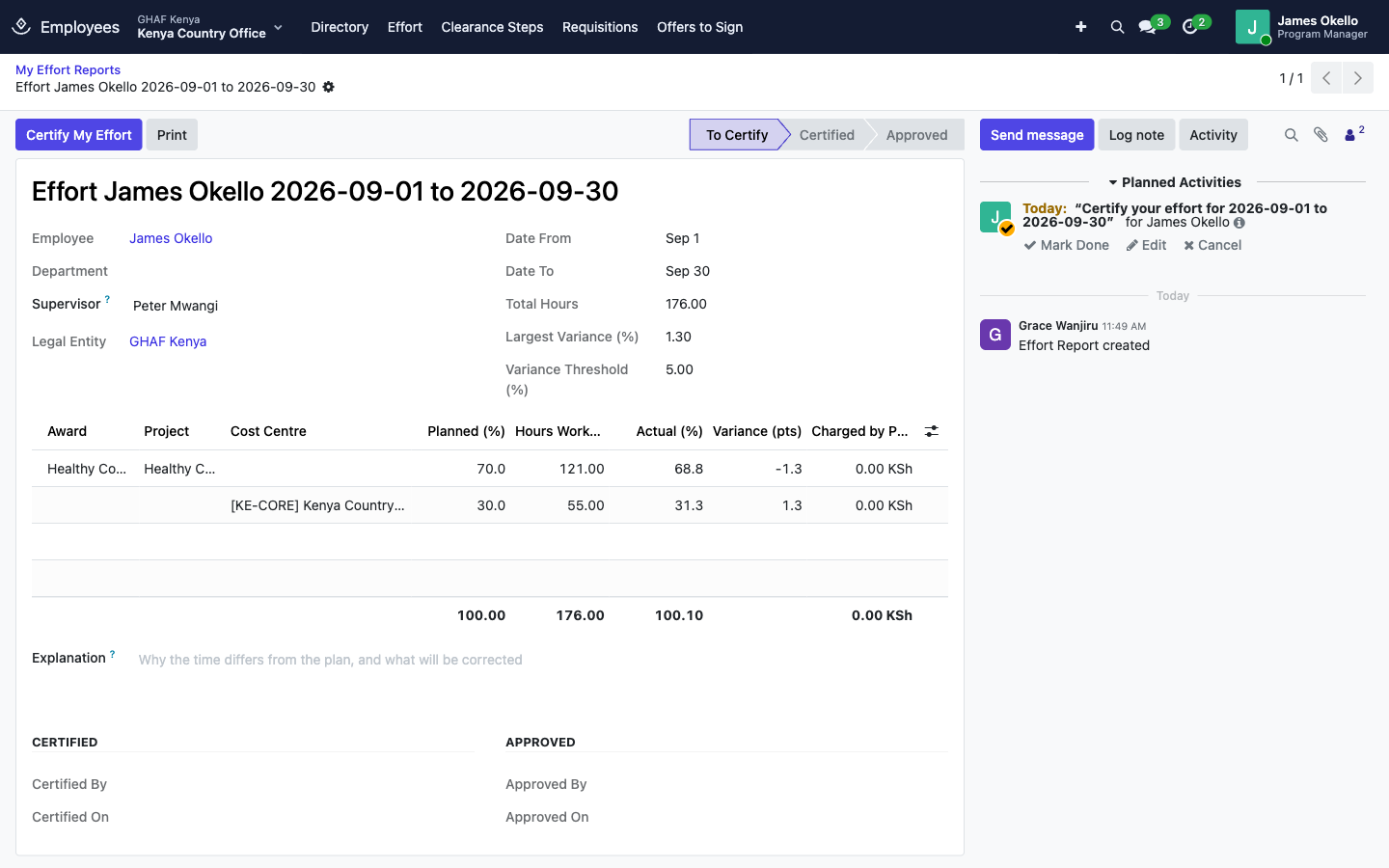
James certifies his effort. -
The Supervisor (the employee's manager) approves it, or clicks Return to send it back for another look. An HR Manager can also approve. Nobody approves their own.
Peter, James's manager, approves it.
Charged by Payroll shows what posted payroll actually charged each line, so the report ties time, plan and cost together. HR clicks Recompute to refresh a report that's still to certify, for example after late time is approved.
4. Renew, or end a contract
Renewal notice days before a fixed-term contract ends, its Renewal tab shows the decision is due.
- Renew opens a form for the new terms (start, end, wage, grade and split). Prepare Renewal creates a draft follow-on contract that starts the day after this one ends. It goes through approval like any contract. When it starts, this one becomes Renewed.
- Do Not Renew asks for the reason, details and the date notice was given. Amana warns if the notice is shorter than the contract's notice period. Confirm Non-Renewal opens the exit clearance.
Print Contract and Print Notice produce the contract and the notice letter.
5. Clear someone's exit
An exit clearance makes sure nothing is left open when someone leaves: time and effort, advances and loans, donor-funded equipment, handover, IT access and safeguarding records.
- Open the clearance (from the contract, or Contracts › Exit Clearances). Check Exit Type, Last Working Day and the Offboarding Plan.
-
Click Start Clearance. Amana adds the standard steps and sends each owner an activity listing their steps. The offboarding plan's activities start too.
Grace starts the clearance. Peter, Fatima and Grace each get their steps. -
Each owner opens Clearance Steps (top menu), writes what was returned or settled in Note, and clicks Clear, or N/A if it doesn't apply.
Fatima confirms there are no open advances and clears her step. -
The System Checks tab reads timesheets, effort reports, travel advances and claims, approvals waiting on this person, leave and organisation roles. Blocking items must be settled before the clearance can complete.
- When every required step is cleared, waived or N/A, an HR Manager clicks Complete Clearance. The employment end is recorded on the last working day. Print Certificate gives the clearance certificate.
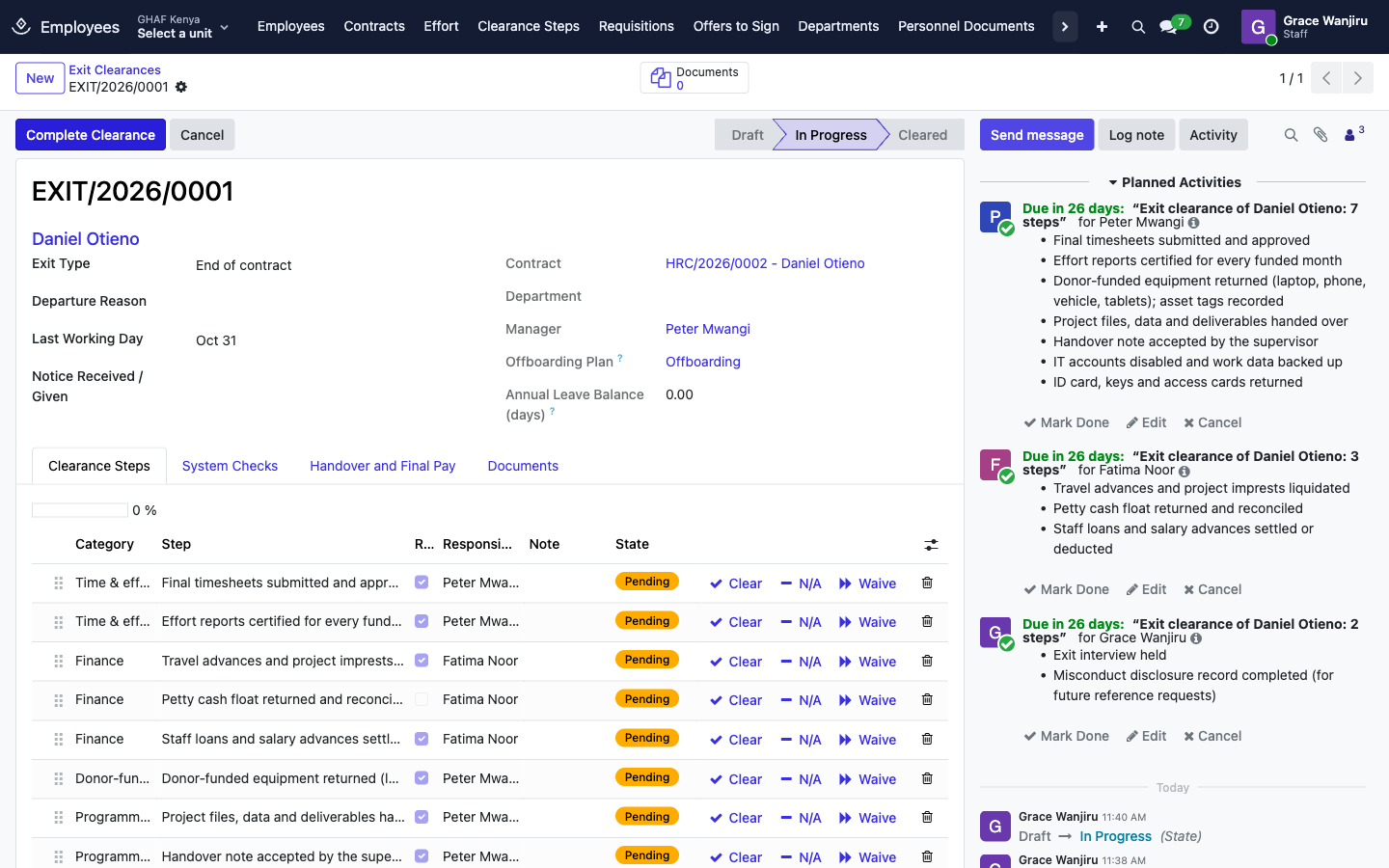
Only an HR Manager can Waive a step.
Configuration
- Configuration › Pay Grades: Code, Name, Labour Category (as the donor budgets it, e.g. Program Officer), Minimum Monthly Wage and Maximum Monthly Wage, per legal entity.
- Configuration › Exit Clearance Steps: twelve standard steps ship with Amana, from Final timesheets submitted and approved to Misconduct disclosure record completed. For each, set the Responsible user, whether it's Required, and the Legal Entity (empty means every entity).
- Configuration › Settings › Grant-Funded Contracts: renewal notice, funding alert, effort variance and the contingency clause.
Troubleshooting
\"… cannot go ahead: From … the split adds up to 90%, not 100%.\"
Fix the Share (%) on the Funding Split so every period adds up to 100%.
\"Choose the donor budget line of … that pays this position.\"
Each grant line needs its Donor Budget Line. If the list is empty, the grant has no approved donor budget, or you don't have its office on your user (ask an administrator to add it on Settings › Users › Organization).
\"… is Draft and cannot fund a contract.\" (or another status)
Only approved or active grants can pay salaries. Finish the grant's activation first.
\"… budget line … has USD … left for staff; this contract needs USD ….\"
The donor budget line can't cover the contract for its whole length, after the other contracts already committed to it. Lower the share, split the cost with another line or cost centre, or shorten the contract. If the grant's budget is changing, that's a grant amendment first.
A note says \"No exchange rate between KES and USD … so the budget of … was not checked.\"
Finance hasn't entered a rate between the office's currency and the grant's currency. The contract still goes ahead, but the budget check was skipped. Ask finance to add the rate.
\"… already has contract … over these dates.\"
An employee has one contract at a time. Renew the existing one, or cancel it if it never started.
\"This contract follows an approval policy. Decide it from the approval request.\"
The approver decides it in Approvals, not with the Approve button on the contract.
\"… is key personnel: record the donor's approval (date and letter) before the contract starts.\"
Fill in the Donor Approval tab: the approval date and the donor's letter.
\"A contract that has started is ended through exit clearance, not cancelled.\"
Use Do Not Renew, or start an exit clearance for an early departure.
\"Your time differs from the planned split by …%. Explain why before certifying.\"
Write an Explanation on the effort report: why the time differed and what will be corrected. Then certify.
\"Still to clear: …\" when completing a clearance
Required steps are still pending. Chase the owners on Clearance Steps, or (HR Manager) Waive a step with a note.