Administration
Admin
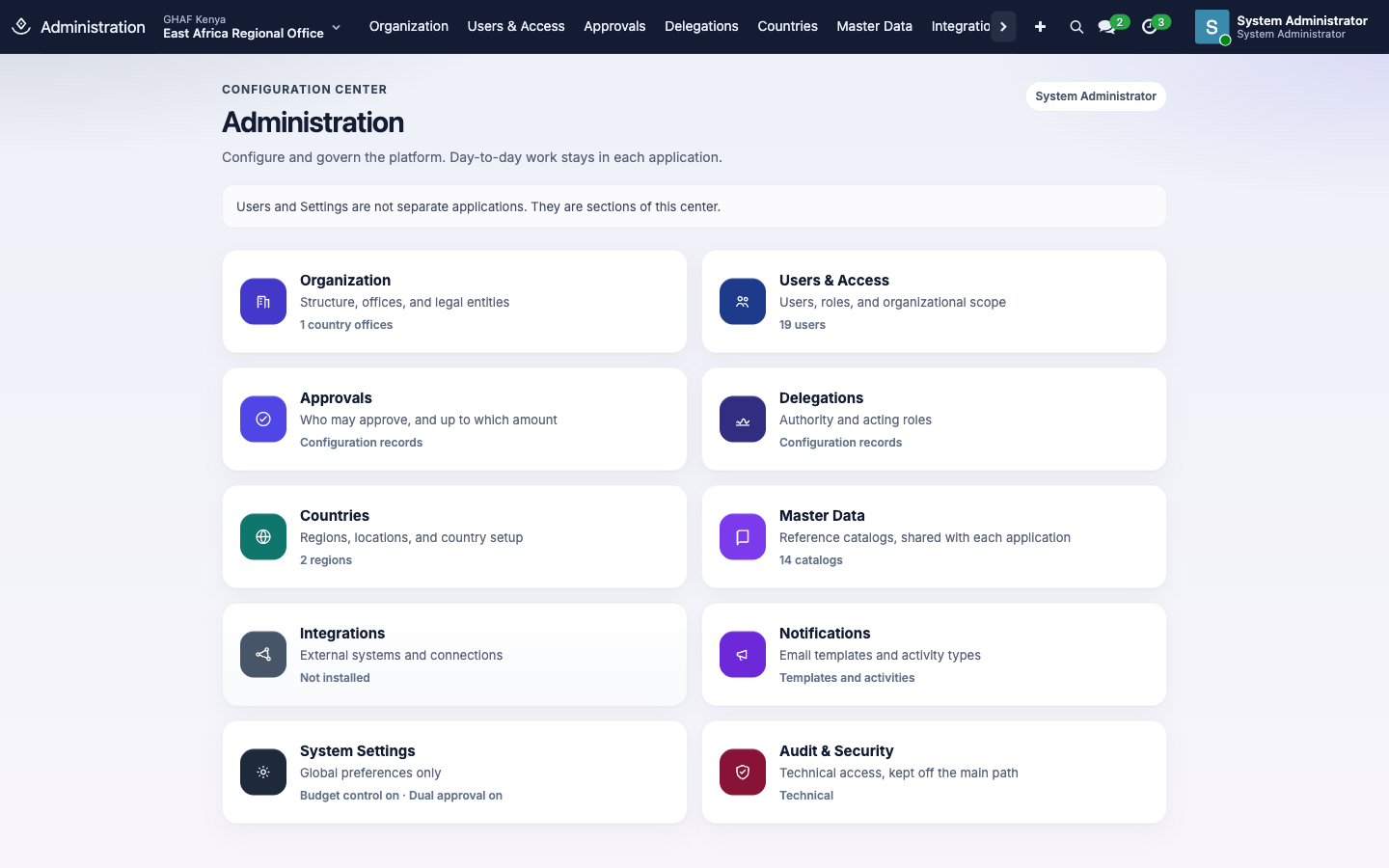
Administration is the configuration centre for Amana. It brings users, access, approval rules, master data and settings together in one place. Day-to-day work stays in each app: Administration is where you set things up, not where you approve or post.
Module: npo_administration
In plain words
- Administration is the one place to set Amana up: people and their access, approval rules, reference lists and settings.
- It doesn't keep separate copies. Each card opens the same records the apps use, so a change here is a change everywhere.
- Only system administrators can open it.
Before you start
- The office structure is in place in Organization, because users are given access to offices.
- You know each new person's job, office and which apps they'll use.
Who uses it
Only system administrators can open Administration. Anyone else who tries sees Administration is limited to system administrators. Approval and organisation administrators who aren't system administrators reach the same screens from the Approvals and Organization apps.
What's in each section
Most sections open screens that belong to other apps, so there's one copy of each record wherever you open it.
| Section | What it holds | Also found in |
|---|---|---|
| Organization | Organisation profile, units, country offices, legal entities, structure versions, unit relationships | Organization |
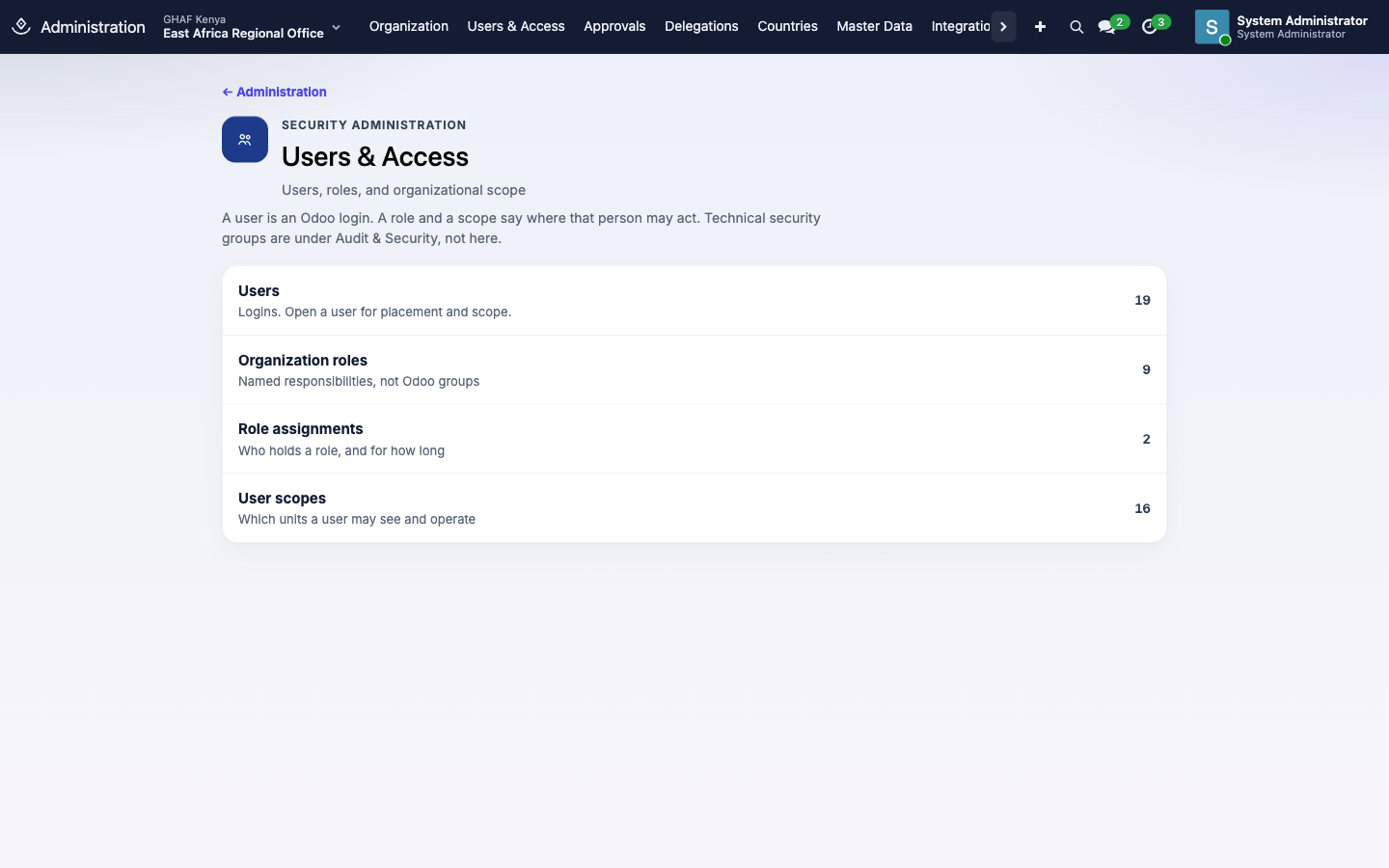
| Users & Access | Users, organisation roles, role assignments, user scopes | Organization |
| Approvals | Approval policies, authority matrices, separation of duties, approval audit, and a shortcut to pending requests | Approvals |
| Delegations | Delegation records | Approvals |
| Countries | Regions, locations, countries, currencies, languages | — |
| Master Data | Reference catalogs (see below) | The app each catalog belongs to |
| Integrations | Connections to banks, payroll and other systems | Shows No connector is installed until one is |
| Notifications | Email templates and activity types | — |
| System Settings | Platform-wide defaults and switches (see below) | — |
| Audit & Security | Technical security groups and Odoo's technical settings | — |
Each card shows a count or status, such as 19 users or Not installed. Click a card to open the section, then click a row to open that list.
Onboard a new staff member
A person needs three things before they can work in Amana:
- A user to sign in with.
- Access levels for the apps they use.
- A user scope for the units they work in.
To be an approver or hold a job title, they also need an employee record and a role assignment.
1. Create the user
- Open Administration › Users & Access › Users and click New.
- Enter the person's full name and their email address as the Login.
2. Set access levels
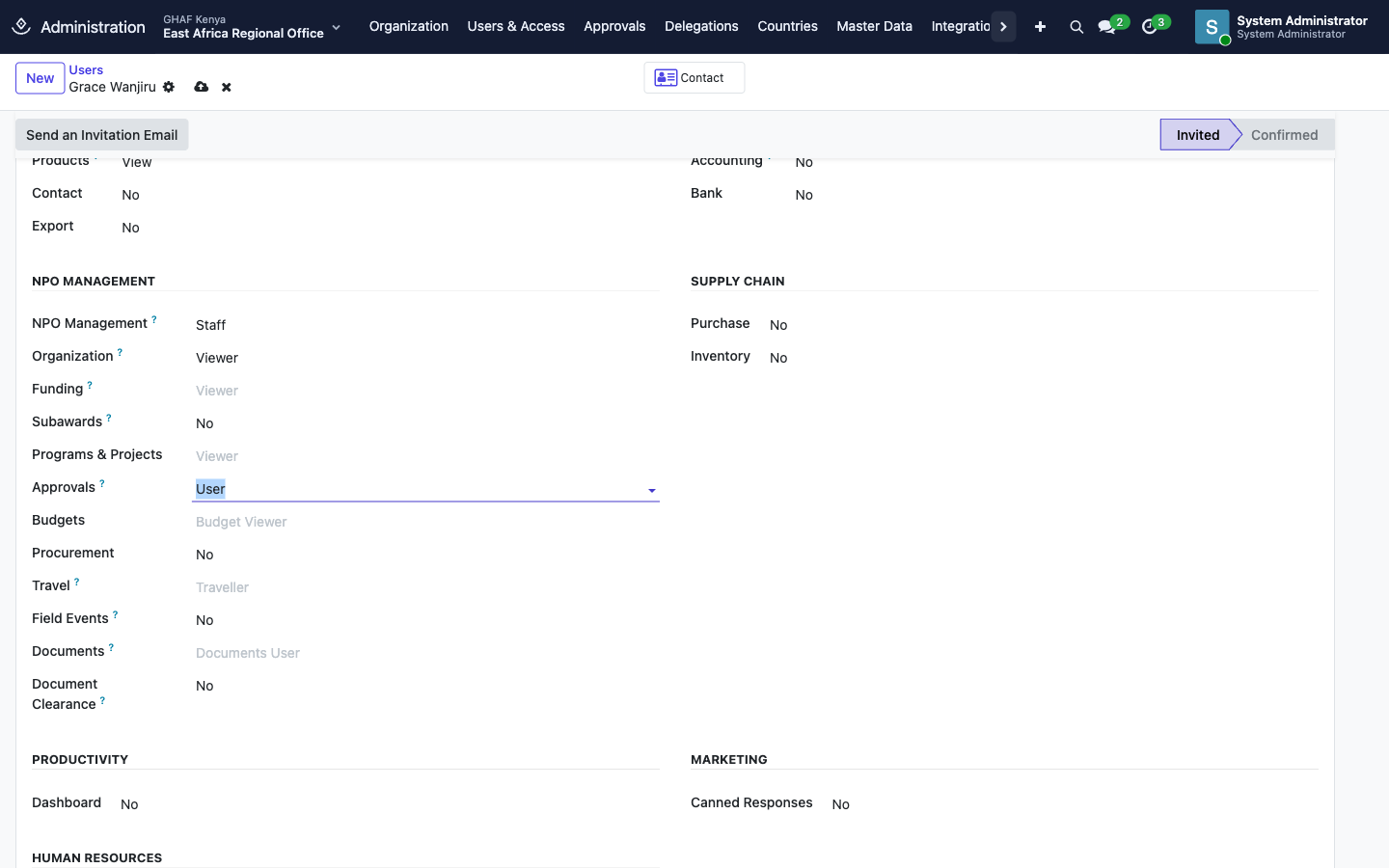
On the Access Rights tab, each app has a level, from No upwards.
- Under NPO Management, choose the person's main profile: Staff, Country Director, Program Manager, Finance Manager or MEAL Officer. This is the label shown under their name at the top right.
- Set the levels for the apps they'll use, for example Organization: Viewer and Approvals: User.
Some levels fill in by themselves, shown in grey. Choosing Staff, for example, also gives viewer access to Funding, Programs & Projects and Budgets, Traveller in Travel, and Documents User. You can raise a grey level, but not lower it below what the other choices include.
Each app's guide lists what its levels allow, for example Approvals and Organization.
3. Place them in the organisation
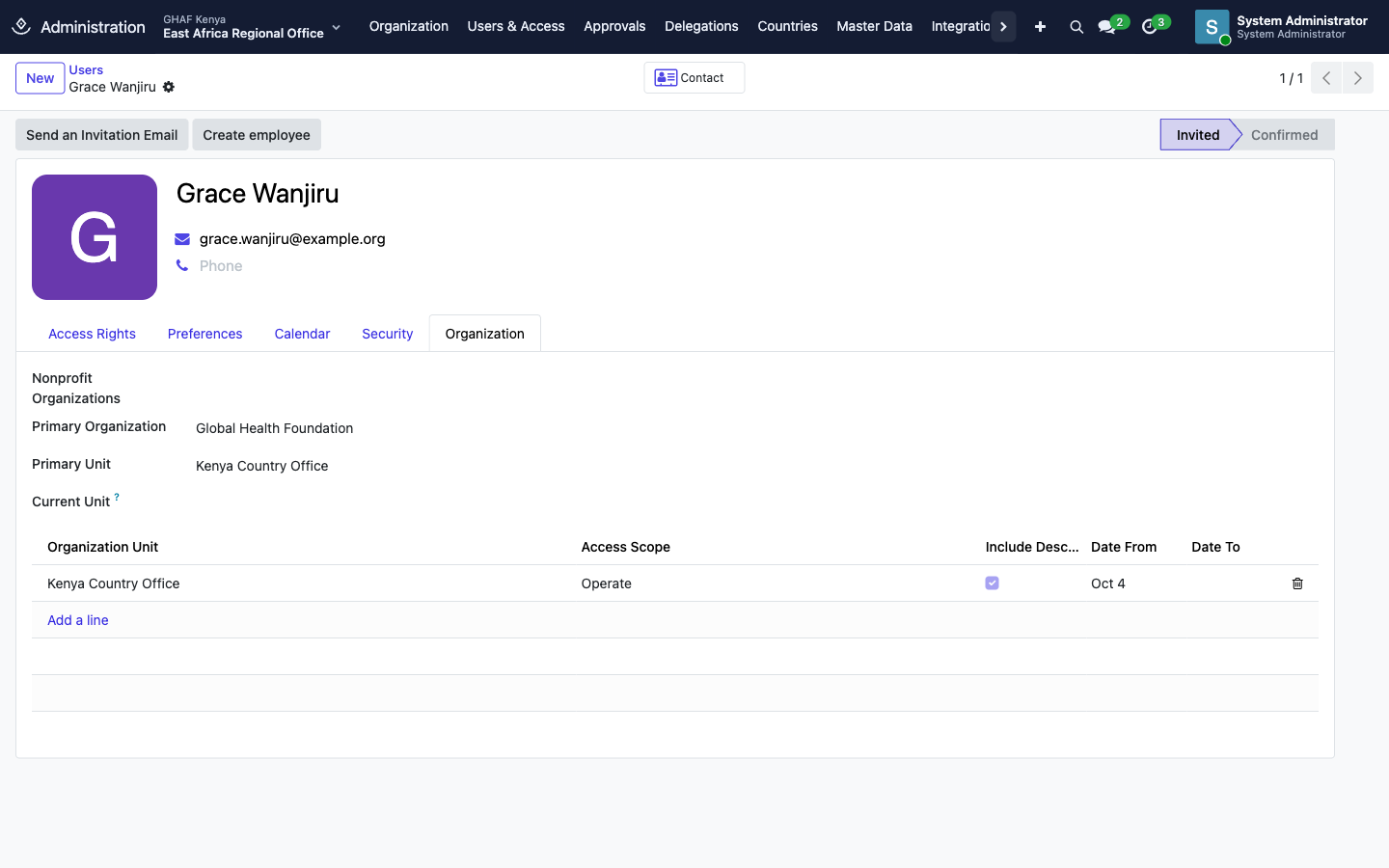
On the Organization tab:
- Set Primary Organization and Primary Unit: where the person belongs.
- Under the scopes list, click Add a line. Choose the Organization and the Organization Unit they'll work in, and an Access Scope (usually Operate). Click Save & Close.
- Save the user.
See user scopes for what View, Operate and Manage allow.
4. Invite them and link their employee record
- Click Send an Invitation Email. The person receives a link to set their password. The status shows Invited until they first sign in, then Confirmed.
- Click Create employee to make their HR record, linked to this user. Role assignments and Requester's Manager approval steps work from employee records.
- If they hold a job such as Finance Manager, appoint them to the role.
When someone leaves
Don't delete their user. Archive it (Actions › Archive) so their past approvals, documents and history keep their name. End their role assignments with Expire, and give their pending approvals to someone else with a delegation.
System Settings
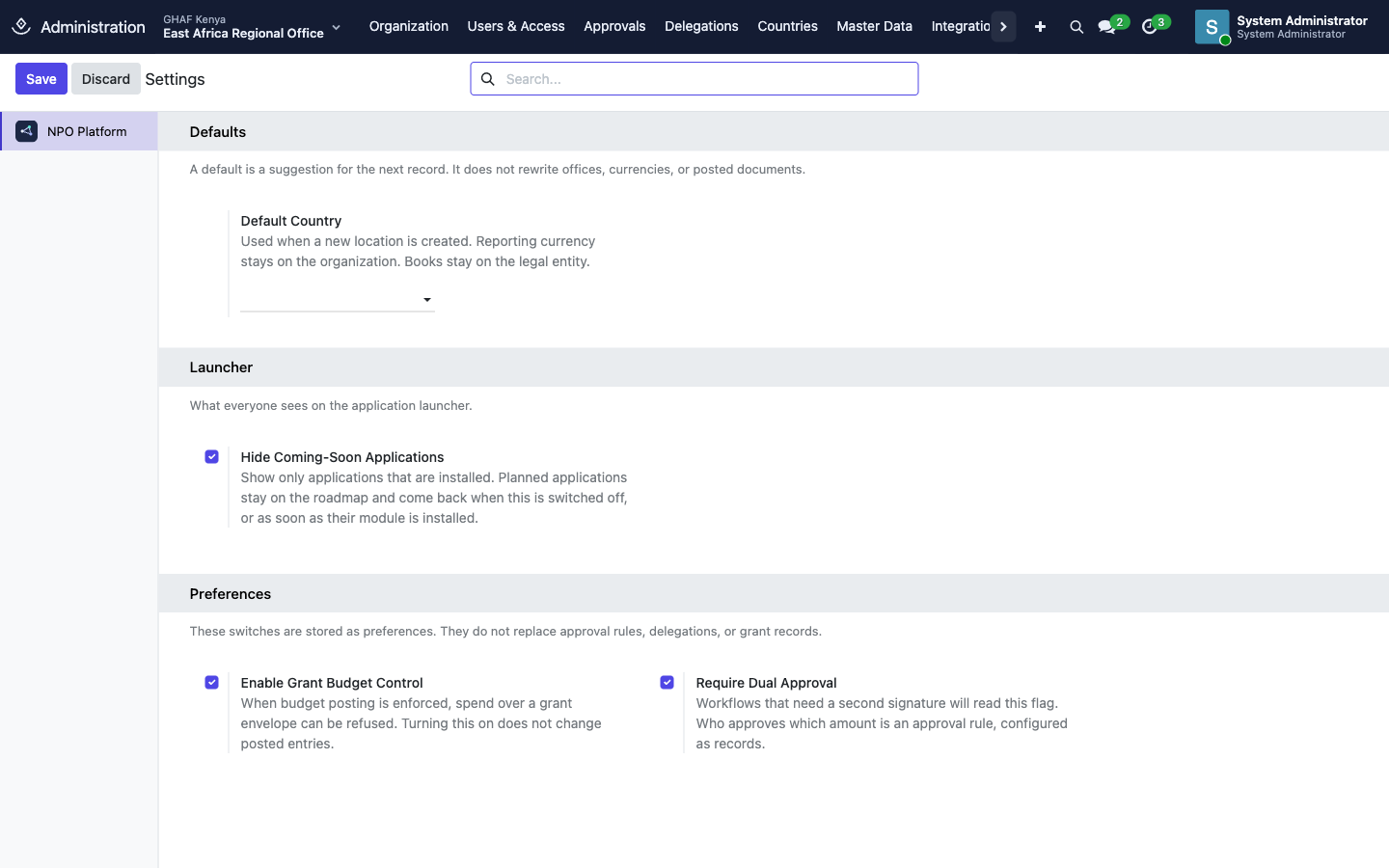
Open Administration › System Settings. These are platform-wide defaults and switches. Rules such as who approves what are records in their own apps, not settings.
| Setting | What it does |
|---|---|
| Default Country | Suggested country for new locations. Existing locations, offices and company books aren't changed. |
| Hide Coming-Soon Applications | Shows only installed apps on the launcher. Planned apps come back when this is off, or as soon as they're installed. |
| Enable Grant Budget Control | Lets workflows that enforce grant budgets refuse spending over a grant's envelope. Doesn't change posted entries. |
| Require Dual Approval | A flag that workflows needing a second signature read. Who approves which amount is still set by approval policies. |
Click Save after changing a setting.
Master Data
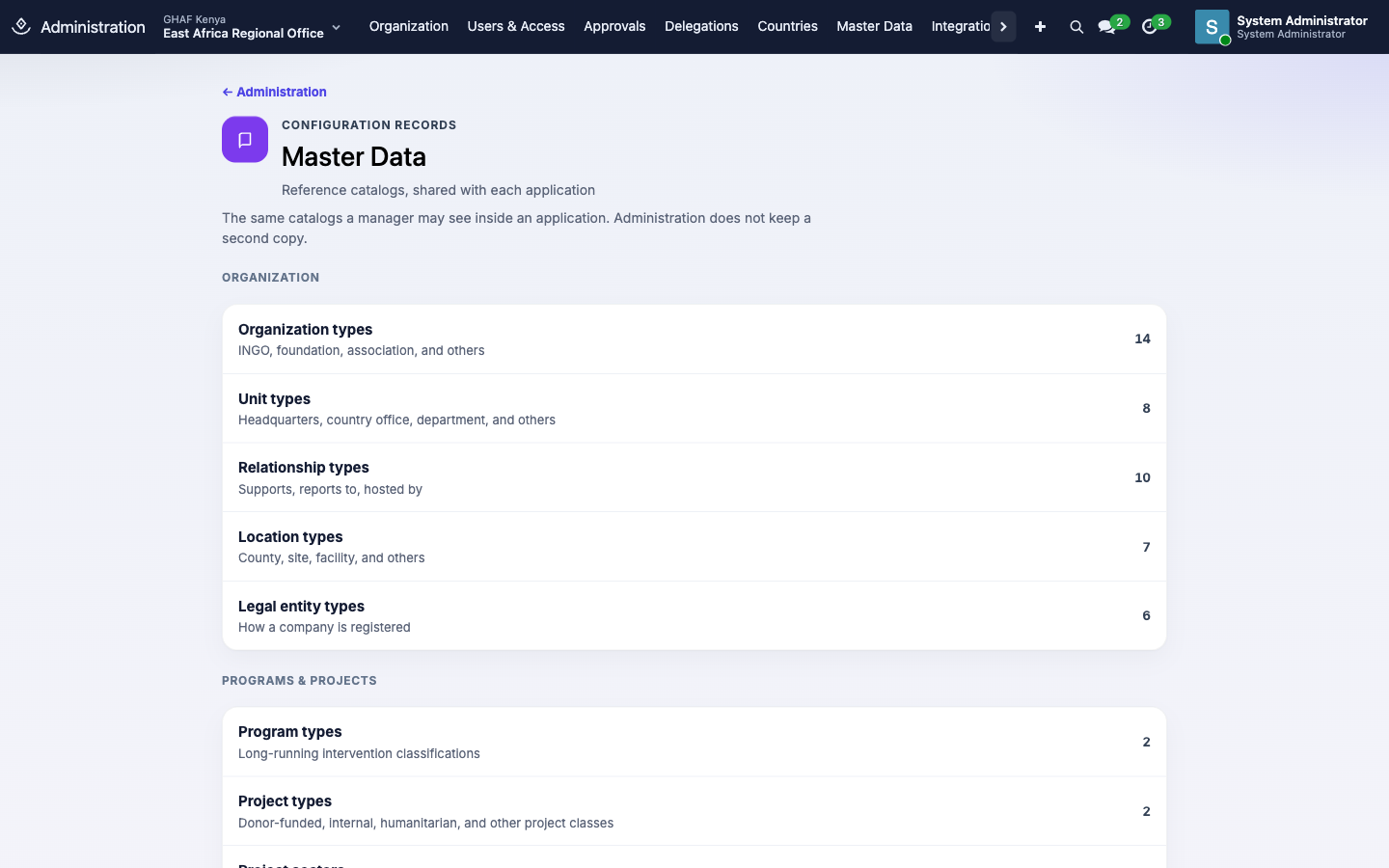
Administration › Master Data lists the reference catalogs other apps use. They're the same records a manager sees inside each app.
| Group | Catalogs |
|---|---|
| Organization | Organization types, Unit types, Relationship types, Location types, Legal entity types |
| Programs & Projects | Program types, Project types, Project sectors, Project themes, Project stages, Activity types, Partner roles |
| Grants | Donors, Grant cost categories |
Countries, Notifications and Integrations
- Countries: Regions and Locations are your own geography. Countries, Currencies and Languages are the standard lists. Each legal entity keeps its own currency.
- Notifications: Email templates (messages Amana can send) and Activity types (follow-ups such as To-Do or Call).
- Integrations: connections to banks, payroll or identity systems. Each connection is a record with its own log. Until one is installed, this section shows No connector is installed.
Audit & Security
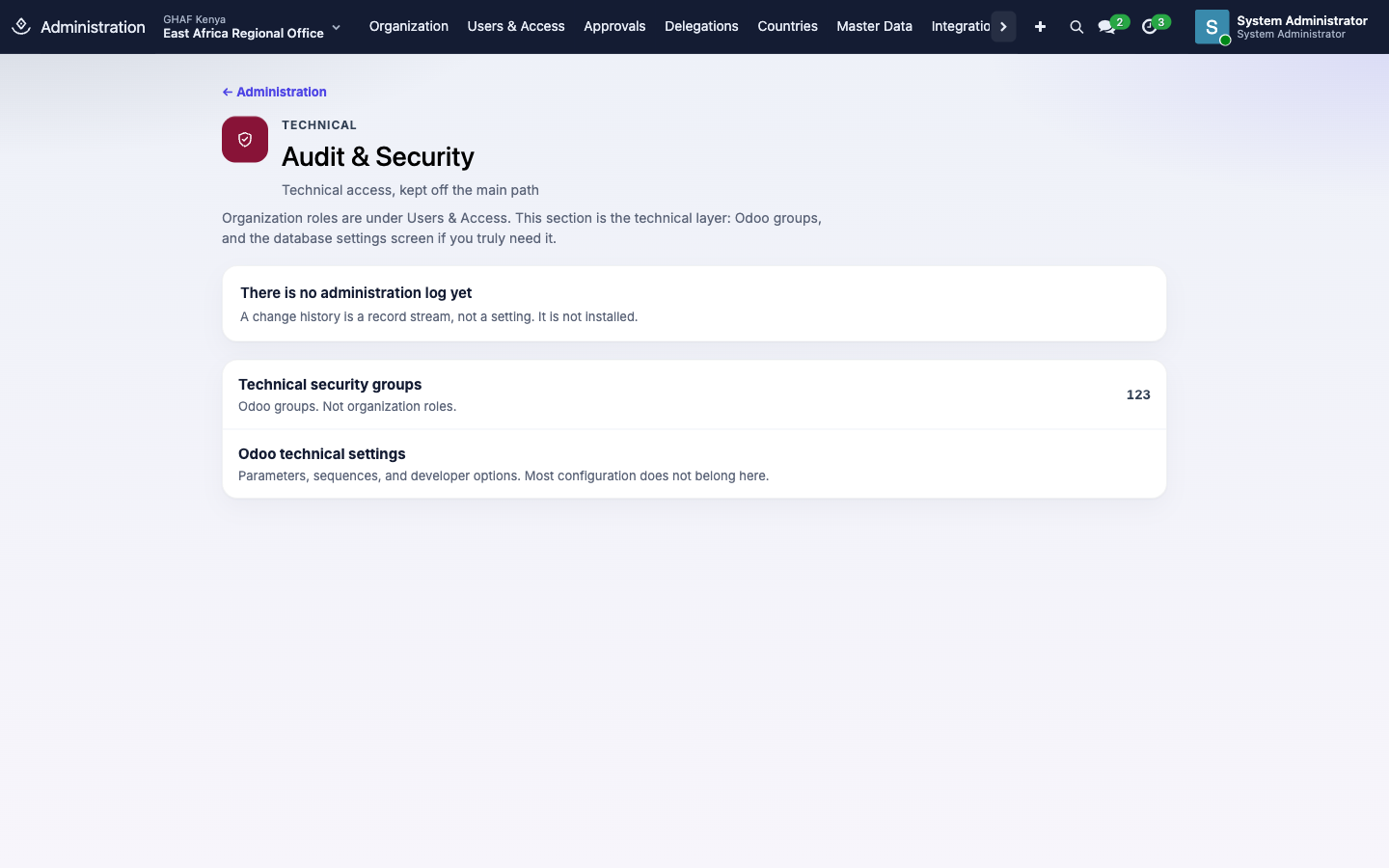
This is the technical layer. Most administrators rarely need it.
- Technical security groups: Odoo's raw groups. Use Access Rights on the user instead. Organisation roles are under Users & Access.
- Odoo technical settings: parameters, sequences and developer options.
- There's no administration change log yet. Approval decisions have their own permanent audit trail.
Troubleshooting
\"Administration is limited to system administrators.\"
Only users whose Role (top of the Access Rights tab) is Administrator can open Administration. Others can reach approval and organisation setup from the Approvals and Organization apps if they have administrator access there.
A new user can't see an app on the launcher.
Their level for that app is No. Open the user, go to Access Rights and set a level for the app.
A new user sees no offices, or \"Select a unit\" at the top of the screen.
They have no user scope. Add one on their Organization tab, or under Users & Access › User Scopes.
\"The current unit must be inside the user's visible structure.\"
The user's Current Unit is outside their scopes. Add a scope that covers it, or clear Current Unit. The user can then choose their unit from the operating context menu.
The invitation email didn't arrive.
Invitations go through the outgoing mail server. Check that one is set up and working, and check the person's spam folder. Click Send an Invitation Email again to resend it.
I can't appoint a new user to a role.
Role assignments need an employee record. Open the user and click Create employee, then try again.