Grants
Staff Admin
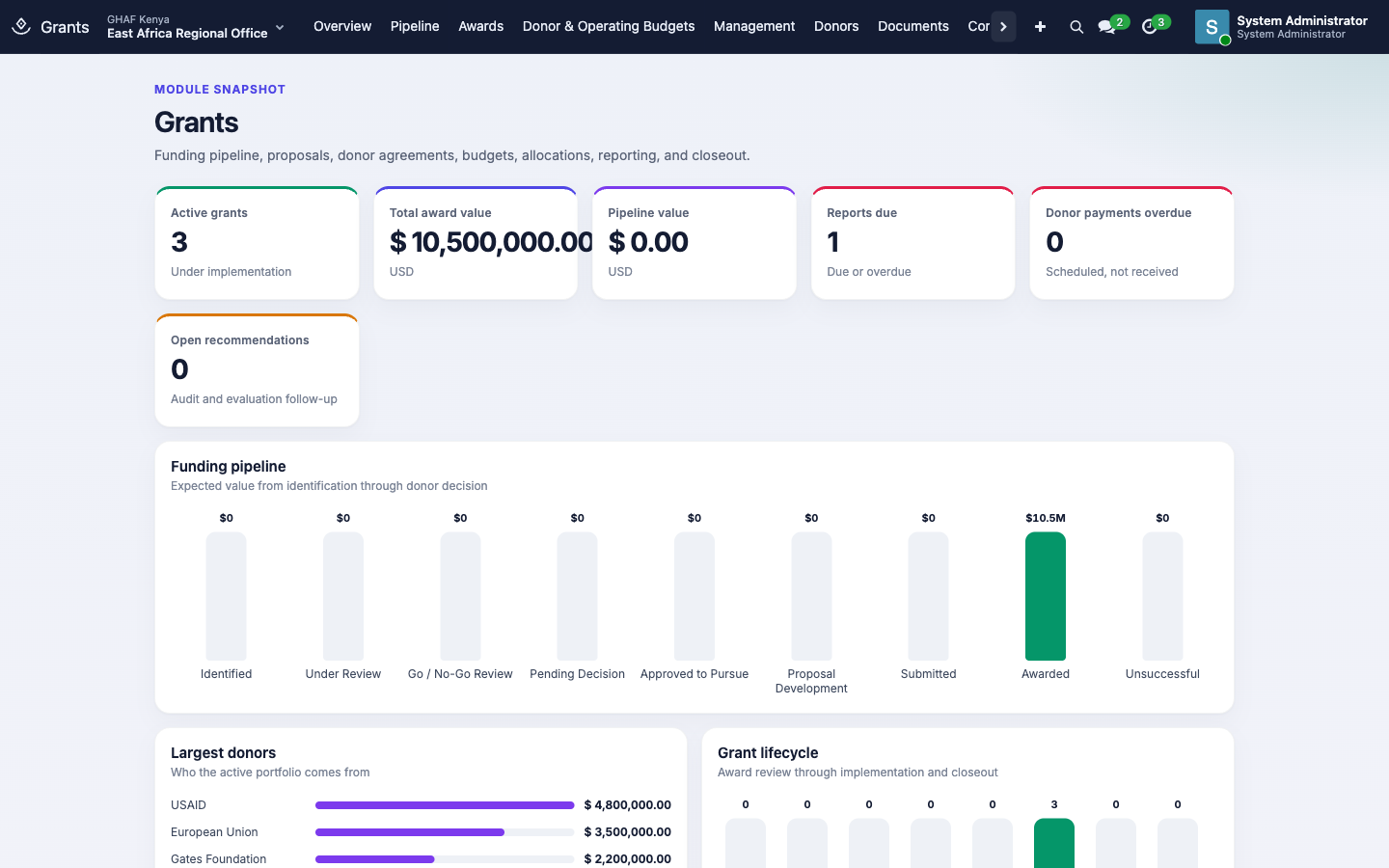
Grants follows donor funding from the first sign of an opportunity to the closed award. It holds the pipeline (opportunities, Go / No-Go decisions and proposals), the awards themselves (agreements, funds, donor budgets, amendments and payments), and what's owed to donors (deliverables, reports and audits).
Module: npo_funding
In plain words
- Grants follows donor money from start to finish: spotting an opportunity, deciding whether to go for it, writing the proposal, and managing the award once it's won.
- Key decisions need an approval: Go / No-Go, proposal sign-off and award acceptance.
- An award can only start spending once its paperwork is complete and adds up: a signed agreement, funds that total the award, and an approved donor budget of the same amount.
Before you start
- The donor exists under Donors › Donor Records.
- The office has an active Grant approval policy in the donor's currency, usually USD. See the approval checklist.
- Whoever activates awards and approves donor budgets has Funding › Manager access.
Who uses it
| Role | What they do | Access level |
|---|---|---|
| Viewer | Follows the pipeline and awards. | Funding › Viewer |
| Grants officer | Records opportunities, writes proposals, prepares agreements, budgets and deliverables. | Funding › Officer |
| Grants or funding manager | Approves donor budgets and activates awards. | Funding › Manager |
Each level includes the one above it. Decisions such as Go / No-Go, proposal sign-off and award acceptance also go through Approvals as Grant requests.
| Menu | What's there |
|---|---|
| Pipeline | Opportunities, Go / No-Go, Proposals |
| Awards | Grants & Awards, Agreements, Amendments, Donor Payment Schedule, E-Signatures |
| Donor & Operating Budgets | Donor Budgets, Funding Allocations, Restricted Funds |
| Management | Deliverables, Reporting Calendar, Audits & Evaluations, Recommendation Tracker |
| Donors | Donor Records: each donor's profile, contacts, risk and due diligence. Donor Matrix: the grant portfolio by donor (added by Finance) |
| Configuration | Cost Categories, mapped to accounts (managers) |
From opportunity to award
flowchart LR
    O[Opportunity] -->|Start Review| R[Under Review]
    R -->|Go / No-Go Review| G[Go / No-Go Review]
    G -->|Submit Decision| A{Approvals}
    A -->|Go approved| P[Approved to Pursue]
    A -->|No-Go approved| U[Unsuccessful]
    P -->|Create Proposal| PR[Proposal]
    PR -->|Submit to Donor| S[Submitted]
    S -->|Create Award| AW[Award]
1. Record the opportunity and decide Go / No-Go
- Open Pipeline › Opportunities and click New.
- Fill in:
- Name.
- Reference: the donor's call or RFA number. Required.
- Donor and Organization Unit: the office that would lead it.
- Currency: usually the donor's, e.g. USD.
- Expected Amount.
- Submission Deadline: required.
Add scope (countries, sectors, eligibility) on the Scope tab. 3. Save, then click Start Review. 4. Click Go / No-Go Review. On the Go / No-Go tab, score Strategic Alignment, Technical Capacity, Financial Viability and Compliance Risk. Amana works out the Overall Score. Then choose a Recommendation (Go, No-Go or Conditional) and explain it in the notes. 5. Click Submit Decision. The decision goes to Approvals.
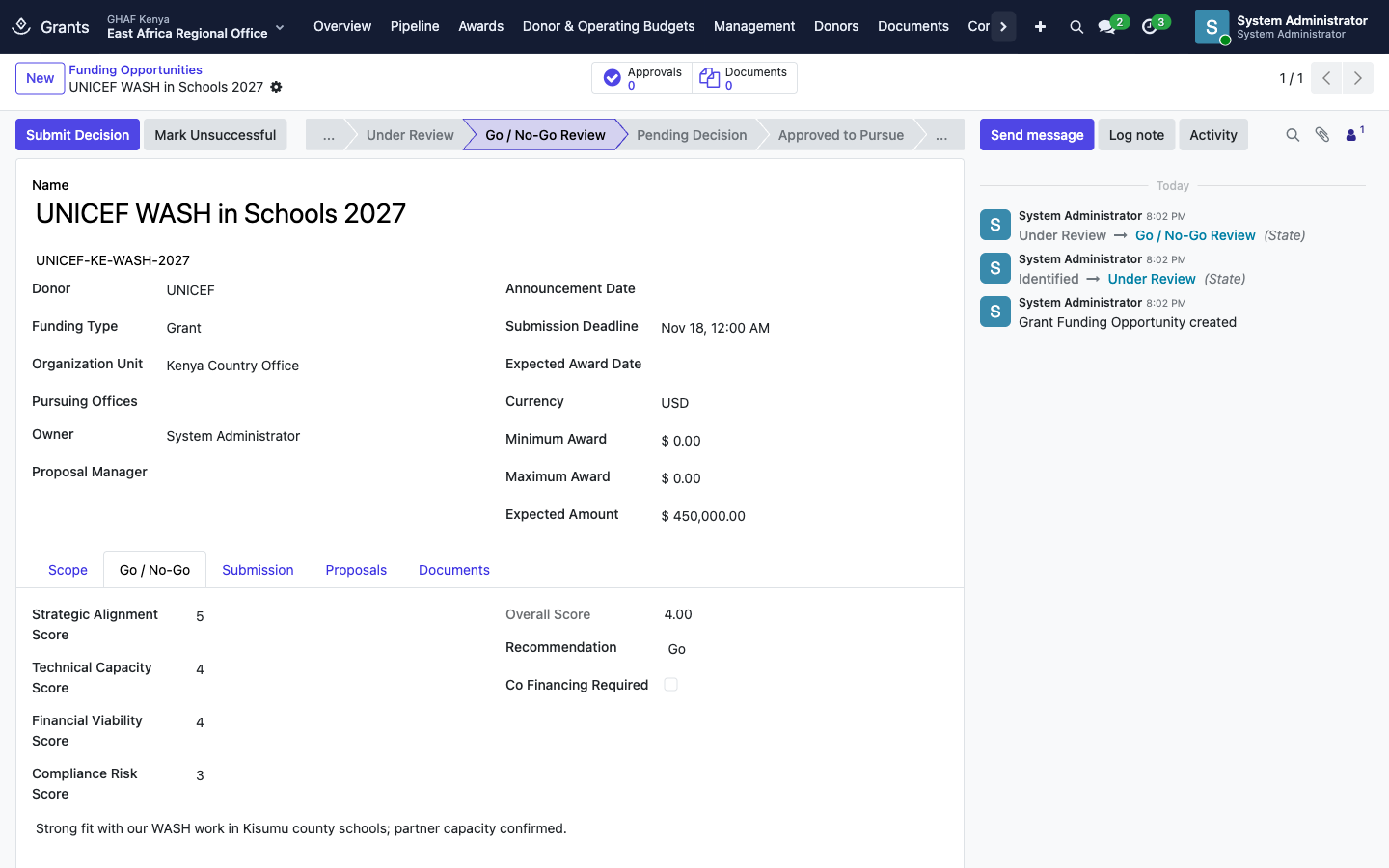
- If the approver agrees with Go or Conditional, the opportunity becomes Approved to Pursue.
- If they agree with No-Go, it's closed as Unsuccessful.
- If they return or reject the request, it goes back for another look.
2. Write and submit the proposal
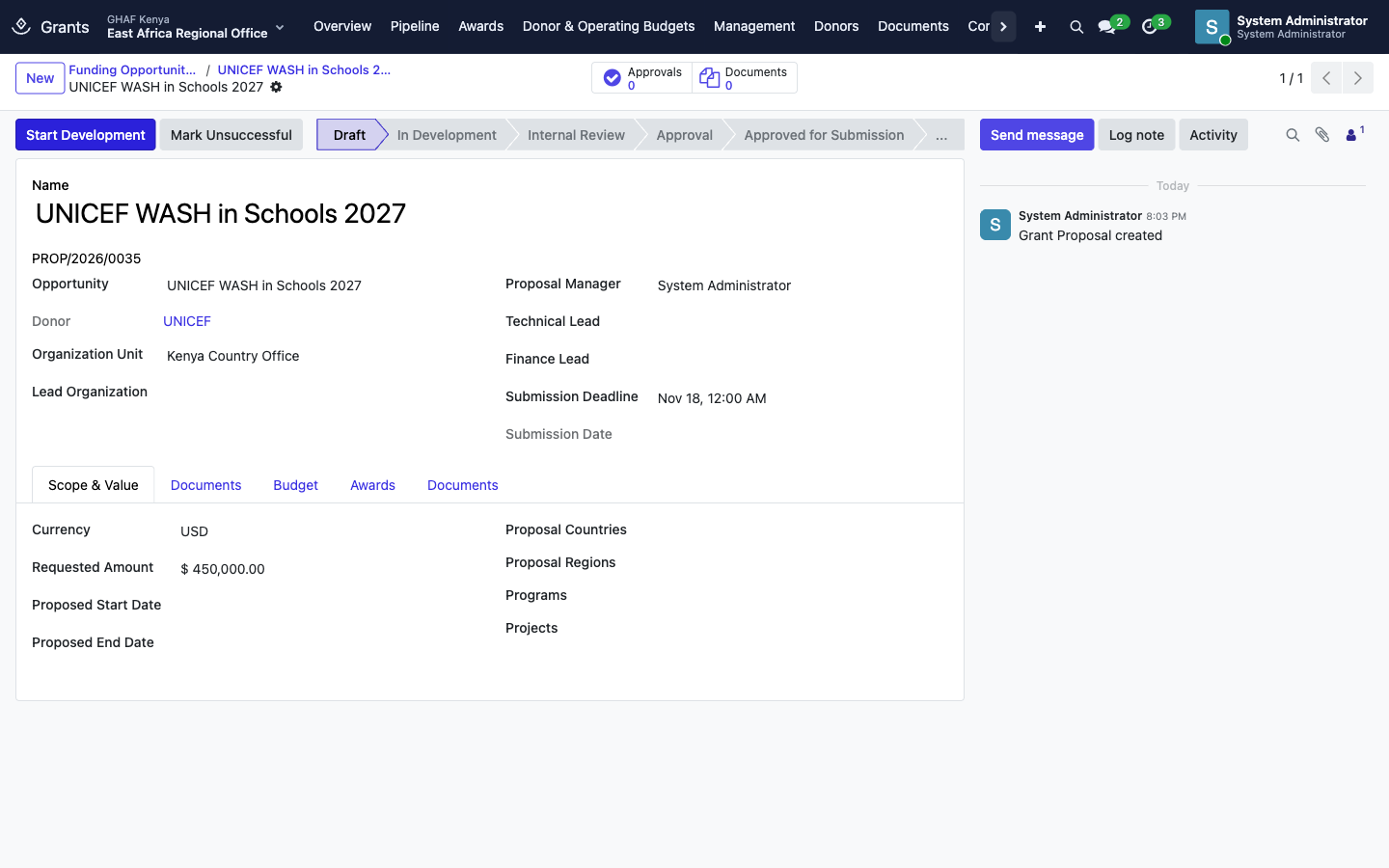
- On the approved opportunity, click Create Proposal. The proposal gets a number such as
PROP/2026/0035and copies the donor, office, currency and amount. - Click Start Development, and build the proposal: documents, budget, and the programs and projects it supports.
- Click Internal Review, then Submit for Approval to get internal sign-off through Approvals.
- Once it's approved, set the Proposed Start Date, Proposed End Date and Requested Amount, and click Submit to Donor.
- Track the donor's answer:
- Clarification: the donor asked questions.
- Create Award: the donor said yes.
- Mark Unsuccessful: the donor said no.
Approval policies for grants
Go / No-Go decisions, proposal sign-off and award acceptance are Grant requests in Approvals. Each office needs an active Grant policy in the currency of its grants (usually USD), or Submit fails with No active approval policy matches this request.
Set up and activate an award
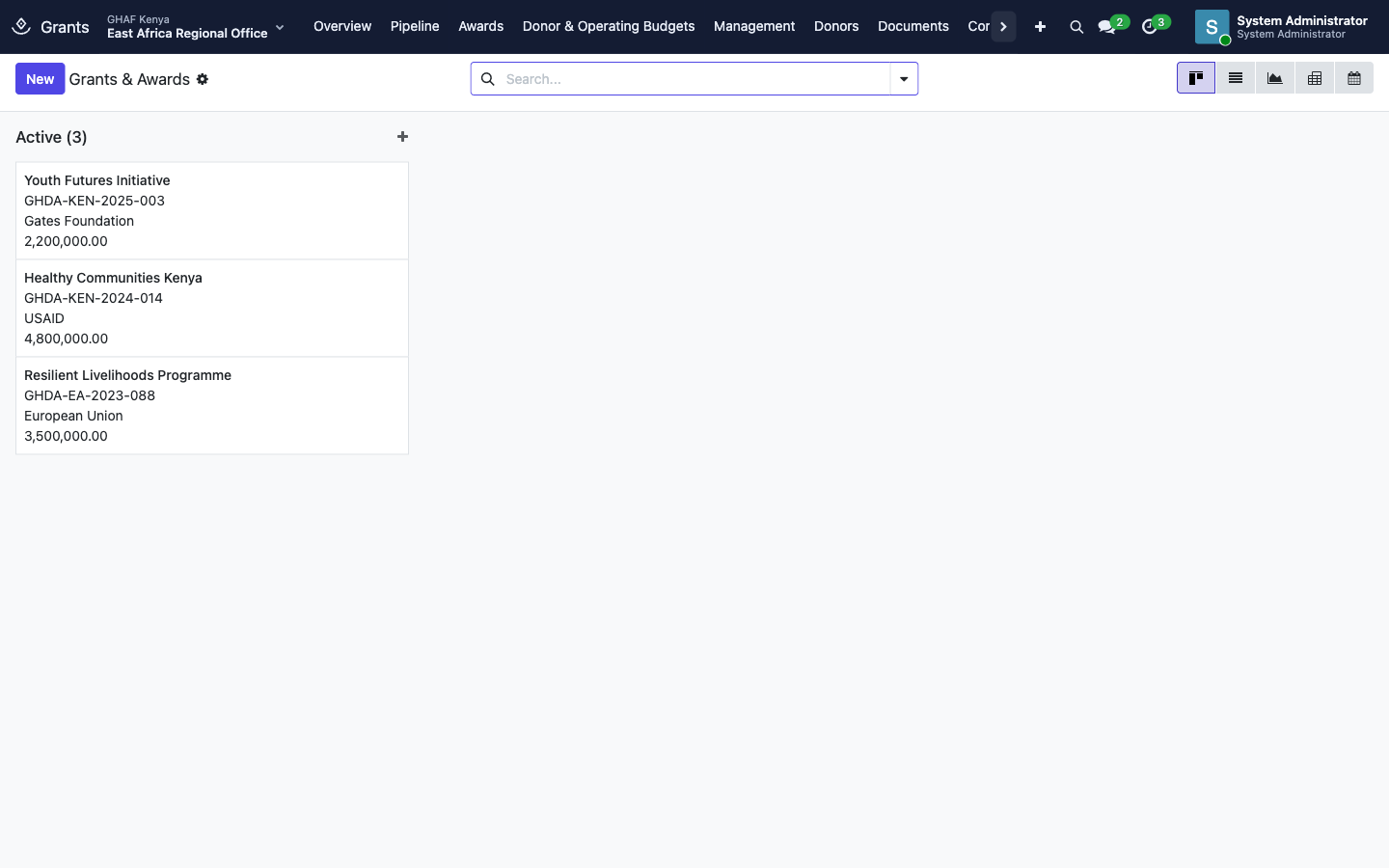
An award goes Draft → Award Review → Contracting → Pending Approval → Approved → Active.
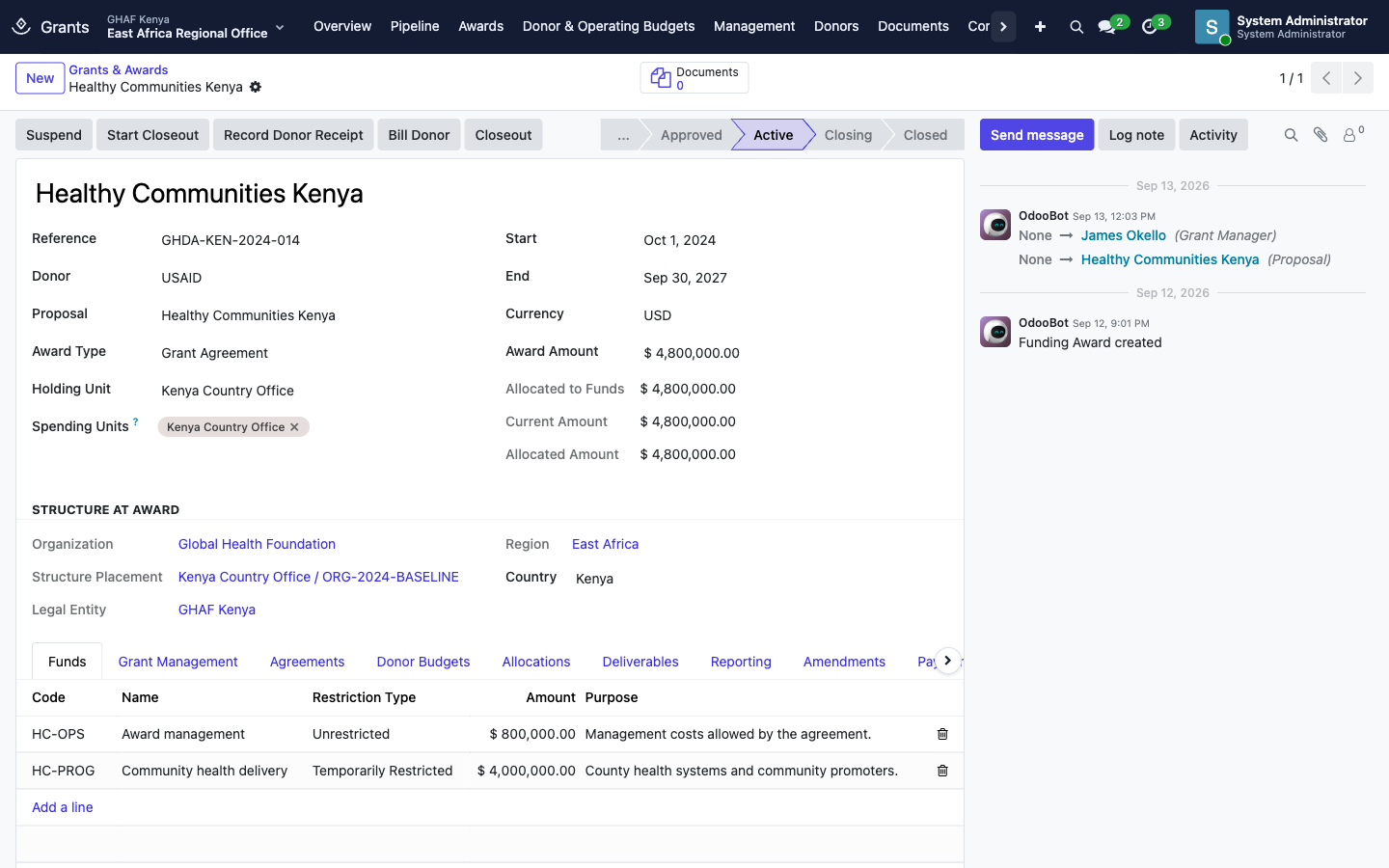
- Start Award Review: check the donor's terms.
- Start Contracting: prepare the agreement.
- On Agreements, add the grant agreement and take it through Start Review, Mark Signed (attach the signed copy first) and Activate. For digital signing, use Request E-Signature.
- Submit Acceptance: the acceptance goes to Approvals. Once approved, the award is Approved.
- Prepare the money side:
- On Funds, split the award into funds, such as an unrestricted management fund and a restricted programme fund. The funds must add up to the award amount.
- On Donor Budgets, enter the budget lines, click Submit Review, and have a grants manager click Approve Budget. The approved budget must equal the award's current amount.
- A funding manager clicks Activate.
Activation checklist
Activate only works when all of these are true:
- The award is Approved, and its acceptance approval is complete.
- Holding Unit, Start and End are set, and the amount is above zero.
- At least one fund exists, and the funds add up to the award amount. Unrestricted money is still a fund.
- A signed grant agreement is Active.
- An approved donor budget equals the current grant amount.
If Spending Units is empty, it defaults to the holding unit.
While the award is running
| Task | Where | Steps |
|---|---|---|
| Change the award (budget, dates, amount) | Awards › Amendments | Internal Review → Submit for Approval → Record Donor Approval (attach the donor's letter) → Apply Amendment |
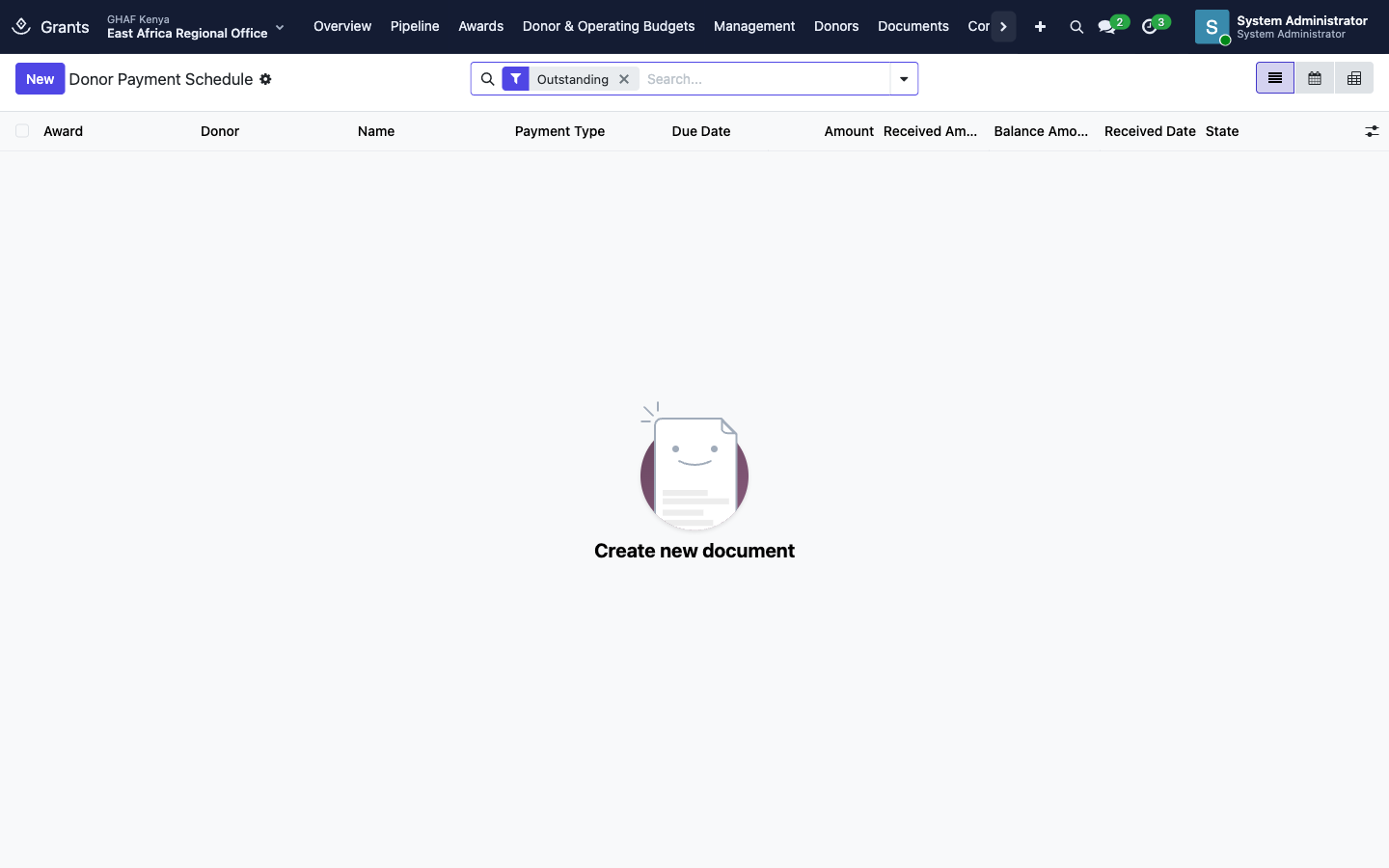
| Track donor payments | Awards › Donor Payment Schedule | Each instalment: Request Payment. It moves through Requested, Partly Received and Received, or Overdue. |
| Bill the donor and record receipts | On the award: Bill Donor, Record Donor Receipt | Added by Finance |
| Pause | On the award: Suspend (a reason is required) / Resume | — |
| Split money across offices | Donor & Operating Budgets › Funding Allocations | — |
Deliverables, reporting and audits
Donor deliverables
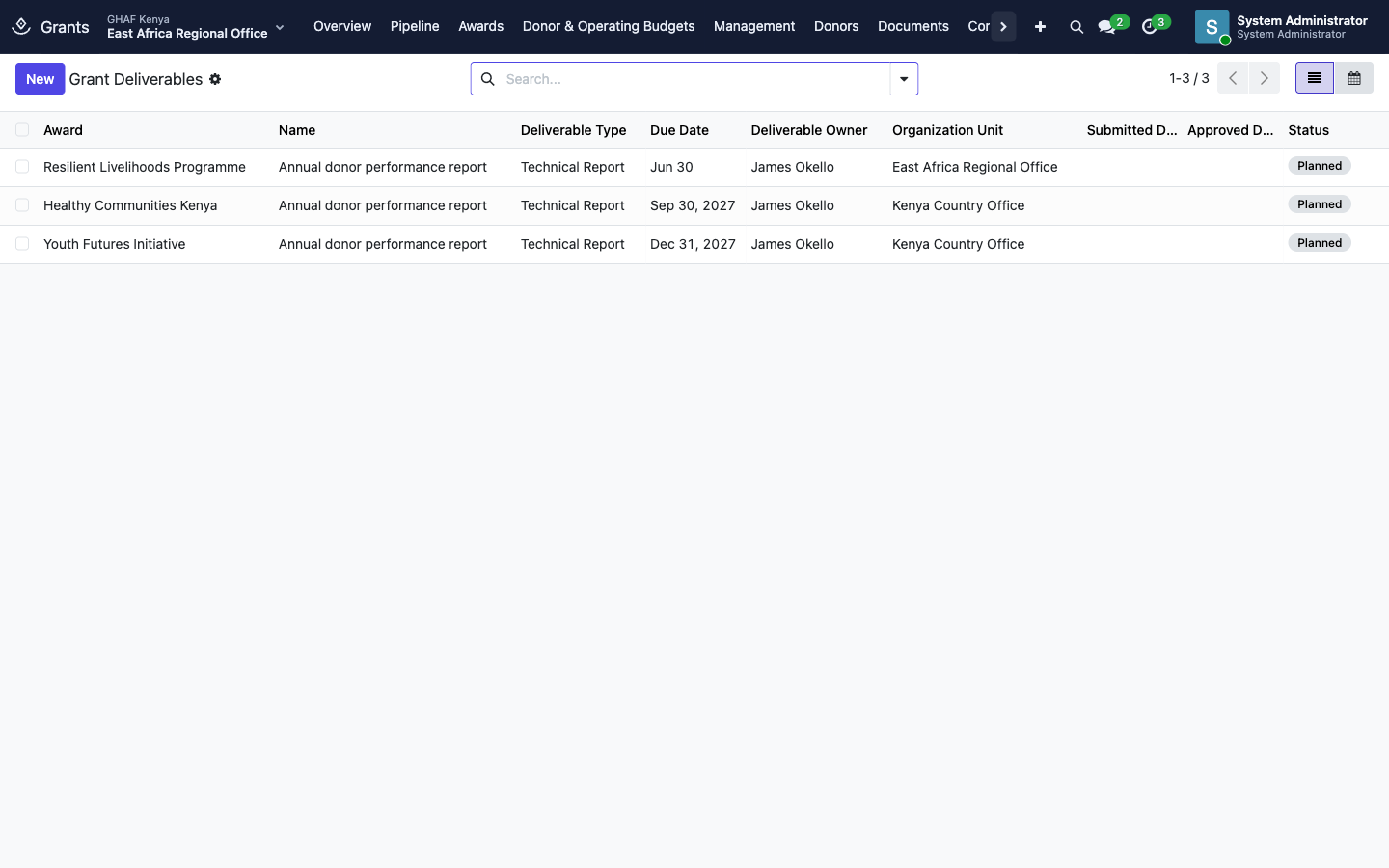
Each award lists what the donor expects, such as annual performance or financial reports, with due dates. Management › Reporting Calendar shows them by date.
- Start Preparation when work on it begins.
- Internal Review.
- Submit to Donor: attach the deliverable on its Documents tab first.
- Record the donor's response: Mark Accepted or Mark Rejected.
Statuses move through Planned, Due Soon, In Preparation, Under Review, Submitted, Accepted or Rejected, and Overdue.
Audits and recommendations
Management › Audits & Evaluations follows each audit: Start Fieldwork, Draft Report Received, Final Report Received, Close. Each finding goes to the Recommendation Tracker, where it moves through Start Action, Mark Implemented and Verify & Close, or Not Accepted.
Close the award
- Click Start Closeout. It works from active or suspended awards.
- Finish the closeout: final reports, final donor receipts, and the closeout dates that retention depends on.
- Click Close. Every deliverable must be Accepted first.
Donors
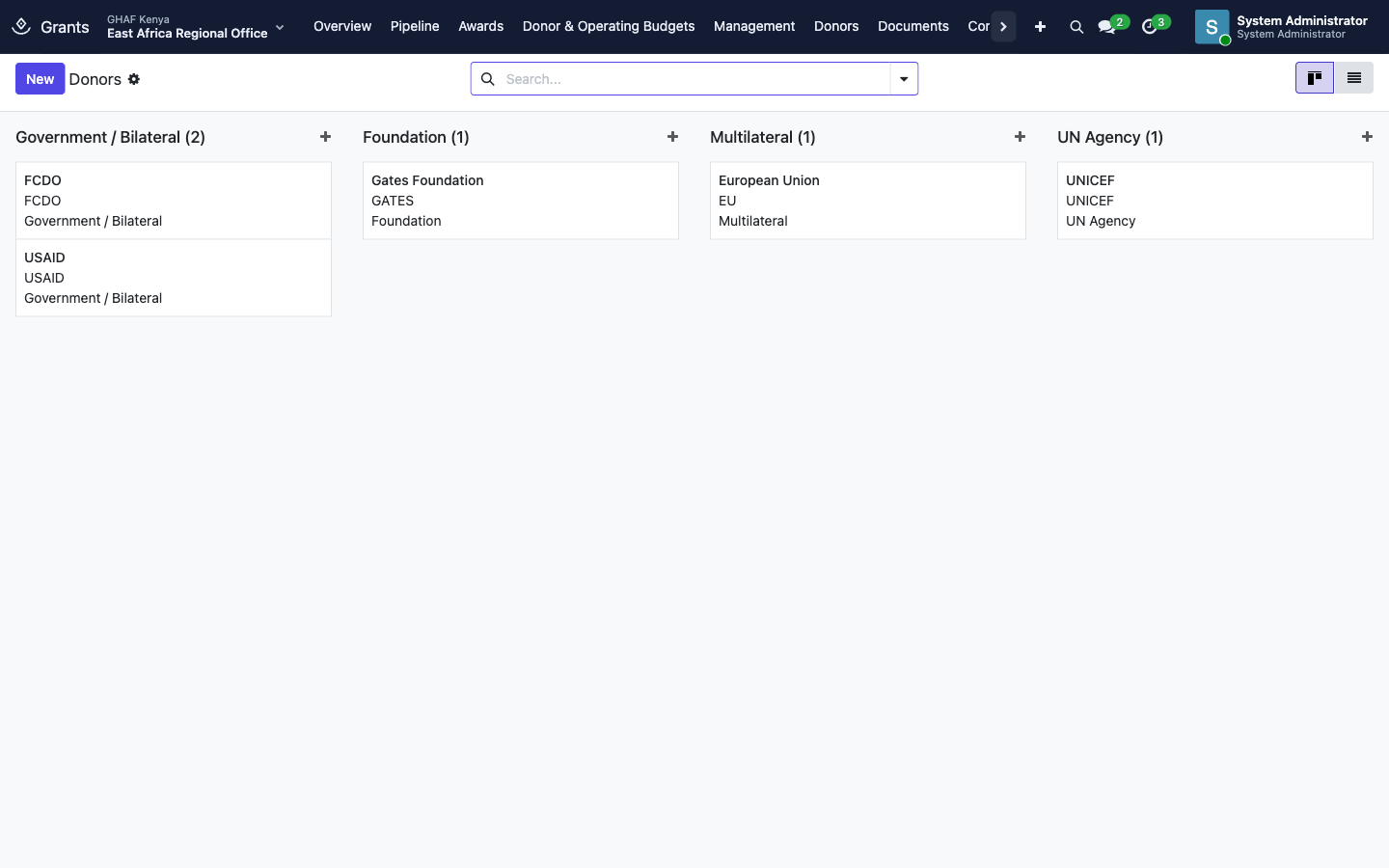
Donors › Donor Records holds each institutional donor: profile, contacts, risk rating, due diligence and the default document retention policy (see Documents).
Donors › Donor Matrix shows the grant portfolio by donor: awards, amounts and status side by side. The same report is in Accounting's reports as Grant Portfolio & Donor Matrix.
Troubleshooting
\"Complete the review and recommendation before submission.\"
Click Go / No-Go Review first, then choose a Recommendation on the Go / No-Go tab.
\"The Go / No-Go approval must be completed before creating a proposal.\"
The decision is still waiting in Approvals, or wasn't approved. Check the Approvals button on the opportunity.
\"Set the proposed dates and requested amount before donor submission.\"
Fill in Proposed Start Date, Proposed End Date and Requested Amount on the proposal.
\"Add the grant agreement before submitting acceptance.\"
Add the agreement on the award's Agreements tab first.
\"Attach the signed agreement before marking it signed.\"
Upload the signed copy to the agreement's documents, then click Mark Signed.
Activate refuses: funds, budget or agreement.
Work through the activation checklist. The message names what's missing, for example Funds on … must add up to the award amount or An approved donor budget on … must equal the current grant amount.
\"The approved donor budget must equal the current grant amount.\"
Correct the budget lines so the total equals the award amount, including applied amendments. Then approve again.
\"All grant deliverables must be accepted before closing the grant.\"
Open the award's Deliverables and record the donor's acceptance for each one.
\"No active approval policy matches this request.\"
There's no Grant policy for this office in this currency. See Approvals.