Payroll
Staff Admin
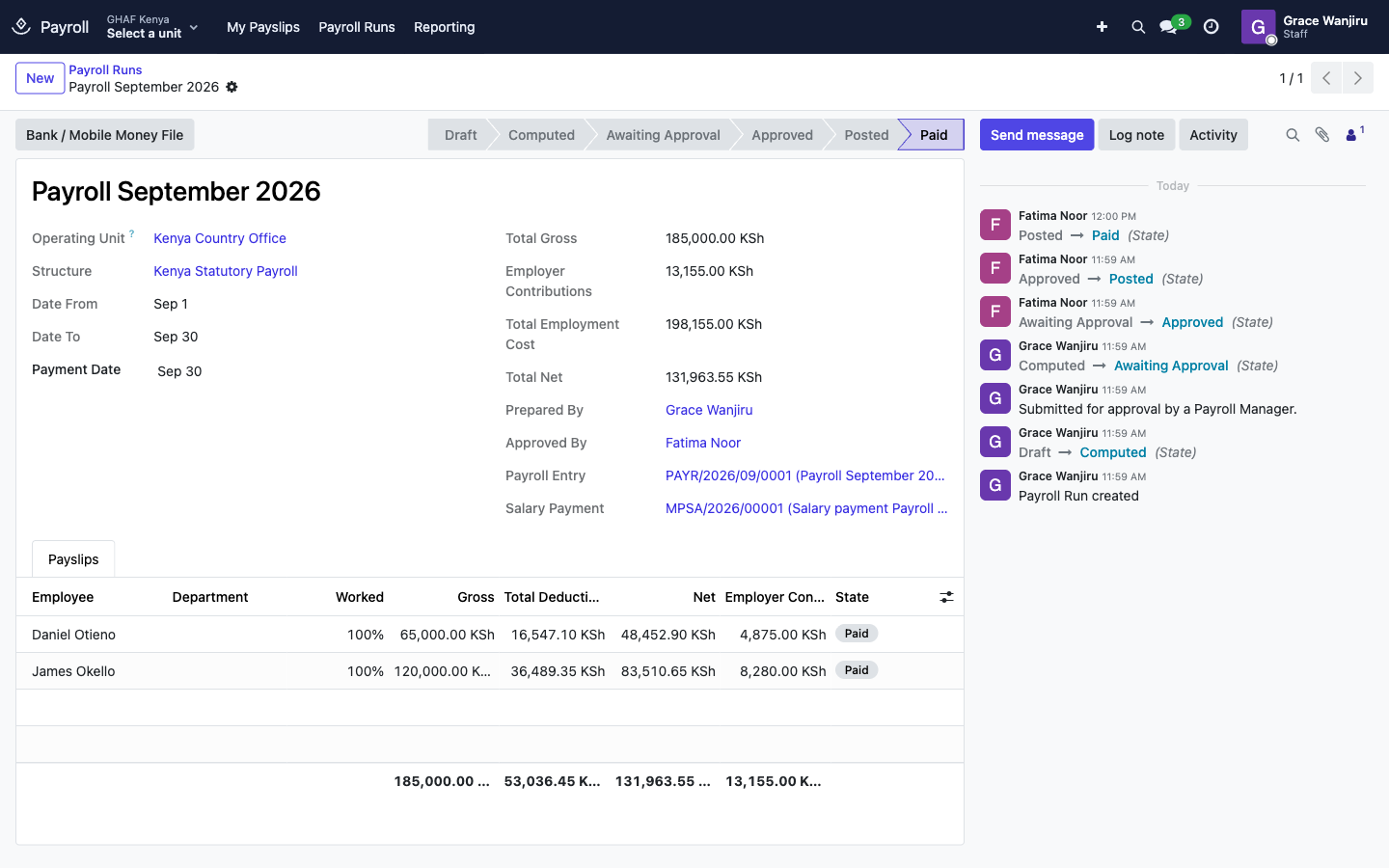
Payroll calculates each month's salaries with the statutory deductions of Kenya, Uganda and Tanzania, gets the run approved, posts it to the books with each salary charged to the grants the person worked on, pays net salaries by bank or mobile money, and pays what's owed to the tax authority and statutory funds.
Module: npo_payroll (with npo_payroll_ke, npo_payroll_ug, npo_payroll_tz)
In plain words
- A payroll run covers one legal entity for one period, usually a month. It makes a payslip for every employee with a running contract in that period.
- A salary structure holds the country's rules in order: basic salary, allowances, gross, statutory deductions such as NSSF, SHIF, Housing Levy and PAYE, employer contributions, and net pay. The rates are data, so they're updated when the law changes, without new software.
- Someone prepares the run and someone else approves it.
- Posting creates one journal entry. Salaries and employer contributions are charged to grants and cost centres by the person's approved time. Each deduction is owed to its authority, and net pay to each employee.
- Pay Salaries records the bank or mobile money transfer. Remit Statutory Deductions records the payment to KRA, NSSF and the others.
Before you start
- Each employee to be paid has a running contract for the period. The run reads the wage and dates the contract writes onto the employee record. Without one, nobody is paid.
- The salary structure of each country is mapped to that legal entity's chart of accounts: payroll journal, salaries expense, employer contributions expense, net salaries payable, and a Liability Account on every deduction and contribution rule (Configuration › Salary Structures). See Map the structure to your accounts.
- Each employee's Payroll tab has their Salary Payment method (Bank transfer, Mobile money or Cash) and their bank account or Mobile Money Number.
- Approved timesheets for the month are in, so salaries are charged to the right grants.
- Optional: a Payroll approval policy for each office (see the approval checklist). Without one, a Payroll Manager approves the run on its form.
Who uses it
| Role | What they do | Access level |
|---|---|---|
| Staff member | Sees their own payslips in My Payslips. | Any user |
| Payroll officer | Prepares runs, keeps employees' payroll details, runs reports. | Payroll › Payroll Officer |
| Payroll manager | Approves, posts and pays runs, remits statutory deductions, maintains salary structures. | Payroll › Payroll Manager |
| Menu | What's there |
|---|---|
| My Payslips | Your own payslips |
| Payroll Runs | Every run and its payslips |
| Remit Statutory Deductions | Pay what's owed to an authority or fund |
| Reporting | Payroll Reports (register, statutory summary, labour cost) and Labour Cost by Award / Project |
| Configuration | Salary Structures |
1. Prepare the month's payroll
A run's life:
Draft → Computed → Awaiting Approval → Approved → Posted → Paid (or Cancelled before posting)
- Go to Payroll Runs and click New.
- Give it a name, such as Payroll September 2026, and choose the Operating Unit. The unit decides which approval policy applies.
- Check the Structure (the legal entity's country structure), the period (Date From, Date To) and the Payment Date.
- Save, then click Compute Payslips. Amana adds a payslip for everyone whose contract covers part of the period and calculates it. Someone who joined or left mid-month is paid for their share of the period. Unpaid leave reduces it too.
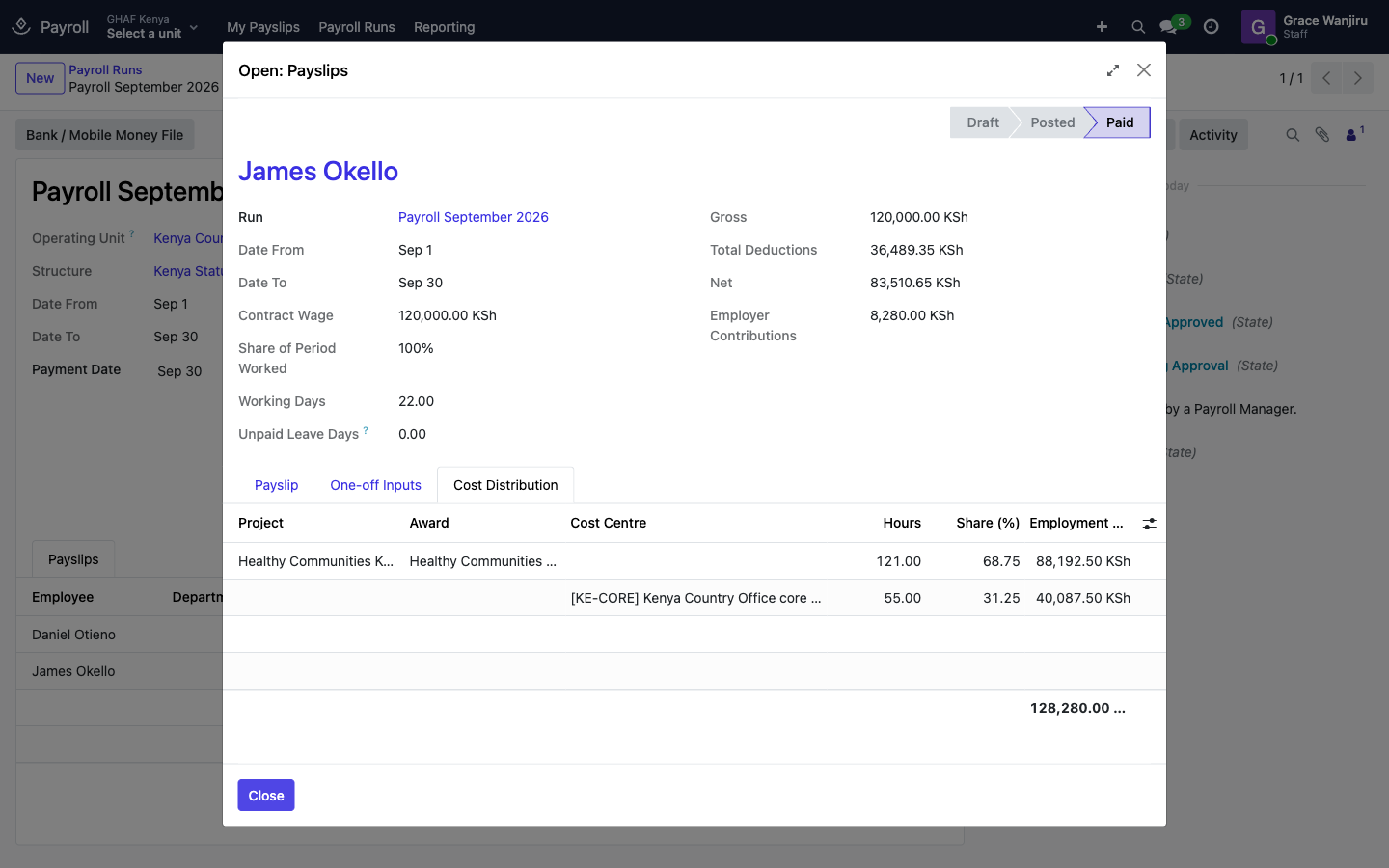
- Open a payslip to check it:
- Payslip: every rule's amount, from basic salary to net pay.
- One-off Inputs: amounts for this month only, such as overtime. Enter them, then compute again.
- Cost Distribution: how the salary is charged, by hours, to each project, award and cost centre.
- Click Compute Payslips again after any change. When it's right, click Submit for Approval.
Allowances and deductions every month
A regular house allowance or loan repayment goes on the employee's Payroll tab under Recurring Allowances and Deductions. The Code must match a rule's input code (for example HOUSE or LOAN), with dates if it's temporary. It then appears on every payslip in those dates.
2. Approve, post and pay
- Approve: through Approvals if the office has a Payroll policy, otherwise with Approve on the run. Only a Payroll Manager can approve, and never the person who prepared the run.
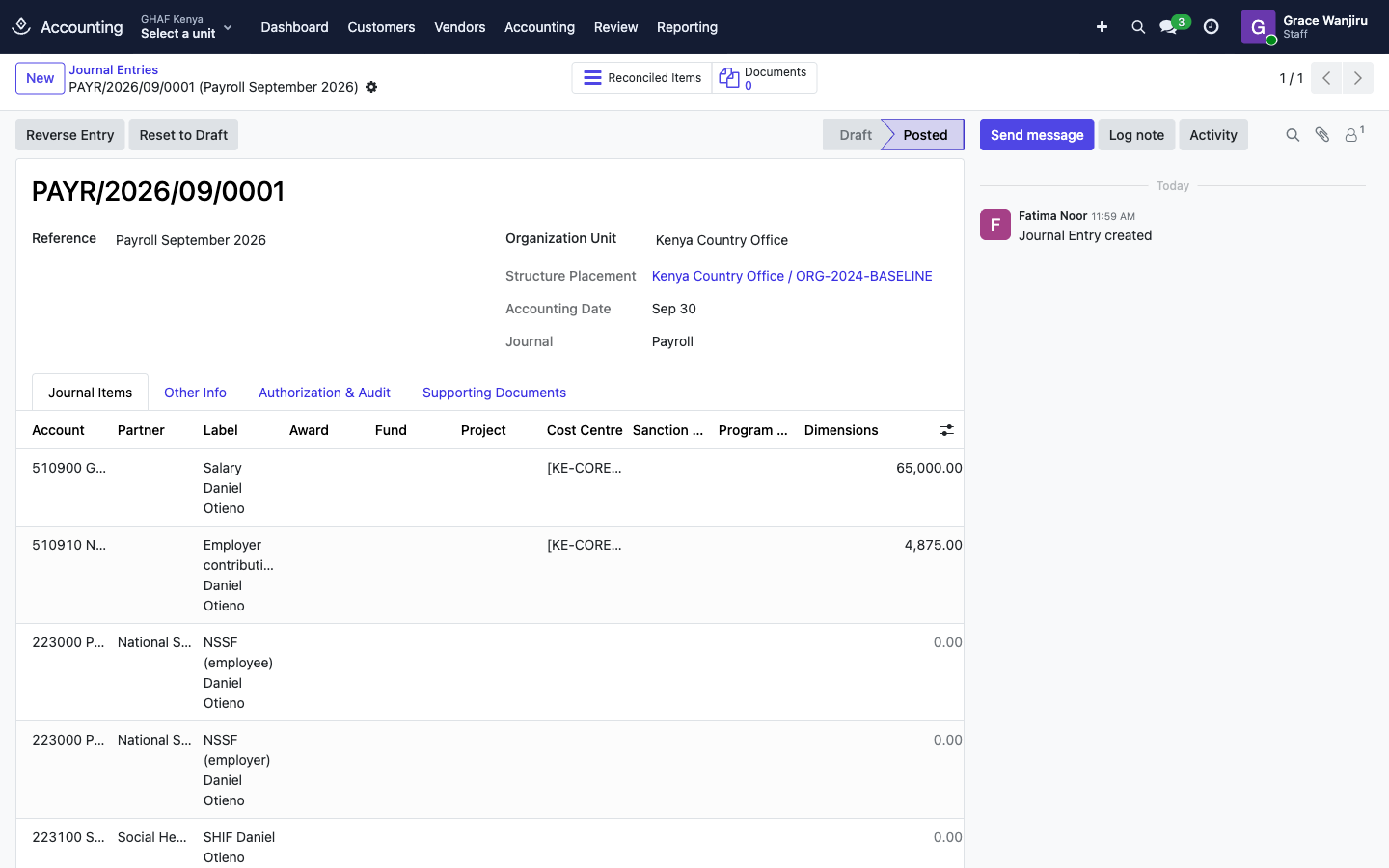
- Post to Ledger creates the payroll entry on the payroll journal, dated the period end:
- Debit salaries and employer contributions, split by each payslip's cost distribution (award, fund, project, cost centre).
- Credit each deduction and contribution to its liability account, against its authority (KRA, NSSF, SHA…).
- Credit each employee's net pay to net salaries payable.
- Bank / Mobile Money File downloads a CSV for the bulk transfer: employee, method, bank account or mobile number, amount, currency and reference.
- Pay Salaries: choose the bank, mobile money or cash journal and the date. Amana posts the payment and matches it against each employee's net pay. The run becomes Paid.
A posted run can't be cancelled. To correct one, reverse its payroll entry in Finance.
3. Remit statutory deductions
- Open Remit Statutory Deductions.
- Choose the Deduction / Contribution. Only your legal entity's rules are listed. Amount Due shows what's still owed on that rule's liability account to its authority, across all posted runs.
- Choose the bank Journal, the Date, and the authority's payment Reference (for example the KRA PRN).
- Click Remit.
Rules that share an account are paid together
If two rules use the same liability account and authority (for example NSSF employee and employer shares), remitting one of them pays both, and the other then shows nothing due.
4. Payslips for staff
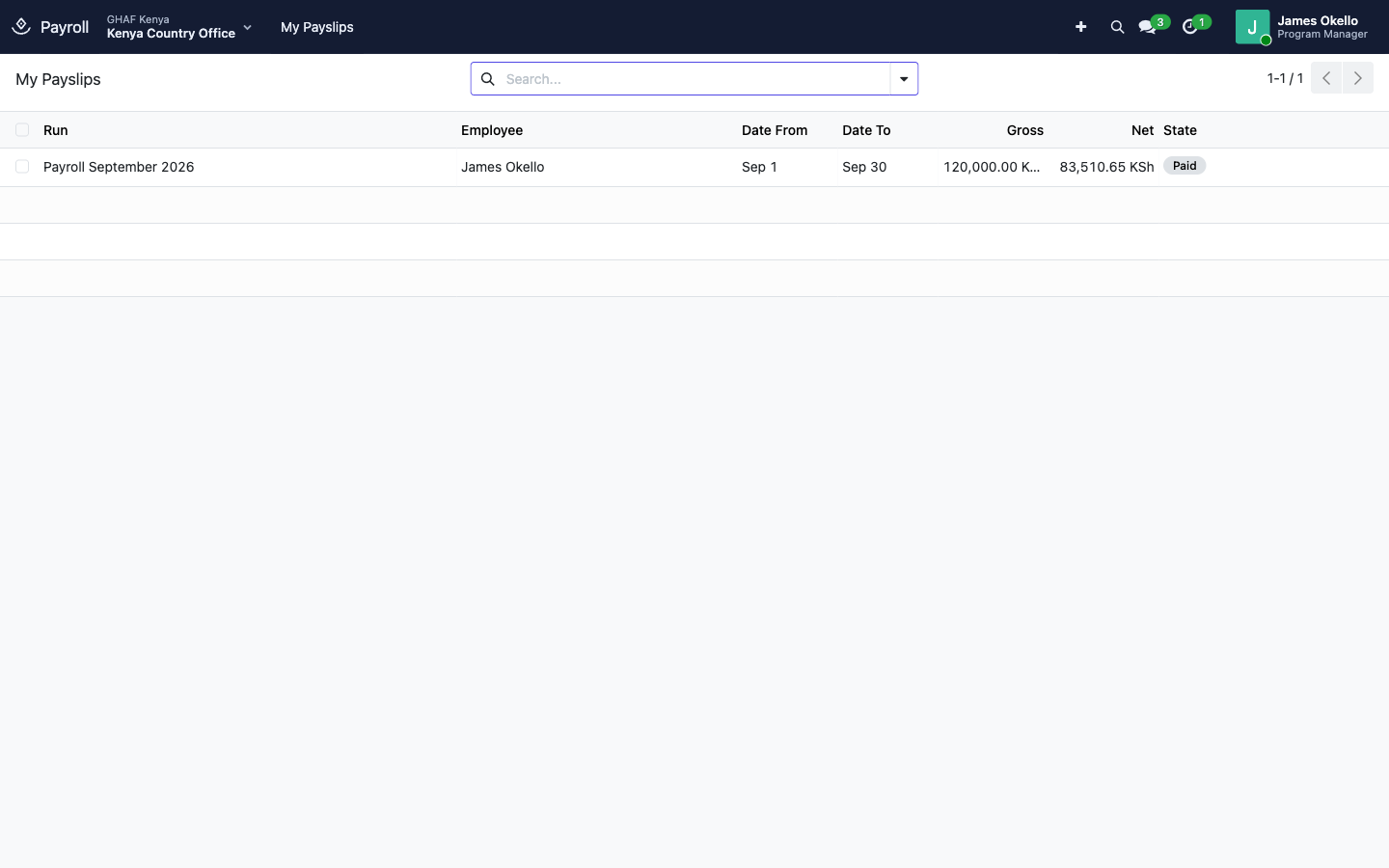
Staff see their payslips in My Payslips, and can open each one for the full breakdown.
Reports
- Reporting › Payroll Reports: choose Payroll register, Statutory remittance summary or Labour cost by award / project (grouped by award, project or cost centre), then download it as Excel or PDF.
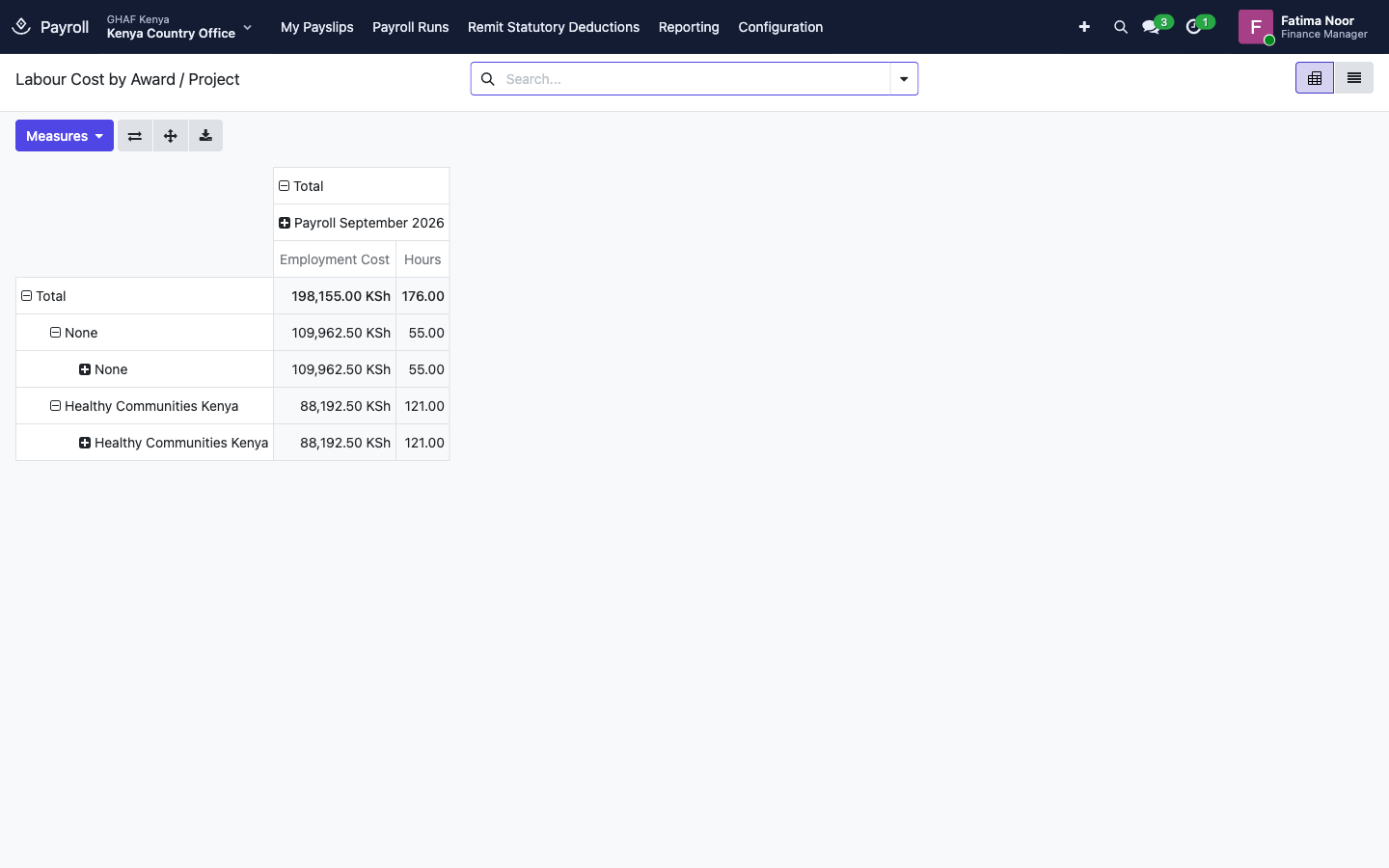
- Reporting › Labour Cost by Award / Project: employment cost and hours by grant and project, run by run. Cost charged to cost centres shows under None.
Map the structure to your accounts
Each country's structure comes with its statutory rules and notes on the rates and their legal sources. What it needs from you is where to post, in each legal entity's own chart of accounts.
Open Configuration › Salary Structures, choose the structure, and with the right legal entity selected at the top, set:
- Payroll Journal, Salaries Expense, Employer Contributions Expense and Net Salaries Payable;
- on Salary Rules, a Liability Account for every employee deduction and employer contribution, and Remitted To (the authority or fund).
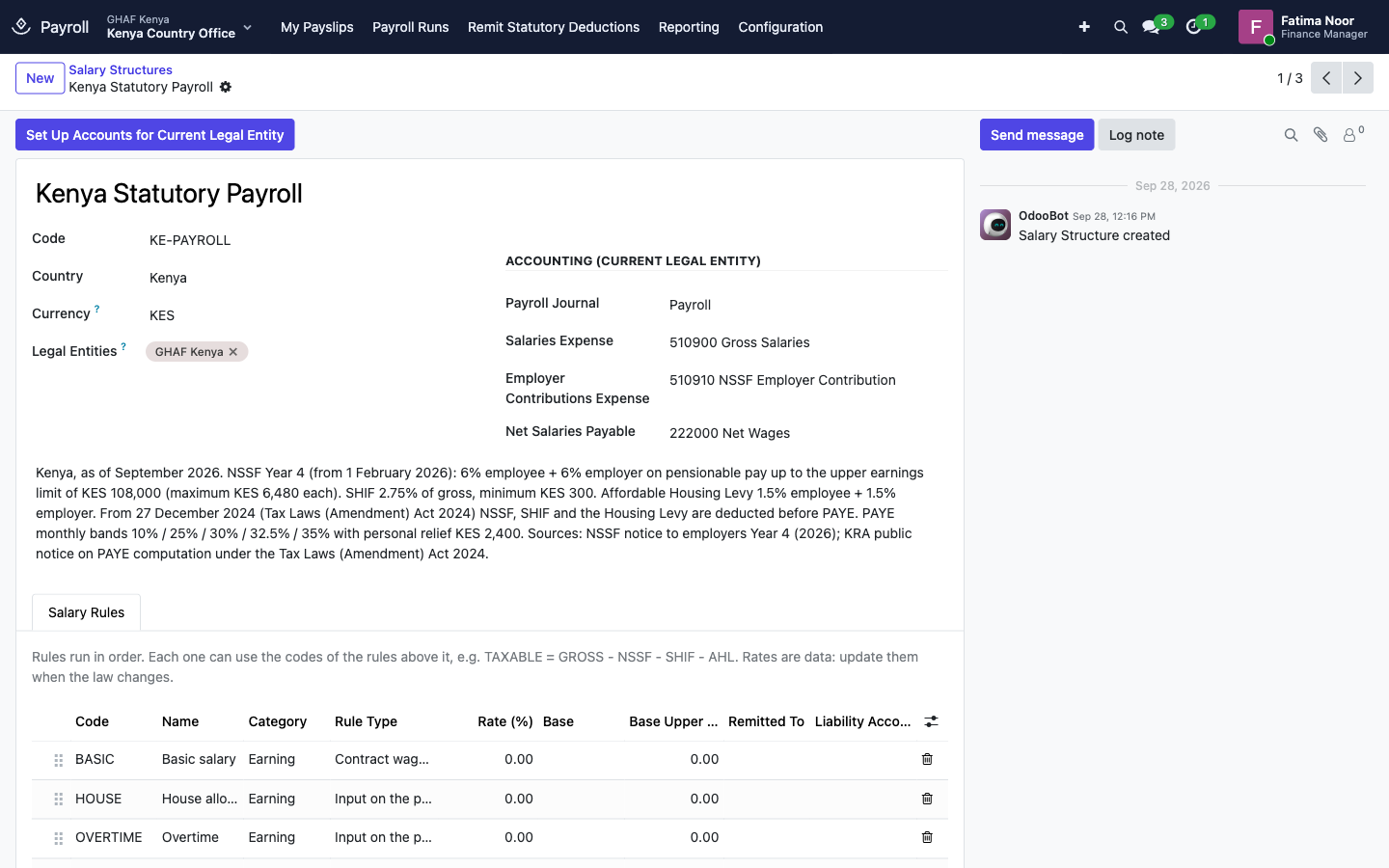
For GHAF Kenya, the chart already has these accounts:
| Structure setting or rule | GHAF Kenya account |
|---|---|
| Salaries Expense | 510900 Gross Salaries |
| Employer Contributions Expense | 510910 NSSF Employer Contribution |
| Net Salaries Payable | 222000 Net Wages |
| PAYE | 221000 P.A.Y.E. & NI |
| NSSF (employee), NSSF (employer) | 223000 Pension Fund |
| SHIF | 223100 SHIF (Formerly NHIF) |
| Housing Levy (employee, employer) | a new Affordable Housing Levy payable account (none exists yet) |
| Staff loan repayment | 110002 Staff Advances |
Set Up Accounts creates its own accounts
Set Up Accounts for Current Legal Entity fills any empty setting with a new Payroll journal (PAYR) and new accounts 610100, 610200, 230100 and 2302xx. It's a quick start for an empty chart. Where your chart already has salary and payroll liability accounts, map them by hand as above instead, so payroll posts where finance expects it.
Troubleshooting
Compute Payslips makes no payslips, or misses someone
Only employees with a running contract covering the period, in this legal entity and on this structure, are paid. Check the person's contract in Employees. An employee can use a different structure if one is set on their Payroll tab.
\"Set up the payroll accounts first (Salary Structure > Set Up Accounts). Missing: …\"
The structure has no account for the listed items in this legal entity. Map them under Configuration › Salary Structures. See Map the structure to your accounts.
\"… is in KES but … keeps its books in UGX.\"
The structure belongs to another country. Choose the structure of this legal entity's country.
\"… has no approved time in the period, no fixed cost allocation and no default cost centre.\"
Payroll doesn't know what to charge this salary to. Approve the person's timesheets, or give them a contract funding split, a fixed cost allocation or a default cost centre. See Timesheets.
\"The person who prepared the payroll cannot approve it.\"
Another Payroll Manager approves it.
\"This payroll follows an approval policy. Decide it from the approval request.\"
The approver decides it in Approvals. Approval Request on the run opens it.
\"Nothing is owed for ….\"
Everything on that rule's account has already been paid, possibly together with another rule that shares the account.
A travel advance was deducted from my salary
Finance can recover an unspent travel advance through payroll (Recover via Payroll on the settlement in Travel). It appears on your payslip as Travel advance recovery.